Excalidraw-Obsidian File Structure: Breaking change in 2.2.0
Based on Zsolt's Visual Personal Knowledge Management's video on YouTube. If you like this content, support the original creators by watching, liking and subscribing to their content.
Excalidraw-Obsidian 2.2.0 improves file structure for hybrid notes but breaks backwards compatibility, so plugin updates must happen on every device.
Briefing
Excalidraw-Obsidian’s 2.2.0 update changes the plugin’s file structure in ways that break backwards compatibility—especially for “hybrid notes” that mix a drawing on one side and text on the other. The practical takeaway is straightforward: update the plugin on every device to avoid surprises, and be aware that Excalidraw drawings larger than 2 MB won’t open for Obsidian Insider users on 1.6.0 due to Obsidian’s indexing behavior (fixed in 1.6.1).
Beyond compatibility, understanding the file structure is positioned as a control lever for data portability, link behavior, and sync reliability. The plugin supports two formats: Excalidraw files and Markdown (MD) files. Excalidraw file support mainly matters for compatibility with Excalidraw.com—importing an Excalidraw.com download into an Obsidian vault lets the plugin open it, but a conversion prompt recommends converting the imported file to Markdown to unlock the plugin’s “fancy” Obsidian-native features.
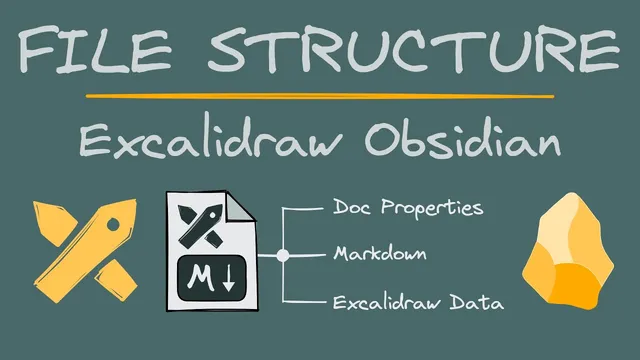
Once converted to Markdown, the note’s content is organized into three major areas: document properties, the “back of the card” notes, and the Excalidraw data sections. Properties can be edited in Source mode, including predefined Excalidraw properties that can override defaults—for example, applying an export theme property to change how the drawing renders when embedded into Markdown. The Excalidraw data portion stores the drawing as JSON, but images are handled separately rather than embedded inside that JSON. For compressed JSON, the plugin can decompress it into a human-readable form (via a command palette action or automation scripts), using the open-source LZ string package; starting with 2.2.0, compression is enabled by default, and converting to decompressed JSON when switching to Markdown view is disabled by default to keep drawing data smaller.
A key behavior involves Markdown comments. By default, the drawing section is commented out so it doesn’t appear in reading mode or exports like PDF/web. Moving the comment boundary can keep drawing data hidden in exports, but it also affects block references: Obsidian won’t index blocks inside comments, so referencing text elements from the drawing into other notes can stop working. Text elements inside the drawing are stored in a dedicated section, and edits made there take precedence over the JSON drawing data—while block reference lines must remain intact.
Finally, embedded files are stored as separate assets in the vault, not inside the Excalidraw JSON. This enables reusing images across drawings and navigating via shared images. The plugin also supports recoloring embedded SVGs using a color map and can enforce an embedded drawing’s size to 100% (using a “100%|…” style pipe parameter) to disable resizing in the scene. If the drawing includes LaTeX equations, they appear under embedded files too.
Autosave adds another reliability layer. Because Obsidian may not let plugins finish saving cleanly before exit, users are advised to force-save and close the drawing tab before leaving Obsidian—particularly when working across multiple devices. The plugin supports different autosave intervals for desktop and mobile, and it always saves when switching tabs, before editing the back of the card notes, and when closing or switching to Markdown view. The tradeoff is sync quota: frequent saves with large drawings can consume Obsidian’s sync limits quickly, so the recommended approach is conservative on desktop and more frequent on mobile where background process recycling is more likely.
Cornell Notes
Excalidraw-Obsidian 2.2.0 changes how drawings are stored inside Obsidian notes, breaking backwards compatibility and requiring plugin updates on all devices—especially for hybrid notes that combine drawing and text. The Markdown conversion unlocks Obsidian-native features like updated links, backlink/outgoing link support, document properties, tags, and reference-text locking. The note is structured into properties, back-of-card markdown, and Excalidraw data sections, with drawing JSON stored separately from embedded images (images live as separate vault assets). Compression is enabled by default in 2.2.0 using LZ string, and decompression to human-readable JSON is available when needed. Commenting rules control what appears in reading mode/exports and can also break block indexing for cross-note references, so comment placement matters. Autosave behavior and sync quota considerations determine how often large drawings should be saved across desktop and mobile.
What changes in Excalidraw-Obsidian 2.2.0 can break existing drawings, and what should users do immediately?
Why does converting an imported Excalidraw.com file to Markdown matter for Obsidian features?
How is the Markdown note structured after conversion, and what does each section do?
What’s the role of compressed JSON and how can users inspect or modify it?
How do comments affect exports and block references, and what rule prevents reference breakage?
Where do embedded images and SVG recoloring live in the file structure, and what does that enable?
Review Questions
- If a user wants block references from drawing text elements to keep working, what must they avoid changing regarding comments and block reference lines?
- What are the practical differences between Excalidraw file support and converting to Markdown in terms of link behavior and Obsidian features?
- How do autosave intervals and “always save” triggers interact with Obsidian sync quota when working on desktop vs mobile?
Key Points
- 1
Excalidraw-Obsidian 2.2.0 improves file structure for hybrid notes but breaks backwards compatibility, so plugin updates must happen on every device.
- 2
Converting imported Excalidraw.com drawings to Markdown unlocks Obsidian-native link updates, backlinks/outgoing links, document properties, tags, and reference-text locking.
- 3
Markdown notes split content into properties, back-of-card Markdown, and Excalidraw data sections; Excalidraw JSON stores the drawing while images live as separate vault assets.
- 4
Compression is enabled by default in 2.2.0 using LZ string; decompression to readable JSON is available via command palette or scripts when manual edits are needed.
- 5
Comment placement controls what appears in reading mode and exports; moving comments can break block indexing and therefore block references.
- 6
Text element edits in Markdown view override the drawing JSON, but block reference lines must remain intact to preserve cross-note references.
- 7
Autosave behavior differs by platform: desktop can be set conservatively to protect sync quota, while mobile may need more frequent saves due to background process recycling risks.