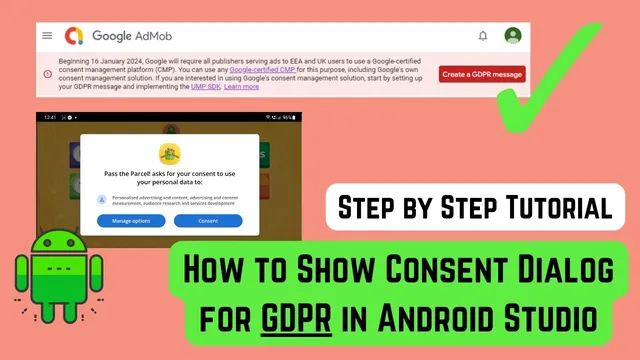
GDPR Message in Android Studio | GDPR Consent for Admob | Admob GDPR Consent | GDPR Compliance
Based on Obsidian Soft's video on YouTube. If you like this content, support the original creators by watching, liking and subscribing to their content.
Create and publish an AdMob GDPR message only when the app serves AdMob ads and targets users in the UK or EEA.
Briefing
Apps that show AdMob ads in the UK or the European Economic Area need a GDPR consent flow, and the fastest path is to create an AdMob “GDPR message” in the AdMob UI and then wire it into Android using Google’s User Messaging Platform (UMP) SDK. The payoff is practical: the AdMob “pink warning” about missing consent handling should disappear once the message is created, published, and correctly requested at runtime—so ads can be served with the right consent state.
The process starts in AdMob. A privacy policy URL is required, and it must match the one already provided in Google Play Console under app content. In AdMob, the user creates a new GDPR message (or edits an existing one) by selecting the app, confirming the privacy policy URL, and configuring the consent dialog. The tutorial emphasizes keeping “Do not consent” and the close/cross option turned off, because allowing users to dismiss or refuse consent can reduce revenue by forcing limited ads. Styling and targeting are then set so the consent form appears only in GDPR-relevant countries, not globally. After configuration, the message must be published; without publishing, the runtime integration won’t behave as expected.
Next comes Android Studio integration with UMP. The setup requires some development hygiene: bump the app’s versionCode in AndroidManifest.xml, ensure the minimum SDK is at least 21, and add the UMP dependencies from Google’s guide (including importing the right classes). The tutorial also stresses updating Google Play services for ads to a current version and syncing Gradle files.
The key code change is to locate where Mobile Ads is initialized (the activity that calls MobileAds.initialize) and replace the initialization block with a consent-aware flow. A new method, typically named showConsentForm, is added. Inside it, the app builds consent request parameters, requests consent information updates, and then loads or displays the consent form based on the result. The method is placed before the activity finishes so the dialog can appear in time.
For testing, the tutorial walks through using a device hash ID from Android Studio logs and forcing geography to emulate UK/EEA behavior. If the consent form doesn’t show during testing, two common fixes are highlighted: confirm internet connectivity and wait roughly 10 minutes after publishing the GDPR message in AdMob (AdMob may take time to propagate changes). Once testing is complete, the debug geography/device settings should be removed so production users see the real consent experience. Finally, releasing an app bundle through the Play Console should eliminate the AdMob compliance warning and enable the consent dialog for users in the required regions.
Cornell Notes
To comply with GDPR for AdMob ads in the UK and EEA, an Android app needs both an AdMob-side GDPR message and a runtime consent flow using Google’s User Messaging Platform (UMP) SDK. The AdMob message requires a privacy policy URL matching Google Play Console, must be configured to show only in GDPR-relevant countries, and should be published. On Android, the app must add UMP dependencies, ensure minSdkVersion is 21, update Google Play services for ads, and modify the activity that initializes Mobile Ads to request consent and then show the consent form. Testing uses a device hash ID plus forced geography to simulate UK/EEA, and the setup may require waiting about 10 minutes after publishing the message. Debug settings should be removed before release.
What conditions determine whether an app must show a GDPR consent form for AdMob?
Why does the configuration discourage enabling “Do not consent” and the close/cross button in the consent dialog?
What must be true about the privacy policy URL before creating the AdMob GDPR message?
What Android project prerequisites does the integration require?
Where does the consent logic need to be inserted in the Android app?
How does testing ensure the consent form appears during development?
Review Questions
- What exact steps ensure the AdMob GDPR message is both correctly configured and actually published before runtime integration?
- How should an Android app’s Mobile Ads initialization be modified to request consent and show the consent form?
- What troubleshooting steps are recommended if the consent dialog doesn’t appear during testing?
Key Points
- 1
Create and publish an AdMob GDPR message only when the app serves AdMob ads and targets users in the UK or EEA.
- 2
Use a privacy policy URL in AdMob that matches the one provided in Google Play Console under app content.
- 3
Configure the consent dialog to disable “Do not consent” and the close/cross option to avoid limited-ad outcomes.
- 4
Integrate Google’s UMP SDK by adding dependencies, ensuring minSdkVersion is 21, updating Google Play services for ads, and syncing Gradle.
- 5
Replace the activity’s Mobile Ads initialization with a consent-aware flow that requests consent info and then shows the consent form.
- 6
Test with a device hash ID from Logcat and forced geography for UK/EEA, and wait about 10 minutes after publishing the GDPR message if the dialog doesn’t appear.
- 7
Remove consent debug settings before generating a release bundle for the Play Console.