Get started with obsidian? (Quick guide + easy tutorial for beginners)
Based on The Organized Notebook's video on YouTube. If you like this content, support the original creators by watching, liking and subscribing to their content.
Obsidian’s main value comes from linking notes and using Graph view to visualize how ideas connect.
Briefing
Obsidian’s core appeal is its ability to turn everyday notes into a connected knowledge graph—so writing isn’t just storage, it’s how relationships between ideas become visible. After installing the app and creating a “Vault” (a local folder where notes live), beginners can start with a blank note, then add new pages and link them using double brackets. As more notes reference each other, Obsidian automatically reflects those connections in Graph view, showing how topics grow into a network.
Getting started begins with downloading Obsidian for the device of choice—iOS, Android, Windows, Mac, or Linux. For syncing across devices, a paid plan is required; personal use is free, while commercial use and optional add-ons come with costs. The add-ons mentioned include Obsidian Sync for cross-device synchronization and Obsidian Publish for posting content to the web and enabling collaboration. For most new users focused on personal note-taking, the free personal plan is positioned as sufficient.
Once Obsidian is open, the Quick Start flow creates an Obsidian Vault stored locally. From there, creating notes is straightforward: a new file becomes a note page, and additional notes can be created via the interface or shortcuts like Ctrl/Cmd + N. The guide distinguishes between Vaults and folders: Vaults function like the main container stored on the computer, while folders inside the Vault help group entries.
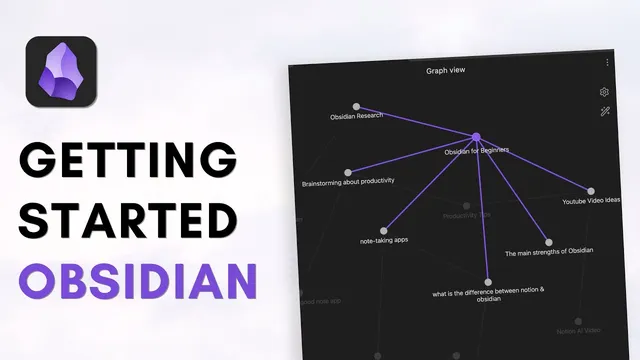
The most important workflow is linking. Using Markdown-style syntax, double brackets [[...]] create internal links to other notes. For example, brainstorming YouTube video ideas can be organized into separate pages, then linked from a central “YouTube video ideas” note. When a linked note doesn’t exist yet, it appears highlighted until the user clicks to create it; afterward, the link becomes bidirectional in the Vault. This linking approach scales: if “Obsidians for beginners” contains a subpage like “Obsidian research,” Graph view will show both connections—making the structure of thinking visible rather than hidden in folders.
To make notes more functional, the tutorial also covers basic formatting. Checkboxes can be inserted with Ctrl/Cmd + L for task tracking. Bullets use “- ”, and headings use “#”, “##”, and “###”. A common beginner snag—folded headings—is addressed via Settings, where “Fold heading” can be toggled off. Hashtags provide another layer of organization: typing “#” plus a label tags notes, and clicking the tag filters which notes share it.
Obsidian also supports daily notes through “Open today’s daily note,” automatically creating a dated page for journaling. Those daily entries can then be linked back to existing pages using double brackets, and the graph updates accordingly. Finally, customization options—appearance modes like dark/light, accent colors, and installable themes—help users shape the workspace to match their preferences.
The takeaway is practical: start writing, link notes as you go, and let Graph view reveal the evolving structure of ideas—an approach the guide frames as building a “second brain” through connections rather than isolated documents.
Cornell Notes
Obsidian turns note-taking into a connected system by linking pages and visualizing relationships in Graph view. After creating a Vault (a local storage folder), users write notes and connect them using Markdown-style double brackets [[...]]. As links accumulate, Graph view shows how topics relate—so organization emerges from relationships, not just folders. Beginners can add structure with checkboxes, bullets, headings, hashtags, and daily notes, then refine the experience through settings like folding headings and appearance themes. Sync across devices requires a paid plan, while personal use is free.
What is a “Vault” in Obsidian, and how does it differ from folders?
How do double brackets [[...]] change the way notes are organized?
What formatting shortcuts help beginners make notes more usable?
How do hashtags help search and sorting inside a Vault?
What’s the purpose of daily notes, and how do they connect to the rest of the system?
What settings and customization options matter most for first-time users?
Review Questions
- When would a user need a paid plan for Obsidian, and which add-ons were mentioned as relevant?
- Describe the sequence for creating a new note and linking it using double brackets so it appears in Graph view.
- What are three different ways the tutorial suggests organizing notes besides folders (e.g., hashtags, daily notes, headings/checklists), and what does each enable?
Key Points
- 1
Obsidian’s main value comes from linking notes and using Graph view to visualize how ideas connect.
- 2
A Vault is the primary local storage container for notes; folders inside the Vault help group content.
- 3
Double brackets [[...]] create internal links; linked notes become part of the graph and can be created on the fly.
- 4
Basic Markdown-style formatting—checkboxes, bullets, and headings—adds structure and supports task tracking.
- 5
Hashtags (e.g., #obsidian) provide tag-based filtering across notes without relying solely on folder structure.
- 6
Daily notes create dated pages that can be linked back to existing topics, expanding the graph over time.
- 7
Sync across devices requires a paid plan; personal use is free, with optional add-ons like Obsidian Sync and Obsidian Publish.