Go From PARA Method Beginner to Second Brain Pro with Obsidian MD (Free Setup Templates and Course)
Based on John Mavrick Ch.'s video on YouTube. If you like this content, support the original creators by watching, liking and subscribing to their content.
A folder-only PARA setup fails when the same note needs to appear in multiple categories; Obsidian notes can only be stored in one folder.
Briefing
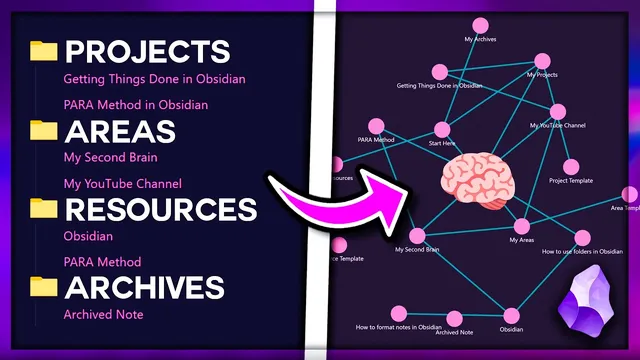
A folder-only PARA setup can’t deliver a true “second brain” because notes need to appear in multiple contexts at once. The core fix is to treat PARA categories (Projects, Areas, Resources, Archives) as linked, property-driven notes in Obsidian—so information can be reused, classified, and surfaced automatically rather than trapped in a single location.
The walkthrough starts at PARA “Level 1” with Obsidian’s Folder view. It recommends creating top-level folders for Projects, Areas, Resources, and Archives, but immediately highlights the structural limitation: a note can live in only one folder, even when it belongs in multiple PARA buckets. A practical example makes the problem concrete—an “how to use folders in Obsidian” note should be accessible from both a specific project and a general resource area, yet folders force it into just one. The solution is “Level 2”: replace subfolder thinking with links and richer note structure. Instead of creating a folder for every project or area, the system uses a “project note” (e.g., “PARA method in Obsidian”) placed inside the Projects folder, then organizes content inside that note using headers and lists. That note becomes a container for both the project’s material and metadata explaining why it exists. Links then allow the same underlying note (like “how to use folders”) to be referenced from multiple PARA nodes.
“Level 3” pushes beyond manual organization by adding templates and queries. After enabling community plugins, the setup uses the Templator plugin to auto-populate new notes with file properties such as status (with emoji states like red/yellow/green), tags (to label note type: project/area/resource), links to parent PARA nodes, deadlines (typed as dates), and area/channel relationships (including a YouTube channel example). Templates are stored in a dedicated “templates” folder, and Obsidian is configured so notes created under Projects/Areas/Resources automatically inherit the correct template.
Once properties exist, the system becomes queryable. With the DataView plugin installed, each project note can act like a dashboard: it can display only related resource notes by filtering for notes linked to the current note and tagged as “resource.” Similar DataView queries generate tables for projects in an area, and even allow status-based subheaders that mimic a Kanban board by filtering on the status property (e.g., showing only “in progress” items). The same approach can list all areas or all projects sorted alphabetically or by deadline, excluding template notes so the dashboard stays clean.
By the end, PARA is no longer a static folder hierarchy. It becomes a connected network of notes with consistent metadata, enabling automatic organization, filtered views, and reusable knowledge—exactly what a second brain needs to capture, retrieve, and express information without duplicating effort.
Cornell Notes
The transcript argues that PARA breaks down when implemented as folders alone, because a note can only belong to one folder even when it’s relevant to multiple categories. The fix is to use links (Level 2) and then shift organization into note content and metadata rather than location. Level 3 adds templates and DataView queries so new notes automatically receive properties like tags, status, deadlines, and parent links. With those properties, project and area notes can display filtered “dashboards” of related resources, ongoing projects, and status-based Kanban-style lists. This matters because it turns PARA into a reusable, queryable knowledge system inside Obsidian instead of a rigid filing cabinet.
Why do folders limit a PARA “second brain” setup in Obsidian?
How does switching from folders to links (Level 2) change organization?
What role do templates and properties play in Level 3?
How does DataView turn PARA notes into dashboards?
How are sorting and cleanliness handled in the query-based lists?
Review Questions
- What specific limitation of folder-based PARA prevents a note from being reused across Projects and Resources, and how does linking solve it?
- Which properties are added by templates in the transcript, and how do those properties enable DataView queries to filter notes?
- Describe how a project note can display only related resources and how status-based subheaders can mimic a Kanban board.
Key Points
- 1
A folder-only PARA setup fails when the same note needs to appear in multiple categories; Obsidian notes can only be stored in one folder.
- 2
Use links to reference notes from multiple PARA nodes, and organize project/area content inside dedicated PARA notes using headers and lists.
- 3
Create templates for Projects, Areas, and Resources so new notes automatically receive consistent properties like tags, status, deadlines, and parent links.
- 4
Store templates in a dedicated templates folder and configure Templator so notes created under PARA folders inherit the right template.
- 5
Install and use DataView to generate filtered dashboards inside PARA notes, such as “related resources” and tables of projects by status and deadline.
- 6
Use status properties (e.g., red/yellow/green) to build Kanban-like sections by filtering DataView results.
- 7
Exclude template notes from dashboards to keep query results clean and focused on real content.