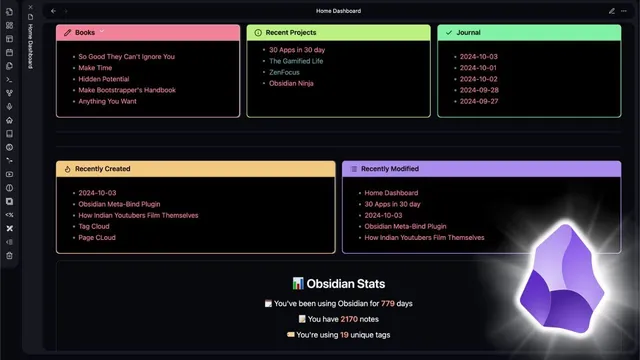
Homepage Dashboard Setup For Obsidian
Based on Prakash Joshi Pax's video on YouTube. If you like this content, support the original creators by watching, liking and subscribing to their content.
Enable a gradient banner using the Banner plugin and insert an image via the clipboard-based banner paste command, then verify it in preview mode.
Briefing
A practical Obsidian “homepage dashboard” can be built by combining four pieces: a gradient banner, a mobile-friendly note toolbar, a multi-column layout powered by custom CSS, and Data View queries that automatically list recent or relevant notes. The payoff is a single landing page that gives a quick overview of key files and lets users jump into them without hunting through the vault.
The setup starts with a banner for visual context. Using the Banner plugin, the creator enables the gradient Banner style and inserts an image via the “paste banner from clipboard” workflow. The banner appears in preview mode (not while editing), and the image can be repositioned or dragged to fit the layout. This establishes the top “hero” area of the homepage.
Next comes navigation. A node toolbar is added using the Note Toolbar Bar plugin, which places quick-access buttons for different notes and commands—especially useful on mobile where screen space is tight. The toolbar can be hidden by setting the property to “none,” but keeping it enabled makes the dashboard feel like a control panel rather than a static page.
The core structure is multi-column layout. To achieve it, the creator installs the MCL multicolumn CSS (sourced from the “obsidian modular CSS layout” project) and places the CSS file into Obsidian’s CSS snippets folder. After enabling the multicolumn feature and refreshing CSS snippets, columns can be created inside callouts using a simple syntax: leave a space, add angle brackets, and place content for each column between them. In preview, the callout renders into side-by-side sections.
Within those columns, Data View queries populate dynamic lists. One column uses a Data View query to list recent books from a specific tag (e.g., “#book”), sorted by file modification time descending and limited to five results to avoid clutter. Another column lists recent journal entries by querying notes from a folder path (e.g., “03 reflect Journal”), then sorting by modification time descending. Additional columns show recently updated and recently created files across the vault, again using sorting and strict limits (five items) to prevent lag—important when a vault contains around 2,000 notes.
The dashboard can also include a “stats view” that displays usage metrics such as days used, number of notes, and number of tags. The creator credits an Obsidian Data View JS snippet obtained with help from AI and notes that it may require edits for other vaults (for example, hardcoded tags or filenames won’t exist everywhere).
Finally, the homepage becomes truly automatic by installing the Homepage plugin. With the option to open on startup enabled, Obsidian loads the dashboard note first; with “open on empty” enabled, it replaces the empty tab with the homepage. After reloading, the dashboard appears every time the vault opens, turning the setup into a consistent entry point for daily work.
Cornell Notes
The dashboard setup turns an Obsidian vault into a single landing page by combining a gradient banner, a quick-jump note toolbar, a multi-column layout, and Data View queries. Multi-column structure is enabled by installing the MCL multicolumn CSS into Obsidian’s CSS snippets folder and using angle-bracket syntax inside callouts. Data View queries then populate columns with lists like recent books, recent journal entries, recently updated files, and recently created files—each sorted and limited (often to five) to avoid performance issues in larger vaults (~2,000 notes). A stats view can be added using a Data View JS snippet, and the Homepage plugin can force the dashboard to open automatically on startup or when the vault is empty.
How does the dashboard create its gradient banner and where does it show up?
What makes navigation on the homepage fast, especially on mobile?
How are multi-column sections built inside Obsidian callouts?
Why do Data View queries use sorting and limits like “limit 5”?
How can recent journal entries be listed without relying on tags?
What role does the Homepage plugin play in making the dashboard automatic?
Review Questions
- What exact steps are needed to enable multi-column layout (including where the CSS file goes and how columns are written in callouts)?
- How do Data View queries differ when listing by tag versus listing by folder path, and how does sorting/limiting affect performance?
- What settings in the Homepage plugin ensure the dashboard opens automatically on startup and when the vault is empty?
Key Points
- 1
Enable a gradient banner using the Banner plugin and insert an image via the clipboard-based banner paste command, then verify it in preview mode.
- 2
Add a quick-jump node toolbar with the Note Toolbar Bar plugin to make navigation practical on mobile.
- 3
Install and enable the MCL multicolumn CSS by placing it in Obsidian’s CSS snippets folder and refreshing CSS snippets.
- 4
Create multi-column callouts using the angle-bracket syntax inside callouts, then populate each column with either manual lists or Data View queries.
- 5
Use Data View sorting (e.g., by file modification time descending) and apply limits (commonly five) to prevent lag in larger vaults.
- 6
Build dynamic sections like recent books, recent journal entries, recently updated files, and recently created files using Data View queries with tags or folder paths.
- 7
Make the dashboard load automatically by configuring the Homepage plugin to open the dashboard note on startup and/or on empty vault state.