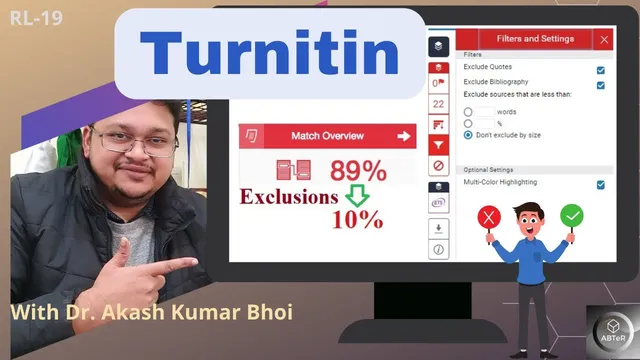
How do I apply Filters and Exclusions in Turnitin? | RL-19 | 2022 | Dr. Akash Bhoi
Based on eSupport for Research's video on YouTube. If you like this content, support the original creators by watching, liking and subscribing to their content.
Click the similarity percentage in Turnitin to identify which source group contributes most to the score before making any exclusions.
Briefing
Turnitin similarity scores can swing dramatically when the report settings are off—especially when a student accidentally includes content from the wrong repository or when overlapping submissions aren’t excluded. In one example, a document shows 22% similarity in one place and 88% in another; the higher figure is traced to a configuration mistake (such as forgetting to select “no repository” during class/assignment setup) or to the same document being submitted under another Turnitin account. When that overlap is legitimate to remove—after checking with a supervisor—the fix is to exclude the specific matching sources tied to the inflated portion.
The workflow starts by clicking the similarity percentage (e.g., the 88% figure) to reveal the underlying sources. The report breaks the match into components, such as “82%” coming from the first source group. To remove that inflated overlap, the user selects the matching sources listed under that group and applies “Exclude sources.” After waiting for Turnitin to recalculate, the similarity score drops (in the example, from 88% down to 24%). The instructor stresses that exclusions should be done only with guidance from a supervisor and that excluded sources must be recorded so they can be documented in future submissions and audits. Excluding the wrong material—especially if it includes content that should remain—can create problems later.
Exclusions can be reversed using “Restore,” which brings back previously excluded sources and changes the similarity score again. This is useful for verifying whether a particular match is truly the source of the inflated percentage. The transcript also highlights that similarity reduction isn’t a substitute for academic integrity: simply changing keywords or minor wording may still count as plagiarism. The recommended approach is to rewrite based on understanding, and to cite the original ideas properly—prioritizing primary sources and also citing secondary sources when relevant.
Beyond excluding specific matches, Turnitin offers filter and setting options that target common categories of content. The transcript mentions excluding bibliography/“references” so that reference lists don’t inflate similarity, and excluding quoted material where permitted by institutional policy. It also notes word-based exclusion rules (e.g., excluding a limited number of consecutive words—such as 10 consecutive words—only if the university’s norms allow it). The final similarity view then reflects the adjusted report, including how much of the match comes from different source types (internet, student papers, published works, etc.).
Finally, the transcript covers downloading and managing the report. It advises selecting sources appropriately before downloading, since the downloaded view reflects the current similarity breakdown. The discussion also touches on administrative deletion of submissions: if a document must be removed from the system, the submission ID (and password, if available) can be used to request server-side deletion through administrators. The overall takeaway is that interpreting Turnitin results requires both correct settings and careful, policy-aligned exclusions—paired with proper citation and genuine rewriting.
Cornell Notes
Turnitin similarity percentages can be inflated by configuration issues or by overlapping submissions of the same document in different repositories/accounts. The transcript walks through clicking the similarity percentage to identify which source group drives the match (e.g., an 82% component inside an 88% report), then excluding those sources to force Turnitin to recalculate (dropping, in the example, to 24%). Exclusions should be done only after consulting a supervisor, and excluded items must be recorded for transparency in later submissions. “Restore” can reverse exclusions to confirm whether a particular match is responsible for the score. Even after score reduction, academic integrity still requires rewriting with proper citation of primary and secondary sources.
Why might a document show 22% similarity in one case and 88% in another?
How does a user exclude the specific source group that drives a high similarity score?
What’s the purpose of “Restore,” and what happens to the similarity score?
Why isn’t rewriting by only changing keywords enough, even after exclusions?
What filter settings can reduce similarity without targeting specific sources?
How should excluded sources be handled for future submissions?
Review Questions
- When a similarity score is unexpectedly high, what steps should be taken to identify the exact source group causing the increase before excluding anything?
- How do “Exclude sources” and “Restore” differ in their effect on the similarity percentage, and why would a student use both?
- What combination of actions—beyond exclusions—is recommended to address similarity in a way that aligns with academic integrity (rewriting and citation)?
Key Points
- 1
Click the similarity percentage in Turnitin to identify which source group contributes most to the score before making any exclusions.
- 2
Exclude only the matching sources that correspond to legitimate overlap (such as repository/account duplication) and do so after consulting a supervisor.
- 3
Record every excluded source so future checks can verify what was removed and why.
- 4
Use “Restore” to confirm whether a specific exclusion is responsible for score changes by observing recalculated percentages.
- 5
Reduce similarity through genuine rewriting based on understanding, not by minor keyword substitutions that can still trigger plagiarism detection.
- 6
Apply filter settings carefully—such as excluding bibliography/references and quoted material—only within the limits allowed by institutional policy.
- 7
If a submission must be deleted from Turnitin’s system, use the submission ID (and password if available) to request administrative/server-side removal.