How I Listen AND Take Notes on Podcasts INSIDE Obsidian
Based on FromSergio's video on YouTube. If you like this content, support the original creators by watching, liking and subscribing to their content.
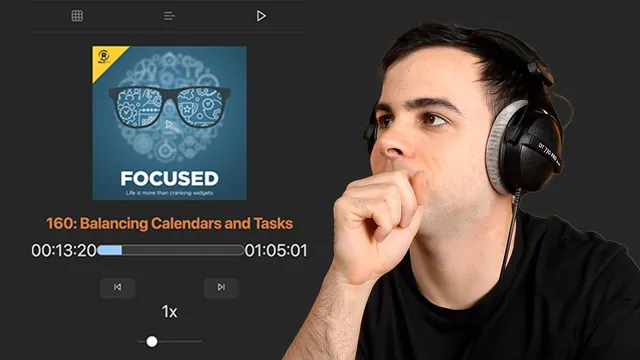
Install and enable the “Pod Notes” community plugin in Obsidian to add a podcast player to the sidebar.
Briefing
Obsidian can become a full podcast hub—complete with an in-app player and automatic note creation—by using the “Pod Notes” plugin. Once installed, the plugin pulls podcast feeds from the iTunes podcast repository, lets users browse episodes per show in chronological order, and also provides an aggregated “latest episodes” view across multiple podcasts. That means listening and capturing ideas can happen in the same workspace, without jumping between apps.
Setup starts in Obsidian’s Community Plugins area: users install and enable “Pod Notes,” after which a podcast player appears in the sidebar. The plugin is configured by adding podcasts from the iTunes repository—examples mentioned include “The Wen show” (LTT), “Waveform” (MKBHD), and “Deep Dive without all.” After adding shows, each podcast gets its own folder-like view listing recent episodes, with playback available directly inside Obsidian. A combined list of “latest episodes” then orders episodes across all followed podcasts by release date.
The plugin also supports organization through playlists. By default, it includes “Cue” and “Favorites,” and users can create additional playlists (for example, an “AirPlay” playlist named “PKM”). Episodes can be added quickly by right-clicking an episode in the aggregated list and choosing “add to” a selected playlist. Playback behavior is configurable too: users can set default playback rates (or adjust case-by-case) and control how far the player skips backward/forward (15 seconds by default).
The most important part is note automation. Without configuring note settings, Obsidian won’t offer a “create podcast note” command. Users must specify a note creation file path (such as a dedicated “podcasts/” folder) and define how note fields are named using template syntax. The transcript describes using double-curly-bracket placeholders for “podcast” and “title,” and then creating a node template that determines what gets written into each new note. The note template can be adjusted to include the podcast name and episode title, and the YAML formatting can be added so the resulting notes are easier to search and manage.
Finally, timestamp capture turns notes into jump points inside the audio. A “capture timestamp” setting controls whether notes store plain time or a “link time” that jumps directly to the exact segment. The workflow is: play an episode, reach a moment worth recording, run “capture timestamp” (via command palette or a hotkey), and the note stores a clickable link to that moment. Assigning a hotkey—Command T is used in the transcript—makes capturing multiple notes across an episode fast.
With timestamps and structured note templates in place, users can review and navigate notes by time and then build aggregation notes that summarize episodes across podcasts using different parameters. The result is a practical system for turning podcast listening into searchable, time-anchored knowledge inside Obsidian.
Cornell Notes
“Pod Notes” turns Obsidian into a podcast aggregator and note-taking system. After installing the plugin, users add podcasts from the iTunes podcast repository, browse episodes in chronological order, and listen directly in the Obsidian sidebar. The plugin can automatically create podcast notes into a chosen folder using a configurable template (e.g., podcast name and episode title, stored via YAML fields). Timestamp capture is the key workflow upgrade: choosing “link time” stores a clickable jump to the exact audio segment, and assigning a hotkey (Command T) makes capturing frequent notes fast. With structured notes and timestamps, users can later review ideas and build aggregation notes across multiple podcasts.
How does the Pod Notes plugin get podcast content into Obsidian, and what does that enable?
What are the main ways episodes are organized after podcasts are added?
Why can’t users create podcast notes immediately after installing the plugin?
How are podcast note fields and formatting defined?
What’s the difference between timestamp “time” and timestamp “length time,” and why does it matter?
How does the workflow become faster for capturing multiple moments in a podcast?
Review Questions
- What configuration steps are required before the “create podcast note” command appears in the command palette?
- Which timestamp mode provides a clickable jump to the exact audio segment, and how does that change the note-review workflow?
- How do playlists like “Cue” and “Favorites” relate to the aggregated “latest episodes” list when adding episodes?
Key Points
- 1
Install and enable the “Pod Notes” community plugin in Obsidian to add a podcast player to the sidebar.
- 2
Add podcasts using the iTunes podcast repository, then browse episodes per show and via an aggregated “latest episodes” list ordered by release date.
- 3
Use playlists (default “Cue” and “Favorites,” plus custom ones) to collect episodes by theme or intent, adding them via right-click from the episode list.
- 4
Configure note settings with a dedicated folder path and a node template so Obsidian can automatically create structured podcast notes.
- 5
Store note metadata using template placeholders (e.g., podcast name and episode title) and format it as YAML for easier searching.
- 6
Choose “link time” for timestamps so each captured note includes a hyperlink that jumps to the exact moment in the audio.
- 7
Assign a hotkey (Command T in the transcript) to capture timestamps quickly while listening, enabling rapid note-taking across an episode.