How I organize my life with Notion (Second Brain template)
Based on Easlo's video on YouTube. If you like this content, support the original creators by watching, liking and subscribing to their content.
Use a synced navigation bar (via sync blocks) so PARA pages stay consistent when navigation changes.
Briefing
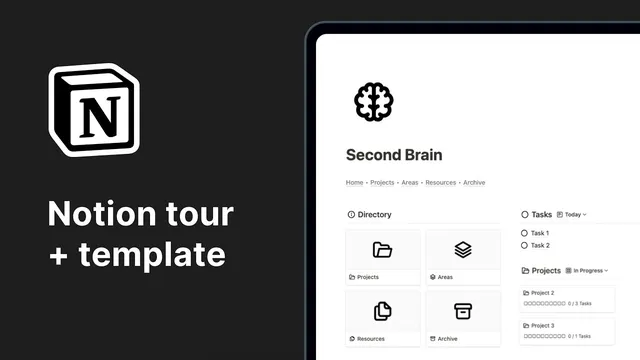
A Notion “second brain” setup is built around one idea: make daily planning and long-term knowledge retrieval feel connected, fast, and visually organized. The system’s core structure starts with a synced navigation bar that appears across the main pages—Para (projects, areas, resources, archive)—so moving between sections doesn’t break context. A directory page then acts as a more visual front door to those Para sections.
Projects sit at the top of the main dashboard because they’re meant to drive what happens next. In the Projects area, a gallery view groups projects by area, using Notion’s grouping feature. Beneath it, a tasks database is split into two calendar-friendly views: an unscheduled list and a calendar view where tasks can be dragged and dropped onto specific dates. This design turns planning into a quick interaction—capture a task, then place it on the timeline.
Areas organize the “why” behind the work. Areas are grouped into Personal and Business, and each area page gathers the relevant projects, notes, and resources. That keeps personal and professional streams from mixing while still allowing the same underlying structure to apply.
Resources are treated as a knowledge pipeline rather than a dumping ground. They’re categorized into Knowledge Hub, Apps and Tools, Assets, and Books and Courses. Knowledge Hub is for learning materials like articles, videos, and Twitter threads—anything with takeaways. Apps and Tools store websites or software that help get work done. Assets hold reusable media such as mock-ups, illustrations, icons, or slide decks. Books and Courses are tracked as straightforward references.
The system also includes an inbox for capture and later organization. Web clips are saved using the Notion Web Clipper extension into an inbox database. When returning to Notion, items can be sorted by toggles and dragged into the correct destination database.
For note-taking, two databases handle different scales: Notebooks group related notes, while Notes store the actual content. The workflow encourages starting from a notebook template (including an icon) and writing immediately. A template detail even tracks how many notes exist per notebook, making it easier to scan what’s active.
Finally, the “hidden power” is the web of relationships between databases. Instead of treating projects, tasks, notes, and resources as separate silos, the template links them so information can be saved and retrieved through connections. The result is a second brain designed for both day-to-day execution and future recall—planning, capturing, organizing, and searching all reinforce each other through those relationships.
Cornell Notes
The Notion second brain template organizes life using the PARA framework: Projects, Areas, Resources, and Archive, tied together by a synced navigation bar and linked databases. Projects drive daily action with a gallery view grouped by area and a tasks system that supports drag-and-drop scheduling from an unscheduled list to a calendar. Areas split personal and business work while keeping each area’s projects, notes, and resources together. Resources are categorized into Knowledge Hub, Apps and Tools, Assets, and Books and Courses to separate learning, utilities, reusable media, and reading. An inbox captures web clips via Notion Web Clipper, then routes them into the right place, while notebooks and notes support structured writing and retrieval.
How does the template make navigation and page switching feel seamless across the PARA system?
What workflow turns tasks into scheduled work without extra steps?
How does the system separate “knowledge” from “execution” while still keeping everything connected?
What role does the inbox play, and how are web clips routed into the right system?
How do notebooks and notes work together for long-term reference?
What makes this setup more than a collection of separate databases?
Review Questions
- Which PARA page elements are synced across the system, and why does that matter for day-to-day use?
- Describe the drag-and-drop task scheduling flow and how progress is reflected after tasks are completed.
- How do the Resources categories (Knowledge Hub, Apps and Tools, Assets, Books and Courses) differ in purpose, and how might database relationships improve retrieval?
Key Points
- 1
Use a synced navigation bar (via sync blocks) so PARA pages stay consistent when navigation changes.
- 2
Prioritize Projects on the dashboard and group them by Areas to keep planning tied to context.
- 3
Schedule tasks quickly by dragging from an unscheduled list into a calendar view.
- 4
Track completion with per-project progress bars that update immediately when tasks are marked done.
- 5
Capture first in an inbox using Notion Web Clipper, then sort via toggles and drag items into the correct database.
- 6
Separate knowledge into Resources categories so learning, tools, reusable media, and reading don’t mix.
- 7
Rely on linked database relationships to connect projects, tasks, notes, and resources for easier retrieval.