How I Published My Book for $0 Using Obsidian, Pandoc, Calibre (EPUB, PDF, Audiobook)
Based on Zsolt's Visual Personal Knowledge Management's video on YouTube. If you like this content, support the original creators by watching, liking and subscribing to their content.
Author the manuscript in Obsidian as a set of linked files (one chapter per file) and assemble them via a final “book” note that embeds the structure.
Briefing
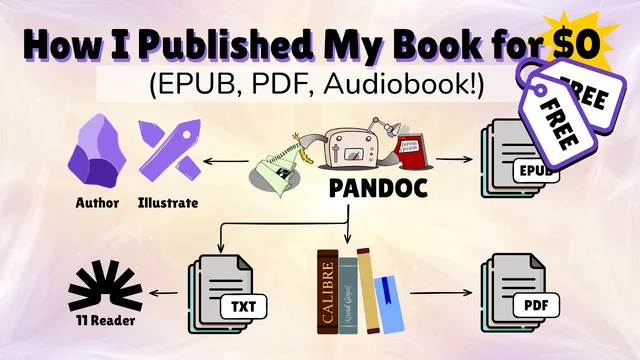
A complete, free self-publishing workflow turns Obsidian markdown into professional EPUBs and print-ready PDFs—while keeping the book tightly connected to the author’s broader knowledge system. The core idea is to author the manuscript as a network of linked notes and illustrations inside an Obsidian vault, then automate conversion with Pandoc plus Calibre, using custom scripts and formatting rules so the same source material can produce different outputs (Kindle EPUB, paperback PDF, and even text/audio inputs).
The process starts with writing the book in Obsidian MD and building illustrations in Excalidraw. Instead of treating the manuscript as a standalone document, the author embeds a “final book” file that pulls in many chapter files and related assets from the vault. In source mode, the book note includes linked pieces such as table of contents, dedication, manifesto, preface, introduction, and separate chapter files. Illustrations are also vault-native: an image inside a chapter is stored as its own Excalidraw file and linked to other notes (for example, claims about visual thinking that lead to additional documents). That structure makes the book part of ongoing thinking rather than a siloed deliverable.
For formatting, the workflow relies on conventions embedded directly in the markdown. Each chapter lives in its own file, then the final book note embeds them in sequence. The author also uses Obsidian callouts—typed blocks that can be styled with icons and colors—to mark semantic sections like “abstract” and “story.” Those callouts later drive output-specific formatting: in the paperback and Kindle-ready versions, abstracts gain a dedicated icon and appear with controlled page behavior (including automatic page breaks after abstracts so they land on the right page). The manuscript also uses Excalidraw document properties to export drawings as PNGs, because SVGs don’t work reliably for EPUBs and Excalidraw’s native format isn’t suitable for the target outputs.
Image quality and cost are balanced through calculated PNG sizing. The author targets a 6x9 paperback format and uses 300 DPI print assumptions to determine the maximum pixel width that fits the page margins. A script then scales each exported image to the exact size needed for its placement, aiming for crisp print results without inflating file size (which matters for Amazon EPUB publishing costs).
Conversion is automated with Pandoc and a Lua filter plus CSS. The author first “flattens” the Obsidian structure into an extended single markdown file, converting Obsidian-style wiki links into standard markdown links so Pandoc can resolve them. Pandoc then generates EPUBs using a Lua filter that transforms callouts into the right HTML/CSS components (including inserting story/abstract imagery and adjusting chapter header formatting by splitting titles at colons). CSS is split by output type: Kindle and paperback get different page-break behavior, and the same source can render differently.
After EPUB generation, the author patches the EPUB further via scripts—adding elements like ISBN on the front page when Pandoc alone doesn’t produce the desired result. For PDFs, Calibre’s ebook-convert takes the EPUB and produces print-ready files. Custom footer logic and embedded fonts are used so Amazon’s PDF rendering prints correctly, including Roman numeral page numbering before chapter one and chapter titles/metadata in the footer.
Finally, the author outlines an audio-book path using 11ty/11 reader: a phone app can generate high-quality audio from a text file or an EPUB stripped of images. Commercial audio workflows are still being refined, but the personal-use conversion is already functional. The overall takeaway is a reproducible, script-driven pipeline that starts with connected markdown and ends with Amazon-ready EPUBs and PDFs—without paying for the toolchain.
Cornell Notes
The workflow builds a book in Obsidian MD as a network of linked chapter files, callouts, and Excalidraw illustrations, then automates publishing outputs using Pandoc and Calibre. Flattening the vault structure into a single markdown file (including converting wiki links to markdown links) makes Pandoc conversion reliable. A Lua filter and output-specific CSS turn semantic callouts like “abstract” and “story” into consistent Kindle/print formatting, while Excalidraw exports are converted to PNGs with calculated sizing to balance print quality and Amazon EPUB file-size costs. After Pandoc creates an EPUB, scripts patch remaining details like ISBN placement, and Calibre generates print-ready PDFs with embedded fonts and custom footers. The result is a repeatable, mostly free toolchain that keeps the book integrated with the author’s broader knowledge system.
How does writing in Obsidian change the way the book is structured compared with a typical “single document” manuscript?
Why are Obsidian callouts central to getting consistent formatting across EPUB and PDF?
What’s the practical reason Excalidraw drawings are exported as PNGs instead of SVGs for EPUBs?
How does the workflow balance image quality with Amazon EPUB publishing cost?
What role do the Lua filter and CSS play in turning markdown into output-ready HTML/EPUB/PDF?
Why patch the EPUB after Pandoc instead of relying entirely on Pandoc configuration?
Review Questions
- What vault-structuring choices (separate chapter files, embedded final book note, linked illustration files) make the workflow scalable for longer books?
- Which parts of the pipeline are responsible for semantic formatting (callouts) versus visual rendering (PNG export, CSS, Lua transformations)?
- How do image sizing calculations (6x9 format, 300 DPI, margin-based pixel limits) affect both print readability and EPUB publishing cost?
Key Points
- 1
Author the manuscript in Obsidian as a set of linked files (one chapter per file) and assemble them via a final “book” note that embeds the structure.
- 2
Store illustrations as Excalidraw files inside the vault and link them to related notes so images remain connected to the author’s ideas.
- 3
Use Obsidian callouts as semantic building blocks (e.g., abstract, story) so Pandoc + Lua + CSS can render consistent, output-specific formatting.
- 4
Export Excalidraw drawings to PNGs (not SVGs) for EPUB compatibility, and size PNGs with DPI/margin math to balance print quality against Amazon EPUB file-size cost.
- 5
Flatten wiki links into standard markdown links before Pandoc conversion so link resolution works reliably in the generated outputs.
- 6
Generate EPUBs with Pandoc using a Lua filter and output-specific CSS, then patch remaining front-matter details (like ISBN) via postprocessing scripts.
- 7
Use Calibre’s ebook-convert to convert the EPUB into print-ready PDFs, embedding fonts and applying custom footer/page-number logic for Amazon formatting.