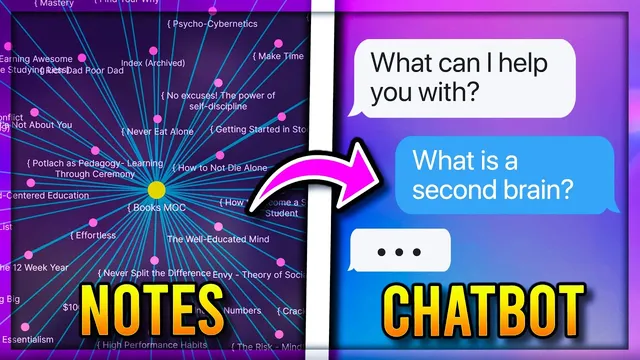
How I Set Up My AI-Powered Second Brain in Obsidian (ChatGPT, Search, Assistant, Plugins, Tools)
Based on John Mavrick Ch.'s video on YouTube. If you like this content, support the original creators by watching, liking and subscribing to their content.
Use the Custom Frames plugin to embed chat.openai.com inside Obsidian, then create a custom frame (e.g., “chat GPT”) and reload Obsidian so it appears in the command palette.
Briefing
A practical setup for an “AI-powered second brain” in Obsidian centers on embedding ChatGPT directly inside the workspace and then using a paid plugin—Smart Connections—to search and link ideas across a personal vault using vector embeddings. The payoff is twofold: fast summarization and rewriting of note content, plus automatic discovery of related concepts that can surface connections beyond obvious keyword matches.
The workflow starts by adding a web-embedded ChatGPT panel to Obsidian. After installing the Custom Frames community plugin, the user creates a new embedded frame named “chat GPT,” points it to chat.openai.com, and reloads Obsidian so the frame appears in the command palette. Once logged into OpenAI, the embedded interface can be used like a sidebar tool—summarizing selected note sections, rewriting content into shorter forms, and turning headings into draft notes. A key operational detail: copy buttons inside the embedded ChatGPT area only copy within the browser context, so users must manually paste the results back into Obsidian.
To enable deeper, vault-native intelligence, the setup adds Smart Connections, which requires an OpenAI API key (unlike the free-to-use ChatGPT interface). After creating an API key at platform.openai.com and pasting it into Smart Connections settings, the plugin generates embeddings for vault content. Users may need to run “create embeddings Json” to resolve an “embeddings files not found” error. The creator estimates low costs for a new vault—about 17 cents to upload 460 notes totaling 160,000 words—while warning that all vault data sent to OpenAI may raise privacy concerns.
Smart Connections works by splitting notes into blocks based on headings. Each block’s text and header context are embedded into a high-dimensional vector space (described as roughly 1,536 dimensions). Those embeddings are stored in a hidden file within the vault. When searching for related ideas, the plugin compares the embedding of a target block (or any typed query) against all stored vectors to find the closest matches—effectively mapping notes into an “XY graph,” but with thousands of dimensions. Relevance scores appear as percentages, and the quality of results depends heavily on how well notes are structured, including the use of descriptive headers and atomic, comprehensive writing.
The system supports both note-to-note linking and question-based discovery. A search box can accept prompts like “how to use a zettel costume,” returning related headers and excerpts, even when the exact phrase doesn’t appear verbatim. For repeatable exploration, users can pin a favorite query by saving an embedded code block that stores the search. Finally, Smart Connections includes a chat pane that answers questions using content from the vault when prompts include self-referential pronouns such as “I,” “me,” “my,” or “we,” enabling responses like “based on my notes, explain what a zettel cost in is.” The setup also offers controls to exclude folders, paths, and specific headers (e.g., daily notes or reminder sections) and an option to group connections by file for cleaner browsing.
Overall, the core insight is that combining an embedded ChatGPT interface with embedding-based vault search turns Obsidian from a static knowledge store into an interactive assistant—one that can summarize, connect, and answer using the structure and content of a user’s own notes.
Cornell Notes
The setup embeds ChatGPT inside Obsidian using the Custom Frames plugin, letting users summarize and rewrite note content directly in their workspace. For vault-native connections, it adds Smart Connections, a paid plugin that uses OpenAI API keys to generate embeddings for note blocks split by headings. Smart Connections then finds related ideas by comparing high-dimensional embedding vectors, returning relevance percentages and excerpts even when exact phrases don’t match. Users can run both note-based and query-based searches, pin favorite searches, and ask vault-grounded questions in the Smart Connections chat pane using self-referential prompts like “based on my notes.” Results depend on how well notes are organized with descriptive headers and atomic writing.
How does embedding ChatGPT into Obsidian work, and what’s the practical limitation when copying results?
What does Smart Connections require that ChatGPT doesn’t, and why does that matter for cost and privacy?
How does Smart Connections decide what’s “related” to a note or a search query?
Why does note structure—especially headers—directly affect connection quality?
What’s the difference between Smart Connections’ file-based connections view and its chat-based vault Q&A?
How can users control what Smart Connections includes or excludes?
Review Questions
- What steps are required to embed ChatGPT inside Obsidian, and what workaround is needed for copying text from the embedded interface?
- Explain how Smart Connections generates embeddings and uses them to find related blocks for both note-based and query-based searches.
- Which aspects of note organization (headers, atomic notes, exclusions) most influence the quality and usefulness of Smart Connections’ recommendations?
Key Points
- 1
Use the Custom Frames plugin to embed chat.openai.com inside Obsidian, then create a custom frame (e.g., “chat GPT”) and reload Obsidian so it appears in the command palette.
- 2
When summarizing or rewriting notes via the embedded ChatGPT panel, expect to manually paste copied text back into Obsidian because embedded copy buttons may not transfer cleanly.
- 3
Install Smart Connections to generate embeddings for vault content, but plan for API-key setup and ongoing costs since it uses the OpenAI API.
- 4
Smart Connections splits notes into heading-based blocks and compares high-dimensional embeddings (about 1,536 dimensions) to find related ideas, even when keywords don’t match exactly.
- 5
Improve connection quality by using descriptive headers and atomic, comprehensive note writing so the embedding signal is meaningful.
- 6
Use Smart Connections settings to exclude folders, paths, and specific headers (like daily notes or reminders) to keep suggestions relevant and reduce noise.
- 7
Leverage Smart Connections’ chat pane with self-referential prompts (e.g., “based on my notes”) to get vault-grounded answers, and manage cost by limiting chat history length.