How I Setup my Obsidian MD School Vault Using Dataview and Templater (Step By Step Plugin Tutorial)
Based on John Mavrick Ch.'s video on YouTube. If you like this content, support the original creators by watching, liking and subscribing to their content.
Create a main “school” hub note and use Dataview tables to list courses and assignments based on tags and/or folder placement.
Briefing
A school-focused Obsidian vault can be turned into a searchable “database” by combining Dataview tables with Templater-driven note creation—so courses, assignments, and even “to-process” lecture dumps stay organized without manual formatting. The core workflow starts with a main school note that lists every course, then uses Dataview queries to populate tables based on tags and front matter like year and semester. Once that structure exists, Templater automates the repetitive parts: inserting the right headings, tags, and timestamps into new notes as soon as they’re created.
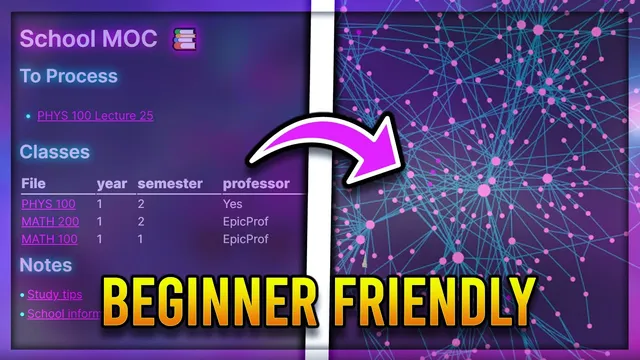
The setup begins from scratch in a new vault. A “school” note acts as the hub, while individual course notes follow a consistent tagging scheme. Dataview is installed as a community plugin (with safe mode turned off), then used to create a table via a Dataview code block. The query pulls notes that match a minimum tag requirement (e.g., notes containing a “course” tag). At first the table is empty, but it updates immediately when course notes are created and tagged.
To make the table useful, course notes add YAML front matter—fields like year, semester, and optionally professor name—so Dataview can display those values in columns. Filtering is handled with Dataview logic: a query can restrict results to a specific combination such as year equals 1 and semester equals 1. The same pattern extends beyond courses. An assignments section can be driven by an “assignment” tag, and assignments can be stored either as tagged notes or inside an “assignments” folder, where the query matches the folder name in quotes. Additional metadata like deadlines can be included in front matter so assignments appear with the details that matter.
Because repeating this setup across many notes is tedious, Templater is introduced as “default on steroids.” A course template uses Templater variables—especially the file title variable—so the note automatically fills in course-specific fields when the template is applied. A separate note template standardizes common sections such as tags, links, and a created date using tp.date. Templater settings then point to a dedicated templates folder, enable variable replacement, and bind hotkeys for quick insertion.
With templates and Dataview in place, the workflow becomes practical during real classes. Instead of organizing perfectly in the moment, lecture notes can be dumped into a single “to process” note tagged for later. A Dataview table in the school hub lists these pending notes, making them easy to find. From there, the process can split content into conceptual notes by extracting headings into new notes—using the heading as the new title—or by extracting the current selection. The result is a repeatable system for turning raw class material into structured course outlines, lecture references, and assignment tracking without relying on manual bookkeeping or heavy coding.
Cornell Notes
The vault setup uses Dataview to turn Obsidian notes into queryable tables and Templater to generate consistent note structure automatically. A main “school” note becomes the hub: Dataview tables list course notes by tag and display metadata like year and semester pulled from YAML front matter. The same Dataview approach powers assignments, either via an “assignment” tag or by querying notes stored in an assignments folder. Templater templates use variables like the file title and tp.date so new notes instantly get the right headings, tags, and timestamps. A “to process” lecture workflow lets users dump messy notes during class and later extract headings into conceptual notes.
How does Dataview decide which notes belong in a course table?
Why add YAML front matter (year/semester/professor) to course notes?
What are two ways assignments can be organized so Dataview can list them?
How do Templater templates reduce repetitive work when creating many notes?
What’s the purpose of a “to process” lecture note in this workflow?
Review Questions
- When building a Dataview table for courses, what minimum metadata condition must exist for notes to appear?
- How do YAML front matter fields enable both displaying and filtering course results in Dataview?
- What combination of Templater variables and settings makes new notes automatically adopt the correct structure and timestamps?
Key Points
- 1
Create a main “school” hub note and use Dataview tables to list courses and assignments based on tags and/or folder placement.
- 2
Tag course notes consistently (e.g., with a “course” tag) so Dataview queries can reliably find them.
- 3
Store year, semester, and optional professor details in YAML front matter to power Dataview columns and filters like year = 1 and semester = 1.
- 4
Track assignments either with an “assignment” tag or by placing assignment notes in an “assignments” folder that Dataview queries by folder name.
- 5
Use Templater templates to auto-fill common sections and variables such as the file title and tp.date, reducing manual formatting.
- 6
Set Templater’s templates folder and hotkeys so new notes can be created with the right template instantly.
- 7
Adopt a “to process” lecture capture tag to dump notes quickly during class, then later extract headings into conceptual notes.