How I turned my iPhone into a Second Brain
Based on Easlo's video on YouTube. If you like this content, support the original creators by watching, liking and subscribing to their content.
A second-brain workflow on iPhone should focus on fast capture and fast retrieval, leaving deeper organization and processing for desktop time.
Briefing
Turning an iPhone into a “second brain” hinges on two actions: capturing information fast and retrieving it just as quickly. The system described is built around Notion, using the phone’s limited screen real estate to funnel ideas into the right place immediately, while heavier organizing and processing happens later on a desktop. The workflow is inspired by David Allen’s GTD approach and Tiago Forte’s PARA framework, with the practical goal of preventing important thoughts, tasks, and references from getting lost in finite working memory.
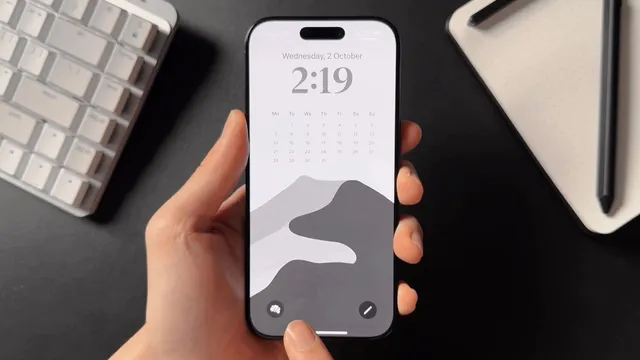
At the center is a one-tap lock screen shortcut that opens a custom Notion homepage. That shortcut is created through the iOS Shortcuts app by selecting a specific Notion page to open, then customizing the lock screen icon. The lock screen itself is customized using iOS 18 features, including replacing default controls with a shortcut. From that homepage, the capture process becomes “button-first”: Notion buttons are set up for frequent actions, especially adding new items to databases without hunting for the right page. One example uses a “new project” button that inserts a new page into a Projects database and predefines properties so the user can write down an idea immediately.
When the user isn’t sure whether something is a task, project, or goal, capture still happens—using a quick “private” capture page that stores the essentials first. Later, the item can be moved into the correct database by selecting the target database from a property field and applying the appropriate templates and properties (such as moving into a Task database).
Capturing also extends beyond text. For internet content, Notion isn’t treated as a universal dumping ground. Instead, the workflow routes different content types to specialized apps: Notion is used for structured references, Reader is used for articles to avoid clutter and distractions, and MyMind is used for design inspiration. A YouTube reference can be saved via the share sheet into a Notion “reference” database, then linked to a project through a page relationship field so past references appear inside the relevant project page. Images are saved to MyMind, where the app generates a color palette, TDR summary, and extracted text, making visual browsing more engaging than scrolling through Notion pages.
Retrieval is handled through multiple layers inside Notion on mobile. Home includes “Jump back in” to resume where work left off across devices. Favorite pages provide quick access to frequently used pages and active projects. Filters are used as a fast path to the right view—such as showing only tasks with a “waiting on” status. For deeper connections, relation properties help surface related content, and the user recommends changing how relations are displayed (e.g., showing related pages in a “page section” view) to make linked information easier to scan. Finally, search supports title-only filtering and even AI-assisted summarization of search results when the exact note title is forgotten.
Overall, the approach treats the iPhone as a capture and retrieval interface—fast enough to keep ideas from slipping away, structured enough to pull them back when needed—while leaving complex organization for later on a computer.
Cornell Notes
The second-brain setup centers on two mobile actions: capturing and retrieving. An iPhone shortcut opens a Notion homepage on the lock screen, where Notion buttons create new database entries in seconds, including a “private” capture page for uncertain items. Internet content is routed to the right tool: YouTube references can be saved into a Notion reference database and linked to projects, while articles go to Reader and design inspiration goes to MyMind for better browsing. Retrieval relies on Notion’s mobile features—Jump back in, favorite pages, filters, relation properties, and search (including AI-assisted summaries)—so the right information surfaces quickly when it’s needed.
Why does the workflow emphasize “capturing” and “retrieving” on the iPhone rather than full organization?
How does the lock screen shortcut reduce friction in starting a capture?
What’s the purpose of Notion “buttons” on the homepage?
How does the system handle items when the user isn’t sure where they belong?
Why are Reader and MyMind used instead of saving everything directly into Notion?
What retrieval tools inside Notion make information easier to find on mobile?
Review Questions
- How does the lock screen shortcut connect to a specific Notion page, and why does that matter for capture speed?
- Describe the difference between using a “private” capture page and using a database-specific button like “new project.”
- What retrieval advantage do filters and relation properties provide compared with relying on search alone?
Key Points
- 1
A second-brain workflow on iPhone should focus on fast capture and fast retrieval, leaving deeper organization and processing for desktop time.
- 2
Use iOS Shortcuts to create a one-tap lock screen shortcut that opens a dedicated Notion homepage for immediate capture.
- 3
Build Notion buttons that create new pages directly inside specific databases, so adding ideas doesn’t require hunting for the right place.
- 4
When the destination is unclear, capture into a “private” page first, then move the item later into the correct database using a property field.
- 5
Route content by type: save structured references into Notion, read articles in Reader to reduce clutter, and store design inspiration in MyMind for visual browsing.
- 6
Improve retrieval with Notion mobile features like Jump back in, favorite pages, filters, relation properties, and search (including AI-assisted summaries).