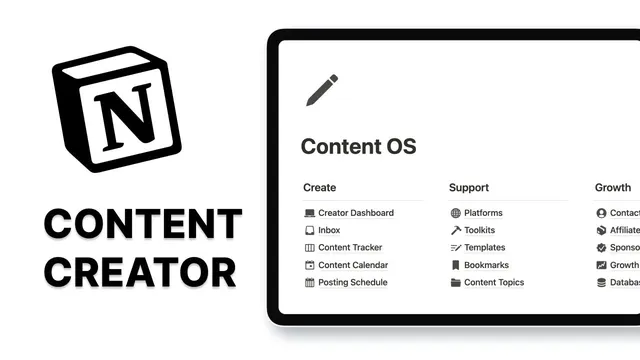
How I use Notion as a Content Creator
Based on Easlo's video on YouTube. If you like this content, support the original creators by watching, liking and subscribing to their content.
Use a “Platforms” database with a default template so new platform pages (e.g., Twitter) inherit the same structure automatically.
Briefing
Notion can be turned into a full content-creation command center by structuring every stage—platform setup, topic planning, idea capture, drafting, scheduling, and performance tracking—into connected databases and reusable templates. The core payoff is speed with less mental overhead: new content starts from the right template, gets routed to the right workflow stage, and stays linked to the platform, topic, and (when relevant) sponsorship details.
The system begins with a home dashboard that links to specialized pages. A “Platforms” database lists where content is published—examples include Tik Tock, YouTube, Instagram, and a newsletter—then adds new platforms like Twitter using a prebuilt “new platform” template. Setting a default template for databases ensures every newly created platform page inherits the same structure automatically, saving clicks. Each platform entry can store a URL or profile link for quick access, plus optional descriptions and cover imagery.
From there, planning becomes database-driven. A “Topics” database holds content themes, and new topics can be created “no code.” Once a topic is chosen, a “Posting schedule” calendar assigns it to specific days of the week, with the example that productivity content lands on Mondays. The schedule can also relate tools used for creation and track “key results” such as follower growth, including a progress bar to visualize quarterly or ongoing targets.
Idea capture happens in an “Inbox” page designed for rapid dumping of raw inputs: new ideas, inspiration, and people to keep in touch with. Each platform column can receive new content ideas, and platform-specific templates add structure. For Twitter threads, the workflow uses a duplicated template that removes irrelevant sections and customizes the page body with components like multiple hook variations, the main thread content, a CTA (e.g., pointing readers to a newsletter), and a checklist for follow-on actions such as repurposing to LinkedIn and scheduling a retweet.
Inspiration is also collected from the web. Using the Notion Web Clipper Chrome extension, the creator saves tweets, Instagram posts, or Tik Tock videos into a “bookmarks” database. Bookmarks start with a “new” status, then get enriched with details for future filtering and reference; later, they move to “recreate” or “reviewed” statuses. Bookmarks can be grouped by content type and by topic, enabling quick retrieval of similar material when drafting.
Drafting and execution are tracked through a “Content tracker” kanban board. Status moves horizontally (e.g., from idea to research to delivering), while platforms group vertically, and each platform page can filter the board to show only its items. For reusable formats, a “Templates” database stores repeatable writing structures—useful for newsletters, tweets, or LinkedIn posts—complete with callouts for the template itself and an example to skim before writing.
The system extends beyond content into relationships and monetization. “Contacts” stores people for ongoing collaboration, with customizable views (duplicating a table view into a board grouped by relationship). “Affiliates” centralizes affiliate links and earnings access. “Sponsorships” tracks outreach and payment status, and links sponsors directly to the content tracker so sponsored pieces can be scheduled, discussed, and later used to populate script or draft details. Finally, an “All-in-one” dashboard pulls frequently used database views into a daily driver, letting creators tailor the layout to their own workflow while keeping everything connected.
Cornell Notes
A Notion-based workflow can manage content end-to-end by connecting databases for platforms, topics, scheduling, idea capture, drafting, and tracking. The system speeds creation by using default templates (especially for new platforms) and platform-specific writing templates (like a Twitter thread structure with hooks, CTA, and checklists). Inspiration is captured with the Notion Web Clipper into a bookmarks database, then filtered by status and grouped by topics for fast retrieval. Execution is tracked in a kanban-style content tracker board, while sponsorships, affiliates, tools, and contacts keep monetization and relationships tied to specific content items. An “All-in-one” dashboard consolidates the most-used views for daily use.
How does the system reduce friction when adding new platforms like Twitter?
What’s the workflow for turning raw ideas into structured drafts?
How does inspiration from social media get organized for later reuse?
How does the content tracker keep work visible without overwhelming the creator?
How are sponsorships tied into the broader creation workflow?
What role does the “All-in-one” dashboard play?
Review Questions
- If you wanted to add a brand-new content platform to this system, which two Notion features would you rely on to avoid repetitive setup: templates or database views? Explain how they interact.
- How would you design a status flow for bookmarks and content items so that “new” inputs don’t get lost but also don’t clutter drafting?
- What connections would you create between sponsorships and the content tracker to ensure sponsored deliverables are scheduled and tracked end-to-end?
Key Points
- 1
Use a “Platforms” database with a default template so new platform pages (e.g., Twitter) inherit the same structure automatically.
- 2
Plan content by linking topics to specific days in a posting schedule calendar, keeping weekly output focused on the right audience.
- 3
Capture ideas quickly in an Inbox, then draft using platform-specific templates that include hooks, CTAs, and action checklists.
- 4
Collect inspiration with the Notion Web Clipper into a bookmarks database, then enrich and update statuses for fast future retrieval.
- 5
Track execution in a kanban-style content tracker grouped by status and platform, with toggles to reduce visual overload.
- 6
Store reusable writing formats in a Templates database so bookmarked content can be converted into repeatable structures.
- 7
Connect sponsorships to the content tracker so outreach, payment status, scheduling, and deliverable details stay linked to specific content items.