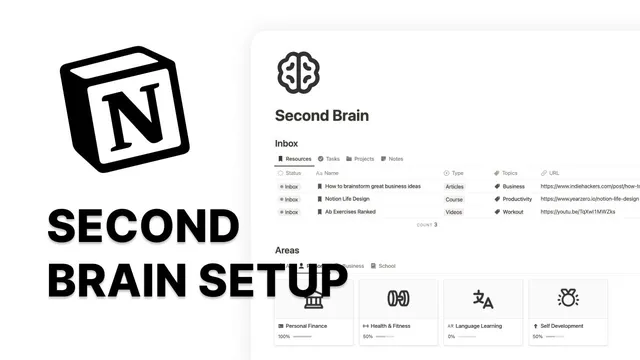
How I use Notion as a Second Brain - 2023 Notion Tour
Based on Easlo's video on YouTube. If you like this content, support the original creators by watching, liking and subscribing to their content.
Use an Inbox as a fast-capture buffer, then process items promptly so it stays reliable instead of becoming a backlog.
Briefing
Notion works as a “second brain” when it links information together across databases—so goals, tasks, and knowledge all feel connected instead of scattered. The setup described centers on two systems running in parallel: an all-in-one execution hub for deciding what to do next, and a knowledge management layer for capturing resources and turning them into usable notes.
The execution side starts with an Inbox view at the top of the workflow. It’s designed for fast capture—whether ideas and to-dos appear while browsing the internet or while working inside another project. The key move is processing: when there’s time, items from the inbox are reviewed and organized into the rest of the system, keeping the inbox as a “reliable” staging area rather than a dumping ground.
From there, an Areas database acts as the overarching structure. Every goal and project sits underneath an area, and the interface includes a progress bar to show completion on active work. Users can filter the display to focus on goal progress, project progress, or both, making it easier to check direction without digging through details.
Goals are organized in a Board view by quarter. Seeing targets grouped into time blocks helps reinforce top priorities and whether current efforts align with longer-term direction. Beneath goals, a Projects and Tasks section tracks execution. Projects appear in a gallery view where completion is tied to the number of completed tasks. Status-based filtered views reduce distraction by showing only what’s relevant—so “in progress” work stays front and center.
Tasks get special handling through multiple views built for action. A drag-and-drop overdue view lets tasks be rescheduled quickly to today or tomorrow. A “recently completed” view addresses a common mistake—accidentally checking off a task—by allowing it to be dragged back into the correct place. A timeline view provides a forward-looking schedule for the week; completed tasks disappear from the timeline to prevent clutter and keep the system navigable.
The knowledge management side begins with a Resources database. After items are captured in the inbox, they’re processed into a “to review” section where content is consumed and summarized into key bullet points. Resources can be revisited via Recent and Favorites tabs, and favorites can be turned into a clickable gallery by creating a link database view that exposes a URL property.
Topics organize knowledge for future retrieval. Topics can be subjects broken down from an area (like investment, budgeting, or taxes under personal finance) or side interests outside current life priorities. Capturing them under the right topic helps ensure relevant material is easy to find later.
Finally, the system distinguishes notes from resources. Notes written after consuming content live under the corresponding Resource page, while notes created in a separate Notes database are more project-like—useful for assembling ideas that may draw from multiple resources. Notebooks provide another layer of organization by grouping related notes together, offering a way to browse and manage knowledge beyond task and project links.
Cornell Notes
The second-brain setup pairs an execution system with a knowledge system inside Notion. An Inbox enables rapid capture, then items are processed into an Areas database that organizes goals and projects under broader life categories with progress tracking. Goals are reviewed by quarter, while projects and tasks use filtered status views plus drag-and-drop rescheduling (overdue, recently completed, and timeline views) to keep work current and uncluttered. Knowledge is stored in a Resources database for review and summarization, then organized through Topics, Notes, and Notebooks. The separation between resource-linked notes and standalone notes helps turn consumed material into reusable outputs.
How does the Inbox prevent ideas and tasks from turning into a messy backlog?
What role does the Areas database play in connecting goals, projects, and progress?
Why use filtered status views for projects and multiple task views like overdue and timeline?
How does the Resources database turn raw material into usable knowledge?
What’s the difference between notes tied to resources and notes created independently?
How do Topics, Notebooks, and Areas work together for long-term retrieval?
Review Questions
- If a task is accidentally marked complete, which view is used to move it back, and what action makes that possible?
- How do Topics differ from Areas, and how can a Topic represent something outside current life priorities?
- When should knowledge be stored as a note under a Resource page versus created in the standalone Notes database?
Key Points
- 1
Use an Inbox as a fast-capture buffer, then process items promptly so it stays reliable instead of becoming a backlog.
- 2
Organize goals and projects under an Areas database so progress tracking stays tied to life categories.
- 3
Review goals by quarter to keep priorities time-aware and direction-focused.
- 4
Run projects and tasks through filtered status views to reduce distraction and keep attention on what’s active.
- 5
Reschedule tasks quickly with drag-and-drop using dedicated views for overdue, recently completed, and timeline planning.
- 6
Separate knowledge storage into Resources (for review and summaries) and Notes/Notebooks (for synthesis and grouping).
- 7
Use Topics to tag knowledge by subject so future retrieval works even when priorities change.