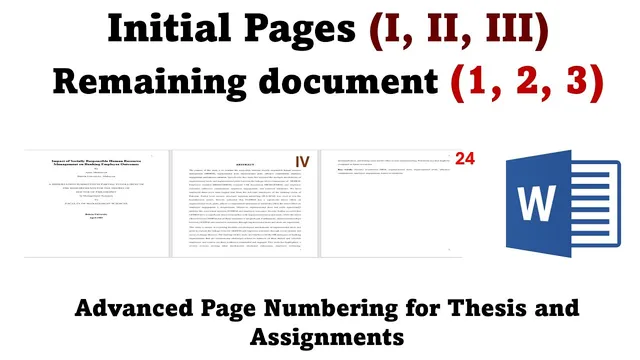
How to add different page numbers in same Word Document: Advanced page numbering
Based on Research and Analysis's video on YouTube. If you like this content, support the original creators by watching, liking and subscribing to their content.
Insert section breaks at every boundary where numbering style must change (e.g., after the title page and after the table of contents).
Briefing
Thesis formatting often demands multiple page-number styles in a single Word document—Roman numerals for front matter (title/abstract/acknowledgements/table of contents) and standard numerals for the main body—yet Word’s default numbering applies uniformly unless sections are separated. The core fix is to split the document into multiple sections, unlink their headers/footers, then apply different page-number formats to each section.
The process starts by creating section breaks at the exact boundaries where numbering style changes. First, a section break is inserted after the title page so the title page can remain unnumbered. Next, another section break is added after the table of contents (or after the front-matter block) so the abstract/acknowledgements/table of contents can use one numbering style while the remainder of the thesis uses another. In Word, this is done via Layout → Breaks → Section Break → Next Page. After these breaks, the document is divided into three sections: Section 1 for the title page, Section 2 for the front matter, and Section 3 for the main thesis.
Once the section breaks exist, earlier page numbering must be removed and—crucially—each section’s footer must be unlinked from the previous one. If the footer remains linked, any numbering changes in one section will propagate to the others. The workflow is to go to the footer area of Section 2 and disable “Link to Previous,” then repeat the same unlinking for Section 3. With links removed, each section can carry independent page numbering.
After unlinking, numbering is applied separately per section. For the title page (Section 1), no page number is added, leaving it blank. For Section 2, page numbers are inserted at the bottom of the page (Insert → Page Number → Bottom of Page, choosing a layout such as Plain Number 3). Then the numbering format is changed using Page Number → Format Page Numbers, switching the style to Roman numerals. For Section 3, the same insertion step is repeated, but the numbering format is set to the desired standard style (the transcript indicates European numerals for the main body).
The result is a single Word file where the title page stays unnumbered, the front matter uses Roman numerals, and the main thesis uses a different numeral system. The same method scales: additional section breaks allow more numbering formats whenever a thesis requires further formatting changes across chapters or appendices.
Cornell Notes
Word can show different page-number styles in one thesis by using section breaks and unlinking footers. Insert a section break after the title page and another after the table of contents so each part becomes its own section. Remove any existing page numbering, then turn off “Link to Previous” in the footer of Section 2 and Section 3 so numbering changes don’t carry across sections. Leave Section 1 blank, set Section 2 to Roman numerals via Page Number → Format Page Numbers, and set Section 3 to the desired numeral style (European numerals in the transcript). This approach can be extended with more sections whenever additional formatting rules are needed.
Why do section breaks matter for thesis page numbering in Word?
What does “Link to Previous” control, and why must it be turned off?
How is the title page kept unnumbered?
How are Roman numerals applied to the front matter?
How is the main thesis numbering style set differently from the front matter?
Review Questions
- What two operations are required after inserting section breaks to make numbering formats differ between sections?
- Where in the document should section breaks be inserted to keep the title page unnumbered and switch numbering after the table of contents?
- How do you change the numeral style (Roman vs European) once page numbers are already inserted in a section?
Key Points
- 1
Insert section breaks at every boundary where numbering style must change (e.g., after the title page and after the table of contents).
- 2
Remove any existing page numbering before applying new numbering rules per section.
- 3
Unlink footers between sections by turning off “Link to Previous” in each subsequent section’s footer.
- 4
Leave the title-page section unnumbered by not inserting page numbers there.
- 5
Apply Roman numerals to the front-matter section using Page Number → Format Page Numbers.
- 6
Apply the desired standard numeral style (European numerals in the transcript) to the main thesis section.
- 7
Add more section breaks if additional chapters or appendices require further numbering formats.