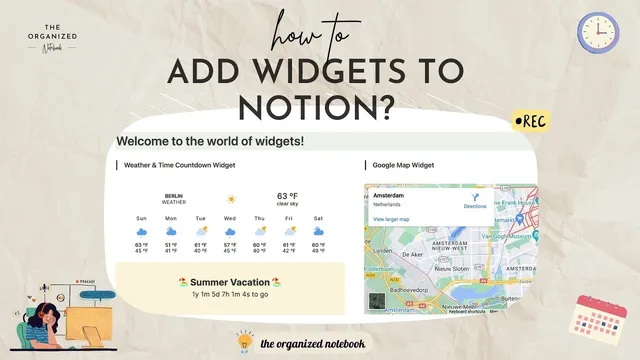
How to add widgets to Notion (+ 10 best free widgets)
Based on The Organized Notebook's video on YouTube. If you like this content, support the original creators by watching, liking and subscribing to their content.
Notion widgets can be embedded as weather, clocks, countdowns, quotes, progress bars, and aesthetic GIFs to make pages more engaging.
Briefing
Notion widgets turn a static workspace into something more interactive—weather, clocks, progress bars, countdowns, quotes, and even aesthetic “gifts”—and the practical question is how to add them quickly without breaking your page layout. The core takeaway: widgets can be embedded in Notion through three main routes—simple embeds, unique-link embeds, and HTML-code embeds—each suited to different levels of customization.
The simplest path is “simple embed,” which works best when a widget doesn’t require customization. The workflow is straightforward: on any Notion page, type “/embed,” paste the widget link, and then resize the embed so it fits the page cleanly. A Pomodoro timer example comes from studywithme.io, where the widget link is pasted directly into Notion using the embed command. Another easy source for simple embeds is Giphy, especially for hand-drawn style GIFs; the process is to search on giphy.com, click “Share,” copy the GIF link, and embed it in Notion.
For widgets that need configuration, the transcript highlights “unique link” embedding. One recommended site is indiefire.com, where users design a widget, choose settings, and then copy a generated link for embedding. The example walks through creating a weather widget: after creating an account, users click “Add new widget,” set location, preferred units, number of days, and style options, then copy the link and embed it into Notion.
Another unique-link option is WidgetBox. The free plan is described as limited, but some widgets remain usable—particularly an aesthetic clock. The example uses a “digital retro clock” where users can adjust color, text color, and border radius, then copy the resulting embed link into Notion.
The most technical route is embedding via HTML code. Some widgets provide raw HTML (for instance, a countdown timer from option.co), but Notion needs a linkable format rather than pasted code. The workaround is to convert the HTML into a link using a service such as htmlsave.com. The transcript notes that some conversions may require a paid plan to create multiple and permanent links. Once the HTML is saved as a link, it can be embedded like other widgets.
Overall, the guidance is designed to help users pick the right method based on how much customization they want and how comfortable they are with link generation or HTML conversion—then build a more lively Notion workspace using free widget sources like Giphy, indiefire.com, WidgetBox, and additional free options referenced in a “10 best free widgets” list (including Google Maps, Spotify quotes, and more).
Cornell Notes
Notion widgets can make a workspace more interactive by embedding small apps like weather, clocks, countdowns, quotes, and progress elements. The transcript lays out three ways to add them: simple embeds (use “/embed” and paste a widget link), unique-link embeds (design a widget on a site, copy its generated link, then embed it), and HTML-code embeds (convert HTML into a link using a tool like htmlsave.com, then embed the link). Simple embeds work best for widgets that don’t need customization, while unique-link sites let users set options like location, units, and colors. HTML embedding is the most flexible but requires extra steps to turn code into a link.
What’s the fastest way to embed a widget in Notion, and when does it work best?
How do “unique link” widgets differ from simple embeds?
Why does HTML-code embedding require extra steps?
What specific actions are used to embed a Giphy GIF as a widget?
What kinds of customization settings are highlighted for weather and clock widgets?
Review Questions
- Which Notion embedding method should you use if a widget needs location, units, and style settings—and what are the steps?
- What problem arises when trying to embed HTML code directly in Notion, and how is it solved in the transcript?
- Compare simple embed vs unique-link embed: what determines which method is appropriate?
Key Points
- 1
Notion widgets can be embedded as weather, clocks, countdowns, quotes, progress bars, and aesthetic GIFs to make pages more engaging.
- 2
Simple embeds work by using “/embed” in Notion, pasting a widget link, and resizing the embed; they fit widgets that don’t need customization.
- 3
Unique-link widgets require designing/configuring the widget on a third-party site, then copying the generated link into Notion.
- 4
indiefire.com supports configurable widgets like weather, where users set location, units, number of days, and style before embedding.
- 5
WidgetBox offers widgets like an adjustable digital retro clock, with customization options such as color, text color, and border radius.
- 6
HTML-code widgets need HTML converted into a link (e.g., with htmlsave.com) before embedding, and some conversion features may require a paid plan.
- 7
A separate “10 best free widgets” list is referenced, including options such as Google Maps and Spotify quotes.