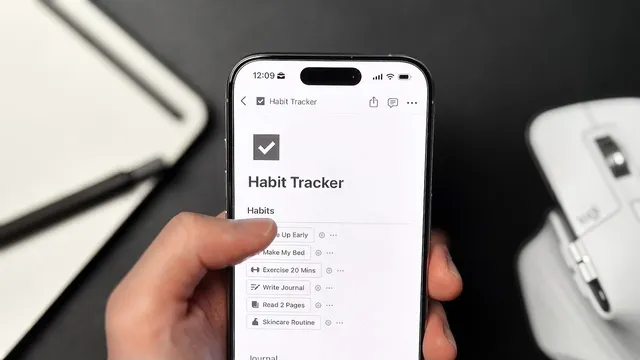
How to build a Habit Tracker in Notion
Based on Easlo's video on YouTube. If you like this content, support the original creators by watching, liking and subscribing to their content.
Create one Notion table database for the habit tracker, then add a checkbox property for each habit with a distinct icon.
Briefing
A habit tracker in Notion becomes genuinely useful when it’s built around automation and fast daily feedback—not just a static checklist. The core setup uses a single database with checkbox properties for each habit, a formula-based Progress metric that updates instantly, and a date-driven template that generates a fresh “Daily Habits” page every day. That combination removes the daily friction of creating pages and manually calculating completion, turning habit tracking into a repeatable routine.
The build starts by creating a full-width Notion page titled “Habit Tracker,” then adding a table database. The database is cleaned up by hiding the database title, disabling vertical lines, and removing unnecessary properties. Each habit becomes its own checkbox property (for example, “Read”), with an icon chosen to visually distinguish habits. To quantify completion, a Progress formula property sums the checkbox values using tonumber()—unchecked habits count as 0, checked habits count as 1—then divides by the number of habits to produce a percentage. The Progress display can be formatted as a ring, and the formula can be adjusted to round to one decimal place by applying a rounding step and scaling.
A date property anchors each entry to a specific day. Rather than creating a new page manually every morning, the tracker uses a “New template” inside the database: the template pre-fills the date when duplicated, sets the page name and icon (e.g., “Daily Habits”), and can be configured to repeat “Every day.” With that in place, each day automatically generates a page where habits can be checked off immediately.
Next comes the second major step: multiple views of the same database for different decision-making needs. A “Today” view filters to only entries matching today’s date. A “This Week” view expands the date filter to a relative range (“is relative to today” for the current week) and sorts by date from earliest to latest. A “Calendar” view switches to Notion’s calendar layout, unhides habit and formula properties, and removes filters/sorting to support month-level scanning and spotting inconsistencies. Finally, a “History” view groups past entries by month (with “Hide empty groups” enabled) so long-term patterns remain navigable.
The final step focuses on customization and usability. Buttons are added to make mobile check-offs easier: each button targets the “Today” page and checks a specific habit property, with an optional confirmation pop-up (e.g., “Are you sure you have read 2 pages?”). Additional convenience features include writing daily journal notes directly in the page body, starring the daily page for quick access, adding an iPhone home screen widget that links to the page, and embedding a habit tracker view into a broader dashboard (like a “Second Brain” page) via a link view. For a cleaner interface, the tracker can hide top-level discussions, hide the date property in the filtered “Today” view, shrink checkboxes to icons, and keep the Progress ring compact—so the system stays minimal while remaining easy to use.
Cornell Notes
The habit tracker is built on one Notion database where each habit is a checkbox property and completion is measured by a Progress formula. The formula converts checked boxes to 1 and unchecked boxes to 0 using tonumber(), sums them, and divides by the number of habits to produce a percentage (optionally rounded to one decimal place). A date property ties every entry to a specific day, and a repeating “New template” automatically generates a “Daily Habits” page every day with the date pre-filled. Multiple views—Today, This Week, Calendar, and History—use filters, relative date ranges, and grouping by month to support daily action and long-term review. Usability improves further with mobile-friendly buttons, optional confirmation prompts, and dashboard/widget shortcuts.
How does the Progress ring calculate completion in this Notion habit tracker?
What’s the purpose of the repeating “New template” for daily pages?
How do the different database views support different kinds of habit review?
Why add buttons for habit completion, and how do they work on mobile?
What does the optional confirmation step accomplish in the button workflow?
How can the tracker be used beyond habit check-offs?
Review Questions
- What formula structure turns checkbox states into a percentage Progress value, and how does tonumber() affect the calculation?
- How do filters, relative date settings, and grouping by month differ across the Today, This Week, Calendar, and History views?
- What configuration details ensure a mobile button updates only the correct habit property on the correct daily page?
Key Points
- 1
Create one Notion table database for the habit tracker, then add a checkbox property for each habit with a distinct icon.
- 2
Build Progress using a formula that sums tonumber() values for each checkbox and divides by the number of habits to produce a percentage.
- 3
Use a date property plus a repeating database template so each day’s “Daily Habits” page is generated automatically with the date pre-filled.
- 4
Set up multiple views (Today, This Week, Calendar, History) using filters, relative date ranges, calendar layout, and month grouping to support both daily action and long-term review.
- 5
Add mobile-friendly buttons that target the “Today” page and check the correct habit property, optionally with a confirmation prompt.
- 6
Use journaling, Favorites, iPhone widgets, and dashboard link views to make the tracker part of a broader daily workflow.
- 7
Keep the interface minimal by hiding top-level discussions, hiding the date property in filtered views, and resizing properties to icons.