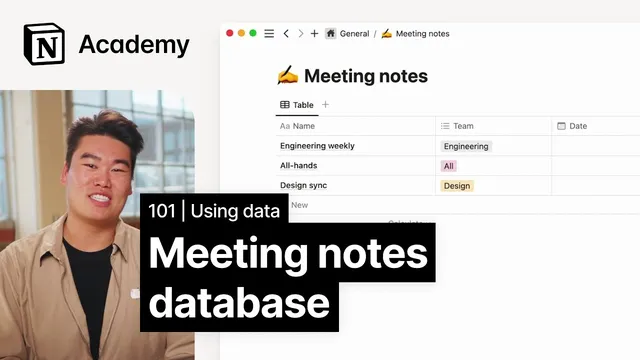
How to build a meeting notes database
Based on Notion's video on YouTube. If you like this content, support the original creators by watching, liking and subscribing to their content.
Use a Notion database so each meeting is a structured record that can be sorted and filtered by properties rather than a pile of similar pages.
Briefing
A meeting notes database in Notion is presented as the simplest way to keep recurring conversations searchable, sortable, and shareable—without scattering similar pages across a workspace. Instead of collecting many separate notes that are hard to tag, filter, or compare, a database turns each meeting into a structured record. That structure adds practical metadata—like date, location, host, and attendees—so teams can quickly pull up exactly what they need, whether they’re looking for a specific meeting or scanning patterns across months.
The recommended setup emphasizes company-wide consistency: the same meeting notes database should be shared across an entire company or department. With that shared source of truth, teams can use filtered views to focus on smaller subsets (for example, only engineering meetings) while still maintaining a high-level overview in one place. This approach is framed as how Notion runs its internal system, aiming to reduce information silos and avoid the overhead of merging multiple databases.
Building the database starts with creating a new page in a shared space—specifically, the General team space—so everyone can access it. From there, the page is set up as a database with a title and icon (the example uses “meeting notes” plus a writing hand emoji). The key design principle is that each horizontal row represents one meeting, while each vertical column becomes a property that categorizes that meeting.
To make the database useful immediately, the transcript walks through adding and customizing properties. A default multi-select property called “Tags” is repurposed and renamed to “teams,” allowing one or multiple teams to be associated with each meeting (engineering, design, marketing, and so on). Next, a “date” property is added using the Select type, enabling meetings to be organized by when they occurred. Attendance is captured with a “attendees” property using a Person type, so each meeting can list who was involved.
Finally, the transcript recommends adding a multi-select property to classify meeting types—such as all hands, daily stand-ups, or weekly syncs—so the database scales as more meetings are recorded. With these properties in place, the database becomes a long-term institutional memory: a running record of decisions and conversations that can be retrieved years later through sorting, filtering, and views.
Cornell Notes
A Notion meeting notes database turns scattered pages into structured records that can be sorted, filtered, and shared. Each meeting becomes a row, while properties like teams, date, attendees, and meeting type become columns that make retrieval fast and consistent. Sharing one database across a company or department enables filtered views for smaller groups without splitting information into multiple databases. The build starts from a shared page (General team space), adds a clear title/icon, then customizes properties—renaming Tags to teams, adding date (Select), attendees (Person), and meeting type (multi-select). This setup supports long-term institutional memory as meeting volume grows.
Why use a database for meeting notes instead of many individual pages?
What’s the recommended sharing model for meeting notes, and what problem does it prevent?
How does the database structure map meetings to the table layout?
Which properties are added in the example, and what types are used?
How do filtered views help as the organization grows?
Review Questions
- What specific properties would you add to make meeting notes searchable for your team (and what property types would you choose)?
- How does sharing one database across a department reduce the need for combining multiple databases later?
- In the row/column model, what does a row represent versus what does a column represent?
Key Points
- 1
Use a Notion database so each meeting is a structured record that can be sorted and filtered by properties rather than a pile of similar pages.
- 2
Share one meeting notes database across an entire company or department to improve transparency and reduce information silos.
- 3
Create the database from a shared space (like General team space) so individuals and teams can pull the data into their own team spaces.
- 4
Design the table so each row is one meeting and each column is a property such as teams, date, attendees, and meeting type.
- 5
Rename and repurpose the default multi-select “Tags” property into a “teams” multi-select to tag meetings with one or more teams.
- 6
Add a “date” property (Select) and an “attendees” property (Person) to support quick retrieval of meetings by time and participants.
- 7
Add a multi-select “meeting type” property (e.g., all hands, daily stand-ups, weekly syncs) so the system scales as meeting volume increases.