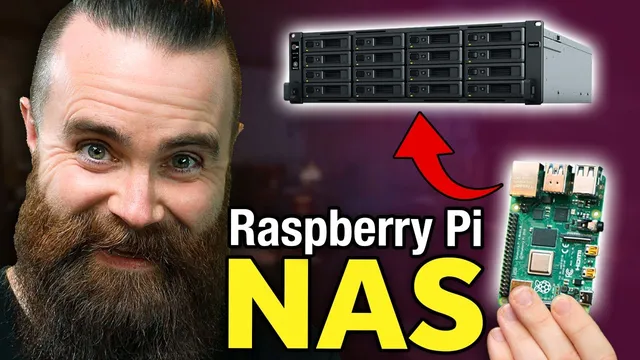
how to build a Raspberry Pi NAS (it’s AWESOME!!)
Based on NetworkChuck's video on YouTube. If you like this content, support the original creators by watching, liking and subscribing to their content.
Use a Raspberry Pi 4 (4GB or 8GB RAM) plus Raspberry Pi OS Lite with SSH enabled to run the NAS headlessly.
Briefing
A credit-card-sized Raspberry Pi can be turned into a practical network-attached storage (NAS) box—complete with a Plex media server—by pairing Raspberry Pi OS Lite with OpenMediaVault and an external USB drive. The payoff is a low-cost, portable “away-from-home” library for movies, plus a simple way to offload camera footage and access files across devices on the same network.
The build starts with hardware selection: a Raspberry Pi 4 with 4GB or 8GB RAM, a power adapter, an SD card, and a USB hard drive or SSD. For the storage layer, the transcript emphasizes that speed and reliability matter—Samsung T5 SSDs are recommended, while larger Seagate drives are also viable. A Geekworm kit is mentioned as an optional upgrade that adds an internal SSD via a Raspberry Pi hat, but the core steps remain the same whether the drive is external or internal.
Software setup begins on a computer using Raspberry Pi Imager. The process installs Raspberry Pi OS Lite (no desktop) onto the microSD card, then uses Imager’s options to enable SSH and set the Pi user password. Wi‑Fi is possible, but the instructions push Ethernet for stability. The result is a headless Raspberry Pi that can be managed remotely.
Once the Pi boots, the next task is finding its IP address from the home router’s DHCP list. SSH access then follows with a command of the form `ssh pi@<ip>`, using the password set during imaging. After logging in, the system is brought up to date with `sudo apt update` and `sudo apt upgrade`.
To convert the Pi into NAS storage, OpenMediaVault is installed using a one-command script pulled from GitHub via `wget` and executed with `bash`. After installation, the web interface is reached in a browser (using the Pi’s IP). The first security move is changing the default OpenMediaVault web administrator password, since leaving defaults invites trouble.
Next comes the storage workflow inside OpenMediaVault: plug in the USB drive, confirm it appears under Discs, mount it, then create a shared folder (named “nasty” in the walkthrough) and grant the Pi user read/write privileges. Access is enabled through SMB (Windows file sharing) and NFS (Linux/macOS file sharing). When NFS throws an error, the fix described is destructive: stop SMB, delete the shared folder, unmount the drive, wipe it, recreate an Ext4 filesystem, and then re-enable SMB and NFS. After that, Windows File Explorer can connect to the share via the Pi’s IP and the configured credentials, and large file transfers are tested by copying a video.
With storage working, Plex media server is installed on the same Pi using apt commands after adding Plex’s repository and keys. Plex is then accessed via a browser on port 32400, signed into with a free Plex account, and configured to scan a “movies” folder on the NAS. The end state is a networked library accessible from phones through the Plex app, plus the ability to keep media and footage synchronized between home and travel. The transcript closes by reiterating that the same approach scales from a simple external drive to a more integrated Geekworm internal SSD setup.
Cornell Notes
The core idea is to repurpose a Raspberry Pi 4 into a NAS by installing OpenMediaVault and attaching a USB storage drive, then add Plex Media Server so the same box becomes a streaming library. The workflow starts with Raspberry Pi OS Lite, enabling SSH during SD-card imaging, and using router DHCP to find the Pi’s IP for remote login. OpenMediaVault then mounts the external drive, creates a shared folder with correct read/write permissions, and enables SMB and NFS for cross-platform access. Plex is installed via apt after adding Plex’s repository, and it scans a NAS folder (like “movies”) so content plays on phones through the Plex app. This matters because it turns a cheap, portable device into always-available storage and media streaming.
Why does the setup begin with Raspberry Pi OS Lite and SSH enabled before the Pi ever boots?
How does the build find the Raspberry Pi’s IP address, and why is that step necessary?
What are the main OpenMediaVault steps to turn a USB drive into usable NAS storage?
What’s the difference between SMB and NFS in this NAS setup, and how does the transcript handle both?
What troubleshooting path is described when NFS fails to apply, and what does it cost?
How does Plex get wired into the NAS, and what does Plex actually scan?
Review Questions
- What specific settings during SD-card imaging make the Raspberry Pi manageable without a monitor (and which network method is recommended)?
- In OpenMediaVault, what sequence of actions is required before a network share works (mounting, shared folder creation, privileges, and applying changes)?
- If NFS errors persist, what destructive recovery steps are described, and why might they resolve the issue?
Key Points
- 1
Use a Raspberry Pi 4 (4GB or 8GB RAM) plus Raspberry Pi OS Lite with SSH enabled to run the NAS headlessly.
- 2
Attach a USB hard drive or SSD; the transcript recommends fast SSDs like Samsung T5 for performance.
- 3
Install OpenMediaVault via a GitHub script, then immediately change the default OpenMediaVault web administrator password.
- 4
Mount the external drive, create a shared folder, and set read/write privileges for the Pi user before enabling network protocols.
- 5
Enable SMB for Windows compatibility and NFS for Linux/macOS; both can be configured to point at the same shared folder.
- 6
If NFS configuration errors occur, the described fix is to wipe and recreate an Ext4 filesystem on the drive, which erases existing data.
- 7
Install Plex Media Server on the same Pi, then configure Plex libraries to scan folders inside the NAS share for streaming access.