How to Create a Link To Previous and Next Day's Daily Note| Date Function on Obsidian(Templater)
Based on Prakash Joshi Pax's video on YouTube. If you like this content, support the original creators by watching, liking and subscribing to their content.
Enable both the Template plugin and the Daily Notes plugin, then configure Daily Notes to store entries in a dedicated folder such as `journal`.
Briefing
Obsidian daily notes can be made far more navigable by automatically generating (1) the current date heading and (2) clickable links to the previous and next day’s daily notes inside a single template. The payoff is a smoother daily workflow: every new journal entry comes pre-wired for forward/backward navigation without manually searching for yesterday or tomorrow.
The setup relies on two Obsidian plugins: **Template** and **Daily Notes**. First, Template is installed and enabled, then Daily Notes is enabled in the community plugins area. With both active, the workflow is organized using folders—one folder (for example, **journal**) stores the daily note files, while a separate **templates** folder stores the template note that will be used to generate new daily entries.
Next comes configuration. In **Daily Notes** settings, the date format can be left unchanged, but the file location should point to the chosen daily note folder (e.g., **journal**). Then, in **Templater** settings, the templates folder is selected (the **templates** folder), and a trigger is enabled so the template runs automatically when a new file is created.
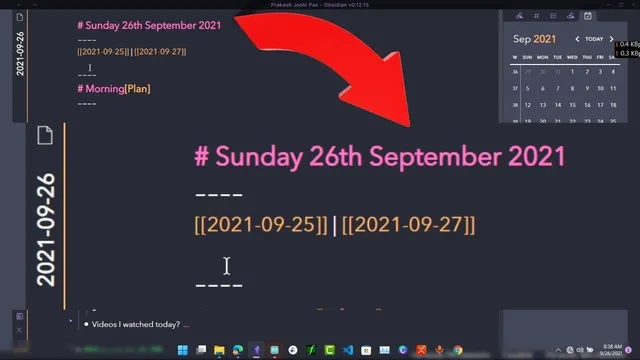
Inside the daily note template, the current date heading is generated using a Templater date variable: the template uses the syntax pattern with `tp.date` to insert today’s date at the top. When a new daily note is created, the heading automatically becomes something like “25 November,” matching the creation date.
The same mechanism is used to create navigation links. Links in Obsidian are created with double brackets (`[[...]]`), and Templater variables are embedded inside those brackets so the link text becomes the correct date. For example, `tp.date.yesterday` is wrapped in double brackets to produce a link to yesterday’s daily note, and `tp.date.tomorrow` is wrapped similarly for tomorrow’s daily note. After this is added to the template, deleting and recreating a daily note results in a consistent structure: the template inserts today’s date plus clickable links to both adjacent days.
Once the date and navigation links are in place, the template can also include other recurring sections—such as “What am I grateful for today?” or a daily task list—so each new entry starts with both structure and instant day-to-day movement. For deeper customization, the transcript points viewers to Templater’s documentation and related variable examples.
Cornell Notes
A practical Obsidian setup uses the Template and Daily Notes plugins together with Templater date variables to auto-build daily note pages. Each new daily note gets a date heading for the current day and two clickable links: one to the previous day’s note and one to the next day’s note. The links are created by combining Obsidian’s `[[...]]` link syntax with Templater’s `tp.date.yesterday` and `tp.date.tomorrow` variables. This matters because it removes manual searching and makes forward/backward navigation part of the daily workflow. The template can also include other daily sections like gratitude prompts or task lists, and the same auto-generation will keep everything consistent.
Why are Template and Daily Notes both needed for this workflow?
How does the template generate today’s date heading automatically?
How are links to yesterday and tomorrow created inside Obsidian?
What configuration choices matter most in the settings?
What else can be added to the daily note template besides navigation links?
Review Questions
- What combination of syntax and variables produces a clickable link to yesterday’s daily note in the template?
- Which folder settings ensure that daily notes are created in the correct location and templates are loaded from the correct place?
- How would you modify the template if you wanted additional navigation beyond previous and next day (e.g., a link to a specific weekday)?
Key Points
- 1
Enable both the Template plugin and the Daily Notes plugin, then configure Daily Notes to store entries in a dedicated folder such as `journal`.
- 2
Create a separate `templates` folder and place the daily note template file inside it so Templater can load it reliably.
- 3
In Templater settings, select the templates folder and enable the trigger to run the template on new file creation.
- 4
Use `tp.date` in the template to automatically insert today’s date as a heading at the top of each daily note.
- 5
Create previous/next navigation by embedding `tp.date.yesterday` and `tp.date.tomorrow` inside Obsidian double-bracket link syntax `[[...]]`.
- 6
Keep the daily note date format consistent with the naming scheme so the generated links resolve to the correct daily note files.
- 7
Add recurring sections (gratitude prompts, task lists, etc.) to the same template so every new daily note starts with both structure and navigation.