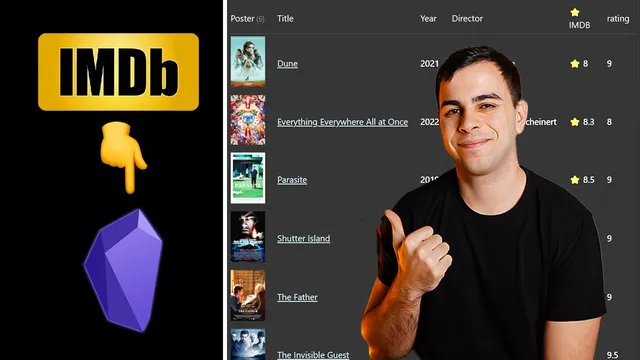
How To Create a Movie Database in Obsidian
Based on FromSergio's video on YouTube. If you like this content, support the original creators by watching, liking and subscribing to their content.
Enable Obsidian Templates and install Dataview and Quick Add to support both structured note creation and database-style views.
Briefing
A personal movie database in Obsidian becomes practical by combining Dataview tables with Quick Add macros that pull movie metadata from OMDb. The core workflow: install the right plugins, get an OMDb API key, set up a JavaScript “lookup movie” script, and wire it into a “new movie” template so adding a title automatically creates a structured note (including fields like cast and IMDb rating). Once notes exist in a dedicated movies folder, Dataview turns those notes into browsable lists—filtered by status, genre, and other metadata—so the vault functions like a searchable catalog rather than a pile of notes.
The setup starts with enabling Obsidian’s Templates core plugin and creating a templates folder. Dataview is required for the database view, and Quick Add is used to run the script on demand. An OMDb API key is obtained from OMDb (free or via Patreon), then a movies.js script (sourced from Stefan’s guide and adapted) is added into an Obsidian “scripts” folder. A “new movie template” note is created in the templates folder; this template defines the variables the script will populate, such as movie title, cast, IMDb rating, and other fields. Quick Add macros are then configured: one macro (“lookup movie”) runs the script and prompts for the OMDb API key, while another macro (“add movie”) uses the template path and file naming rules so the movie title becomes the filename and each new entry is placed into a movies folder.
After the ingestion pipeline is working, the database view is built with a Dataview table (based on Stefan’s sample, with modifications). The key design choice is filtering: the table pulls from the movies folder and includes a status filter (e.g., status = complete). That means the “favorite movies” table stays empty until movies are tagged with the right status value. As movies are marked complete, they appear in the Dataview results; IMDb ratings remain blank until the user fills them in, since the workflow relies on the template fields and subsequent updates to populate rating data.
The same Dataview logic is reused for a “to watch” list by changing the status filter to status = to watch. This creates a practical loop: add a movie, tag it as to watch, browse by genre/rating/director when deciding what to see next, then flip the status to complete after watching and assign a rating. The template is also designed for note-taking prompts—fields like plot and optional “recommended by” can be added so future review is structured rather than improvised. Overall, the system replaces third-party database dependence with user-owned, customizable metadata and long-term note structure inside Obsidian.
Cornell Notes
The movie database workflow in Obsidian relies on Quick Add macros plus a JavaScript lookup script that uses an OMDb API key to auto-fill structured movie notes. A “new movie template” defines the fields the script populates, and Quick Add creates each note in a dedicated movies folder using the movie title as the filename. Dataview then renders those notes as tables filtered by metadata—especially a status field (e.g., complete vs to watch). This lets users maintain separate views for favorites watched and movies still waiting, while also supporting richer review prompts like plot and “recommended by.” The result is a private, customizable catalog that stays in the vault.
How does adding a movie title turn into a structured note automatically?
Why does the Dataview table initially show no results, even after movies are added?
What’s the difference between the “favorite movies” view and the “to watch” view?
Where does the IMDb rating come from, and what happens if it’s blank?
How can the system support richer movie review notes beyond just metadata?
Review Questions
- What exact settings in Quick Add determine (1) which script runs and (2) which template and folder are used when creating a new movie note?
- How does changing the Dataview status filter transform one table into a different workflow view (favorites vs to watch)?
- What role do template variables play in ensuring the lookup script can populate fields like cast and IMDb rating?
Key Points
- 1
Enable Obsidian Templates and install Dataview and Quick Add to support both structured note creation and database-style views.
- 2
Obtain an OMDb API key and configure the Quick Add “lookup movie” macro to prompt for it and run the movies.js script.
- 3
Create a “new movie template” that defines the fields the script will fill, then configure Quick Add to use that template path and to name files by movie title.
- 4
Use Dataview tables filtered by a status field (e.g., complete vs to watch) to create separate, automatically updating lists.
- 5
Update each movie note’s status and rating so Dataview results reflect what has been watched and how it was rated.
- 6
Extend the template with extra prompt fields (like “recommended by”) to add new columns and make reviews more consistent.