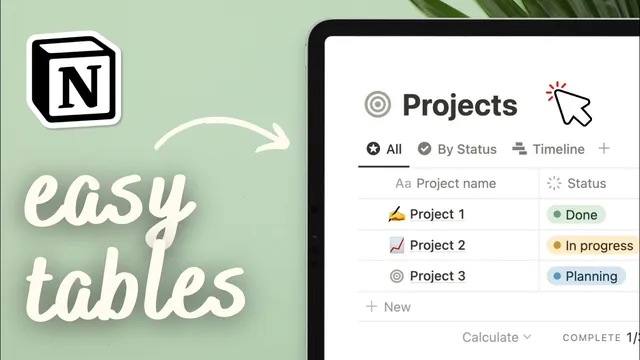
How to create Tables in Notion | Step-by-Step Full Guide (2024)
Based on The Organized Notebook's video on YouTube. If you like this content, support the original creators by watching, liking and subscribing to their content.
Notion table views are database-backed: each row is a page with properties, enabling database features beyond simple grids.
Briefing
Notion tables work like database views, where every row is a page with properties—so the real power comes from bulk editing, calculated summaries, grouping, filtering, and sorting rather than spreadsheet-style cell formulas. That distinction matters because it determines what you can automate and how you should structure data for tasks like tracking checklists, managing tags, or producing quick rollups (sum, average, median, min/max) across many entries.
Creating tables in Notion starts with three main paths. An empty page can generate a new table database via “Table” (creating a fresh database from scratch). Alternatively, typing “/table view” creates an inline table view database that can live within a page alongside other content. If the data already exists elsewhere, “/linked view of database” adds a linked table view so edits in the view reflect in the original database. Notion databases also support multiple layouts: switching from board to table view is done through layout options in the database menu.
Once a table view database is in place, each row functions as a page that can hold text and additional properties. Layout settings control how the table looks and behaves—vertical lines, column wrapping, and how pages open (side panel, centered panel, or full page), plus whether a page icon is shown. Properties are added through the “+” controls (including number, checkbox, and other property types) or from inside an entry via “+ add a property.” Properties can be hidden from the main table view without deleting them, and visibility can be tuned further so empty properties can be hidden or always shown.
For readability, Notion supports freezing columns so the left-side page name stays visible as more properties are added. Adding rows is flexible: use “+ new,” create from within an open cell, or press Shift+Enter to add a new row quickly. Row-level controls live behind the six-dot handle on the left, offering actions like duplicate, delete, open in a new tab/window, copy link, rename, edit property, move to, and favorite.
Bulk editing is a standout feature. By selecting multiple rows at once, users can apply changes across many entries—sorting, deleting, copying links, or editing a shared property value (for example, renaming multiple rows to “page one”). Columns and rows can be rearranged by dragging to adjust widths or reorder items when no sort is active.
Calculated columns provide spreadsheet-like rollups, but they operate at the column level. Using the calculate option, users can compute sum, average, median, min, max, range, percent empty/not empty, count values, and unique values. With checkbox properties, Notion can calculate percent checked—useful for habit trackers and daily task lists.
Tables also support grouping (turning on tag grouping to separate items into “tag one” and “tag two” groups), plus filtering and sorting. Filters can show only checked or unchecked items, enabling completed vs. incomplete views. Sorting can be applied by name, checkbox, number, tags, or date (ascending/descending). A search bar inside the table helps locate specific entries instantly.
Finally, Notion’s database tables differ from simple tables. “/table” creates a free-form table with manual formatting options like colored rows and header styling, which is convenient for presenting structured information but lacks the database-style property system. Notion can do row-wide calculations between number properties, yet it doesn’t support the full spreadsheet model of placing formulas into individual cells, so spreadsheet functionality remains limited by design.
Cornell Notes
Notion table views are database-backed: each row is a page with properties, and the table’s value comes from database features like bulk editing, grouping, filtering, sorting, search, and column-level calculations. Users can create tables from scratch (“Table”), embed them inline (“/table view”), or reuse existing data via linked views (“/linked view of database”). Table settings control layout (vertical lines, wrapping, page opening style, icons), while property controls let users add types like number and checkbox, hide properties from the main view, and freeze columns for readability. Calculations support rollups such as sum, average, median, min/max, percent empty, and percent checked for checkbox tracking. Notion’s approach differs from spreadsheets: formulas are limited compared with true cell-by-cell spreadsheet logic, and simple “/table” is a free-form alternative to database tables.
What’s the practical difference between a Notion table database and a simple Notion table created with “/table”?
How can someone create a table in Notion depending on whether data already exists?
Which table settings and property controls affect how the table looks and stays usable as it grows?
What are the main ways Notion tables support editing at scale?
How do calculations work in Notion tables, and what’s the limitation compared with spreadsheets?
How do grouping, filtering, and sorting work together for task-style workflows?
Review Questions
- When would a linked view of a database be preferable to creating a new table from scratch in Notion?
- What calculation options are available for checkbox properties, and how could that support a habit tracker?
- Why might someone choose “/table” instead of a table view database when building a Notion table?
Key Points
- 1
Notion table views are database-backed: each row is a page with properties, enabling database features beyond simple grids.
- 2
Create tables via “Table” (new database), “/table view” (inline table view database), or “/linked view of database” (reuse and sync with an existing database).
- 3
Use layout settings to control vertical lines, column wrapping, page-opening style, and page icons for better readability.
- 4
Manage properties by adding new property types, hiding properties from the main view, and using visibility rules for empty fields; freeze columns to keep page names visible.
- 5
Bulk editing is powerful: select multiple rows and apply actions like sorting, deleting, copying links, and editing properties across all selected entries.
- 6
Column calculations support rollups like sum, average, median, min/max, percent empty, and percent checked for checkbox tracking, but Notion doesn’t offer full spreadsheet cell-by-cell formula flexibility.
- 7
Group, filter, and sort tables using tags, checkbox states, and date ordering to build practical workflows like completed vs. incomplete lists.