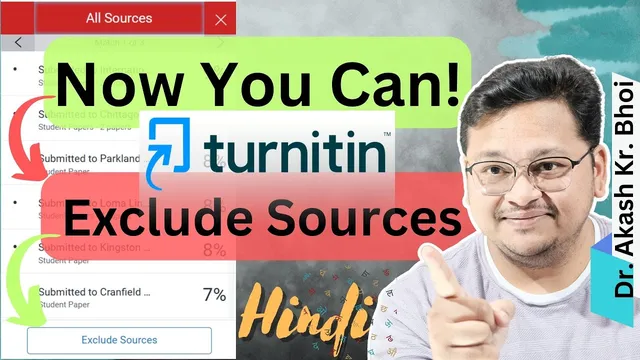
How to Exclude Sources in Turnitin Feedback Studio || Turnitin Similarity Report || Hindi || 2024
Based on eSupport for Research's video on YouTube. If you like this content, support the original creators by watching, liking and subscribing to their content.
“Exclude Sources” availability depends on permissions tied to the instructor/admin role, not the student role.
Briefing
Turnitin Feedback Studio’s “Exclude Sources” option can be missing because it isn’t enabled for every account role. In practice, the feature is available to instructors/supervisors (via an instructor/admin account) but not to students inside their own student accounts, even when they can view similarity results and source lists. That mismatch explains why some users see colored external sources in the Similarity Report yet cannot remove specific sources to lower the similarity percentage.
The walkthrough starts by distinguishing account types: an instructor/admin account can create classes and assignments, then generate student accounts under that class. A student account can submit papers only within the assigned class, and it can view the similarity report, including the list of sources that contribute to overlap. However, when the student opens Feedback Studio and checks the “exclude” controls, the exclusion filter isn’t shown or isn’t available—so the student can’t selectively remove sources from the report.
To make the feature available, the instructor must enable it at the class/assignment level. The process begins in the instructor account when creating or editing the class settings. The instructor sets options such as generating similarity reports on submission, controlling overlap behavior, and—critically—enabling exclusion of quoted or small sources (as applicable). The transcript also emphasizes that incorrect class setup can lead to misleading outcomes, including cases where similarity becomes 100% due to how the class and submission settings were configured.
Once the instructor has enabled the relevant settings, the instructor can open Feedback Studio for a submitted paper, view the sources (often shown with different colors for external sources), and then use the exclusion workflow. The instructor selects the specific source(s) to exclude (for example, an institution name or other matching external item), applies the exclusion, and then the report view updates accordingly. The transcript notes that the exclusion controls appear in the instructor context but not in the student context.
When a student needs the similarity percentage reduced, the transcript’s guidance is practical: the student should not attempt exclusion directly in their own account because the controls won’t be there. Instead, they should approach the instructor/supervisor who owns the class settings and can exclude sources on their behalf. The underlying principle is authority and permissions—exclusion is treated as a policy-controlled action, so only the account with the right privileges can perform it.
Cornell Notes
The transcript explains why “Exclude Sources” in Turnitin Feedback Studio may be unavailable: students typically cannot use the exclusion feature in their own accounts. Exclusion controls depend on class/assignment settings set by an instructor/admin account. In an instructor context, the user can open the similarity report, identify external sources (often color-coded), select specific sources, and apply exclusions. In a student context, the exclusion filter/controls do not appear, so similarity can’t be adjusted by excluding sources directly. The fix is to ask the instructor/supervisor to enable the right permissions at the class level and perform exclusions if needed.
Why can’t a student see or use “Exclude Sources” in Turnitin Feedback Studio even after opening the similarity report?
What role does the instructor/admin account play in enabling source exclusion?
How does the instructor perform exclusions once the feature is enabled?
What should a student do if they need similarity reduced by excluding a source?
What warning does the transcript give about excluding sources without proper context?
How does the transcript connect class settings to similarity outcomes like 100% similarity?
Review Questions
- In what account context does Turnitin’s “Exclude Sources” option appear, and why might it be missing for students?
- Which class/assignment settings must be configured by an instructor for source exclusion to work?
- What steps should a student take if they believe a specific external source should be excluded from their similarity report?
Key Points
- 1
“Exclude Sources” availability depends on permissions tied to the instructor/admin role, not the student role.
- 2
Students can view similarity results and source lists but typically cannot access the exclusion controls in their own accounts.
- 3
Instructor/admin accounts must configure class/assignment settings to enable exclusion-related options (e.g., quoted/small source exclusion).
- 4
Once enabled, instructors can select specific external sources from the similarity report and apply exclusions to update the report view.
- 5
If exclusion is needed, students should request the instructor/supervisor to perform the exclusion because students lack authority.
- 6
Incorrect class setup can produce misleading similarity outcomes (including very high or 100% similarity), so settings must be handled carefully.