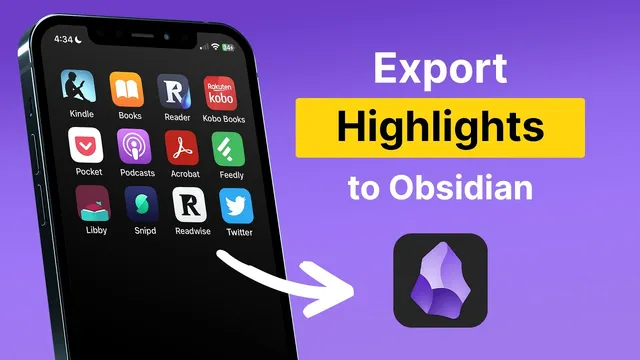
How to Export Your Highlights to Obsidian
Based on Readwise's video on YouTube. If you like this content, support the original creators by watching, liking and subscribing to their content.
Install the official “Readwise official” plugin from Obsidian’s community plugins and enable it before connecting your Readwise account.
Briefing
Readwise’s new Obsidian integration is built to eliminate the manual “export highlights to Markdown, then import” workflow by syncing highlights automatically and continuously into Obsidian. After installing the official Readwise plugin from Obsidian’s community plugins, users connect their Readwise account through the integration’s settings page. From there, highlights can be pulled into a chosen folder inside Obsidian, with sync status alerts showing when imports complete.
A key differentiator is continuous syncing of all highlights, which reduces friction for users who previously had to manage exports by hand. The integration also adds control for selective importing: users can toggle which sources to bring in, reviewing Readwise’s list of highlights line by line and checking only the titles they want. For formatting, the integration includes flexible templating options, supporting both Jinja 2 and YAML front matter. That matters because it lets users shape how each highlight appears in Obsidian while also enabling richer, structured metadata.
The metadata pipeline is a major part of the value. Each imported highlight can include the author and title of the source, the original URL, and any highlighted book cover images or other images captured during reading. It also imports highlight location details—such as the exact Kindle location or the precise spot in an article—so clicking back from Obsidian can jump directly to where the highlight was made. The integration further brings in tags created in Readwise, including tags added during daily reviews, and places them both in a document tag section and within individual tag fields inside Obsidian.
Users can also control where highlights land in Obsidian’s file structure. With “group files and category folders” enabled, highlights are organized into subfolders by source type—for example, books in a “books” folder and tweets in a “tweets” folder. If a flatter structure is preferred, that grouping can be turned off so all highlights are stored together under a single folder titled “Read wise highlights.”
Once settings are configured, users can run sync manually by clicking “initiate sync,” or schedule it to run every hour, every 12 hours, or once a day. After syncing, highlights appear in the chosen folder, and preview mode shows the enriched metadata, including highlight location and imported images. The result is a workflow aimed at keeping reading context—links, locations, images, and tags—attached to notes inside Obsidian, helping users write and research with less back-and-forth.
Cornell Notes
Readwise’s official Obsidian integration connects a Readwise account to Obsidian and syncs highlights into a chosen folder, reducing the need for manual Markdown exports and imports. It supports continuous syncing and selective importing so users can bring in only specific sources or titles. Imported notes can be formatted with Jinja 2 or YAML front matter and include enriched metadata such as author, title, original URL, highlight location (e.g., Kindle or article position), images, and Readwise tags. Users can organize highlights into category subfolders (books, tweets, etc.) or keep everything in one flat “Read wise highlights” folder. Sync can run manually or on a schedule (hourly, every 12 hours, or daily).
How does the integration reduce the usual friction of moving highlights into Obsidian?
What options exist for importing only some highlights instead of everything?
How does the integration customize how highlights look inside Obsidian?
What enriched metadata gets imported, and why is it useful?
How can users choose between a grouped folder structure and a flat one?
Review Questions
- What sync modes does the integration offer, and how would you decide between manual and scheduled syncing?
- Which metadata fields (location, URL, images, tags) are imported into Obsidian, and how do they improve navigation back to the original highlight?
- How do Jinja 2 and YAML front matter affect the formatting of imported highlights, and where would you configure those templates?
Key Points
- 1
Install the official “Readwise official” plugin from Obsidian’s community plugins and enable it before connecting your Readwise account.
- 2
Connect Readwise inside the integration settings to start exporting highlights directly into Obsidian without manual Markdown export/import steps.
- 3
Use selective importing to check or uncheck specific titles/sources so only chosen highlights land in Obsidian.
- 4
Customize highlight formatting with Jinja 2 or YAML front matter templates and embed enriched metadata in the resulting notes.
- 5
Import enriched metadata including author, title, original URL, highlight location, highlighted images, and Readwise tags.
- 6
Choose either grouped category subfolders (e.g., books, tweets) or a flat folder structure under “read wise highlights.”
- 7
Run sync manually via “initiate sync” or schedule it hourly, every 12 hours, or daily.