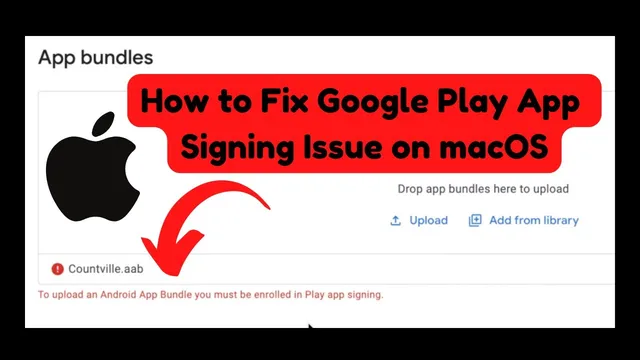
How to fix "To Upload an Android App Bundle you must be enrolled in Play App Signing" on MacOS
Based on Obsidian Soft's video on YouTube. If you like this content, support the original creators by watching, liking and subscribing to their content.
Triggering the “must be enrolled in Play App Signing” error requires enabling Play App Signing in Google Play Console rather than changing the app bundle alone.
Briefing
A common Google Play Console blocker—“To Upload an Android App Bundle you must be enrolled in Play App Signing”—can stop updates even when the app bundle is correctly built for the target SDK. The fix hinges on enabling Play App Signing by generating an encrypted private key using the public key provided by Google, then uploading that encrypted key in the Play Console. Once enrollment is completed, app bundles can be uploaded normally and the release can proceed to review and publication.
The process starts in Google Play Console: when the upload error appears, the workflow points to an option to use Play App Signing. From there, the console provides a public key that must be downloaded. Alongside that, a command-line tool is also downloaded (the transcript refers to an encryption tool). After downloading both, the user copies a prepared command into a text editor, then fills in required file paths.
On macOS, the command needs three key inputs: the path to the downloaded public key file, the path to the existing keystore used for signing the app (the same keystore that produced the app’s signatures before the error), and the keystore alias (the entry name inside the keystore). The transcript emphasizes using macOS “Option” key + right-click to reveal and copy full file paths, then pasting those paths into the command template. The command also specifies an output location and filename where the encrypted private key will be written—typically a .pem file stored in a chosen folder (the example uses a documents folder and a name like “count_fill.pem”).
Before running the encryption command, the transcript notes a dependency: OpenJDK 20 is required. The user downloads the correct OpenJDK package for macOS, unzips it, and copies it into the standard Java Virtual Machines directory under Library/Java/JavaVirtualMachines. Then they set Java home by updating the Terminal configuration (using a command saved via Ctrl+D), and verify the Java version with “java -version,” expecting 20.0.2.
With Java 20 set and the command fully populated, the user runs the encryption command. The tool prompts for the keystore password, then generates the encrypted private key file in the output folder. That encrypted key is uploaded back into Google Play Console when enabling Play App Signing, after which the console accepts the app bundle upload. The result is a resolved signing enrollment issue, allowing the developer to continue editing the release, submit for review, and—after approval—publish the updated app to the Google Play Store.
Cornell Notes
Google Play Console can block app bundle uploads unless the app is enrolled in Play App Signing. The remedy is to enable Play App Signing and upload an encrypted version of the existing signing private key. The workflow requires downloading Google’s encryption public key and an encryption tool, then running a command that uses (1) the public key file, (2) the keystore file used for signing, and (3) the keystore alias to produce an encrypted .pem output. The command needs OpenJDK 20 on macOS, so Java must be installed and Java home pointed to the JDK before running the encryption. After uploading the encrypted key in Play Console, app bundles upload successfully and the release can be reviewed and published.
Why does Google Play Console block an app bundle upload, and what enrollment step fixes it?
What files and values must be inserted into the encryption command?
How does macOS path copying work in the workflow described?
What Java requirement must be met before running the encryption tool?
What happens after the encrypted key is generated and uploaded?
Review Questions
- What three inputs (besides the output file) must be provided to encrypt the private key for Play App Signing?
- Why is OpenJDK 20 necessary, and how can you verify the correct Java version before running the command?
- After uploading the encrypted key in Play Console, what is the next operational step for publishing an update?
Key Points
- 1
Triggering the “must be enrolled in Play App Signing” error requires enabling Play App Signing in Google Play Console rather than changing the app bundle alone.
- 2
Download Google’s Play App Signing encryption public key and the required encryption tool, then use them to generate an encrypted private key.
- 3
Use the same keystore that previously signed the app; the encryption command must reference that keystore file and its alias.
- 4
On macOS, fill the command with exact file paths (public key, keystore, output location) and generate an encrypted .pem file.
- 5
Install and configure OpenJDK 20 before running the encryption command; confirm with “java -version” returning 20.0.2.
- 6
Upload the generated encrypted private key in Play Console to complete Play App Signing enrollment.
- 7
After enrollment, app bundle uploads succeed and the release can move through review and publication.