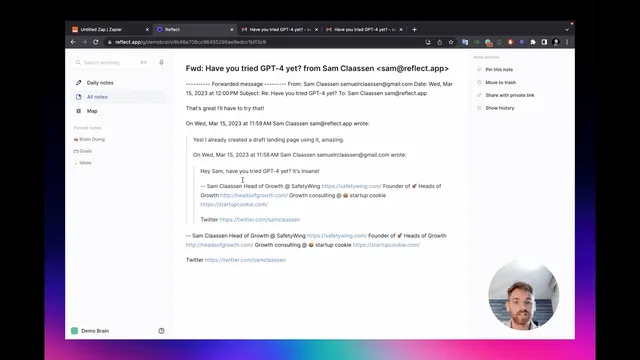
How to forward email threads into your Reflect notes
Based on Reflect Notes's video on YouTube. If you like this content, support the original creators by watching, liking and subscribing to their content.
Use Zapier’s “Email by Zap” trigger (“New inbound email”) to catch forwarded emails sent to a unique address.
Briefing
Star-based email saving works for single messages, but it breaks down when the goal is to capture an entire conversation. The workaround is a Zapier setup that creates a unique forwarding address; sending any email thread to that address automatically generates a new Reflect note containing the full nested thread, keeping daily notes clean.
The process starts in Zapier by creating a new Zap with the trigger set to “Email by Zap” and choosing “New inbound email.” The key step is defining a unique email address—something memorable but distinct—so that only forwarded messages meant for Reflect land in the workflow. The transcript emphasizes copying and storing the unique address because the “zapiermail.com” appendage is easy to forget.
To verify the trigger, the user forwards the latest email from a test thread to the unique address. Because email delivery isn’t instantaneous, Zapier may take a few seconds to detect the inbound message; the workflow may also offer a choice of which email to use if multiple messages were forwarded. Once the trigger successfully finds an email, the Zap is connected to Reflect with an action that creates a new note.
Instead of appending content to a daily note like a to-do item, the Reflect action is configured to create a standalone note for the forwarded thread. The note’s subject can be set to the email subject (the transcript suggests options like “email subject”), and the note can be configured not to be pinned by default. For the note body, the setup uses the email’s actual content—specifically the email body in Markdown—so the resulting Reflect note reads like an email.
A critical configuration detail is the Reflect graph ID, which identifies the correct Reflect workspace. After filling in the graph ID and running a test, the workflow confirms that a note was sent to Reflect. Checking Reflect shows the note does not appear in the daily note feed; instead, it appears under “All notes,” where it sits at the top and preserves the entire thread.
The payoff is practical: the note includes the full conversation, nesting all messages in the thread. That means long email chains—10, 15, or even 20 messages—can be captured in one place without manually copying and pasting. Just as important, the forwarding address can be used from any sender account. Once the unique Zapier forwarding address is set up, the same integration can receive threads forwarded from both personal and work email accounts, so the Reflect capture workflow only needs to be configured once.
Cornell Notes
A Zapier workflow can forward any email thread to a unique address, then automatically create a new Reflect note containing the entire nested conversation. The setup uses Zapier’s “Email by Zap” trigger (“New inbound email”) with a custom unique forwarding address, then connects it to a Reflect action that creates a standalone note (not a daily-note append). The note can be configured with the email subject and the email body content, and it requires the correct Reflect graph ID. Because email delivery can lag, testing may take a few extra seconds. Once configured, the same forwarding address works from multiple email accounts, letting users capture long threads in one clean note.
How does the Zapier trigger decide which emails should become Reflect notes?
Why does the setup create a new Reflect note instead of appending to a daily note?
What fields are used to shape what appears inside the Reflect note?
What’s the role of the Reflect graph ID in the workflow?
Why might Zapier testing take longer than expected?
How can one integration capture threads from both work and personal email accounts?
Review Questions
- What unique element in Zapier must be created and saved to ensure only intended emails trigger Reflect note creation?
- Which Reflect action choice prevents long email threads from cluttering daily notes, and where do resulting notes appear?
- What configuration inputs determine the content and destination of the Reflect note (e.g., subject/body fields and graph ID)?
Key Points
- 1
Use Zapier’s “Email by Zap” trigger (“New inbound email”) to catch forwarded emails sent to a unique address.
- 2
Create and store a memorable unique forwarding address; the “zapiermail.com” suffix is easy to forget.
- 3
Forward the latest email from an email thread to the unique address so the full thread can be captured as one note.
- 4
Configure the Reflect step to create a standalone note (not append to a daily note) to avoid clutter.
- 5
Set the note subject from the email subject and populate the note body with the email body content in Markdown.
- 6
Include the correct Reflect graph ID so notes are written to the intended Reflect workspace.
- 7
Expect a few seconds of delay during testing because email delivery can lag.