How to join your team that’s using Notion
Based on Notion's video on YouTube. If you like this content, support the original creators by watching, liking and subscribing to their content.
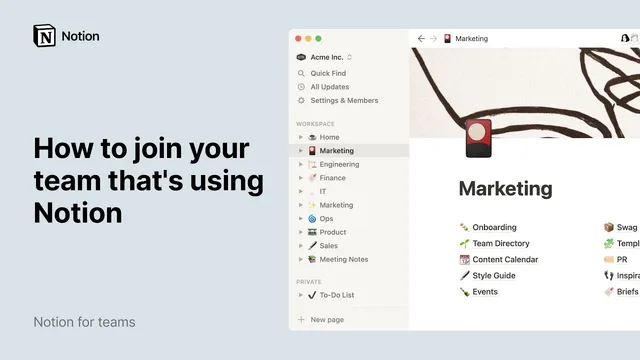
Notion team workspaces usually start with department “top level pages” in the sidebar, which act as the main hubs for information.
Briefing
Joining a Notion team is mostly about learning how information is organized—then using that structure to write, plan, and collaborate without wasting time. Team workspaces typically start with “top level pages” in the left sidebar, which act like department hubs. Each department (Marketing, Engineering, Sales, HR, and so on) often gets its own top level page, where teams place general company information—like benefits or vacation policy—and then organize more specific materials inside it.
Those department hubs then contain “sub pages,” which don’t automatically show up in the sidebar but appear when someone clicks the toggle next to the top level page. The transcript emphasizes that teams can nest pages inside pages indefinitely, turning a single department hub into a structured library of onboarding docs, directories, content calendars, and other repeatable processes. The practical payoff is speed: if someone needs marketing information, it should live under the Marketing top level page so workflows don’t stall while people hunt for the right document.
Inside each page, Notion’s building blocks drive how content is created and rearranged. Every page is made of content blocks—text, callouts, embeds, and more. Adding blocks is done by placing the cursor and using the forward slash menu to choose a block type. Blocks also have a six-dot handle: hovering reveals it, and clicking opens a blocks menu for actions like deleting, duplicating, or converting blocks. The same handle supports drag-and-drop reordering, and dragging a block near another can create two-column layouts with adjustable widths.
For teams that need more than static pages, Notion databases provide the next layer of structure. A database entry is itself a page, so each task or project can hold additional details. Databases are customizable through property types (numbers, tags, dates, people, and more) and filters and views. The roadmap example shows a board database where each project is a page, with properties like assigned team members (via person properties) and status (via select properties). Multiple views—such as table, timeline, calendar, list, or gallery—let teams view the same underlying data in different ways without changing the database itself. Extra views can also narrow what’s shown, like displaying only projects assigned to a specific person.
Collaboration is handled through comments and notifications. To tag someone, users can click the six-dot icon, add a comment, and type a person’s name so it appears as a mention; pressing enter and sending triggers notifications for both the tagged person and the commenter. The same @-mention approach works in the body of pages and on page-level comments, with guidance that high-level updates fit page comments while specific feedback fits in-context comments tied to an action.
Finally, sharing controls determine what teammates can see. Pages can be private, shared with specific people, or shared broadly within a team with restricted editing rights. Quick Find helps users locate a specific database without rummaging through the workspace. The overall message is that once the hierarchy (top pages → sub pages → blocks → databases) and collaboration tools (mentions, notifications, sharing) are understood, the workspace becomes a reliable system rather than a maze.
Cornell Notes
Notion team workspaces are built around a hierarchy: top level pages for departments, sub pages for organized departmental content, and content blocks inside each page for flexible formatting and embeds. Sub pages can be nested indefinitely, making it easier to store onboarding, calendars, directories, and other repeatable processes where teammates can find them quickly. For planning and tracking, databases turn each entry into a page and let teams add properties (like people, status, dates) and create multiple views (board, table, timeline, calendar, list, gallery) without changing the underlying data. Collaboration relies on @-mentions in comments to trigger notifications, while sharing settings control whether pages are private, team-wide, or limited to specific groups. Quick Find helps locate the right database fast.
How do top level pages and sub pages work together in a team workspace?
What are content blocks, and how can they be rearranged on a page?
Why use a database instead of only pages for project management?
How does tagging a teammate work, and what happens after a mention?
What’s the difference between page comments and in-body comments for collaboration?
How do sharing settings affect who can see and edit pages?
Review Questions
- When would a team choose to create a sub page under a department top level page instead of placing the content directly on the top level page?
- How do database views differ from database properties, and why can multiple views help without changing the underlying data?
- What steps are used to tag a teammate in a Notion comment, and how do notifications support follow-up?
Key Points
- 1
Notion team workspaces usually start with department “top level pages” in the sidebar, which act as the main hubs for information.
- 2
Sub pages are nested under top level pages and can be revealed via the toggle next to each department page, keeping the sidebar clean.
- 3
Pages are built from content blocks that can be added via the forward slash menu and rearranged using the six-dot block handle.
- 4
Databases turn each entry into a page and add structure through properties like people and status, plus filters and multiple views.
- 5
Multiple database views (board, table, timeline, calendar, list, gallery) change how data is displayed without changing the underlying database.
- 6
@-mentions in comments trigger notifications for both the tagged person and the commenter, enabling quick coordination and replies.
- 7
Sharing settings control whether pages are private, team-wide, or limited to specific groups, which is crucial for work-in-progress content.