How to manage your contact lists in Notion: A complete guide on how to build (+ free template)
Based on The Organized Notebook's video on YouTube. If you like this content, support the original creators by watching, liking and subscribing to their content.
Build the contact tracker around one Notion database (“my contacts”) so sorting, filtering, and templates work consistently across all entries.
Briefing
A Notion contact tracker can be built around a single, well-structured database—then made more useful with frozen columns, multiple views (table and gallery), sorting for “last contacted,” and per-contact templates powered by Notion AI. The payoff is a contact system that’s easy to scan, easy to update, and tailored to how people actually get managed: by relationship type, timing, and follow-up needs.
The setup starts with a new Notion page titled “contact tracker,” complete with an icon and a cover image pulled from Unsplash. The core data model is one database called “my contacts,” created as a Table view and cleaned up by hiding the database title. Inside that database, the properties are chosen to reflect real relationship management: “name” (default), “connection” (multi-select for categories like family, friend, work, or combinations such as work friend), “birthday” (date), “first met” (date), “last contacted” (date), “occupation” (multi-select), and “closeness” (multi-select using star emojis to rate how close the relationship feels). Contact details round it out with “phone,” “email,” a “URL” for websites, and a “physical address.”
To keep the table readable as it grows, the guide recommends freezing the “name” column—an update that keeps the person’s identity visible while scrolling horizontally through other fields. After populating the database with a few example contacts, attention shifts to how the information is displayed.
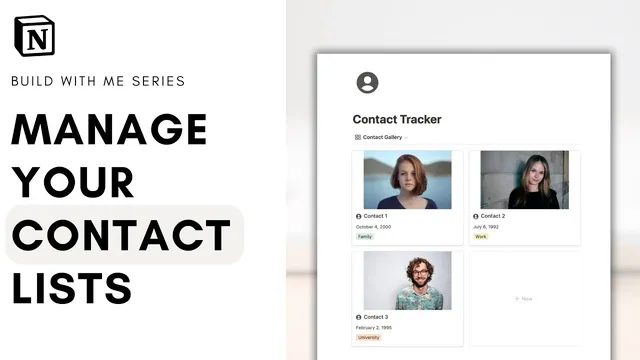
A second view is created by duplicating the “all” view and switching it to Gallery view. In Gallery view, each contact card can show a cover image (useful for remembering names) and selected properties beneath the card, such as birthday, closeness, and connection. Another duplicate view is used for follow-up: sorting by “last contacted” in descending order (so the most recently contacted appear first, or switching to ascending if the oldest interactions should surface). This makes it straightforward to identify who needs attention.
The most automation comes from adding a sub-template inside the database. Using “+ new template,” each contact entry can include a reusable outline—notes about the person, what happened when they were last met, likes and dislikes, and a dedicated gift-idea section. The guide then uses Notion AI via a custom AI block to generate gift suggestions based on the contact’s stored preferences (for example, cats vs. dogs, and dislikes like pasta). When the template is updated for a specific person, the AI-generated suggestions can be refreshed with the new details.
Finally, the system supports filtering—such as showing only “family” contacts—either through on-demand filters or by saving multiple filtered tabs. With these pieces together, the tracker becomes a practical workflow: capture relationship context, track timing, sort and filter quickly, and use AI to reduce the effort of planning future interactions and gifts.
Cornell Notes
The guide builds a Notion “contact tracker” using one database (“my contacts”) with relationship-focused properties like connection, birthday, first met, last contacted, occupation, and closeness (star ratings). It improves usability by freezing the name column so the person’s identity stays visible while scrolling. It then creates multiple database views: a Gallery view with cover images and selected properties, plus a “last contacted” view sorted to surface follow-ups. The tracker becomes smarter with a per-contact template that includes a Notion AI block to generate gift ideas from stored likes and dislikes. Filters allow quick slices such as showing only family contacts.
Why structure the tracker around a single database, and what properties make it effective?
How does freezing a column change day-to-day usability in a wide Notion table?
What’s the difference between the Table view and the Gallery view for contacts?
How does sorting by “last contacted” support follow-up planning?
How do templates and Notion AI work together inside each contact entry?
How can filters be used to create quick “views” of specific relationship groups?
Review Questions
- What specific properties would you include if your goal is to manage both networking and personal relationships in one system?
- How would you configure a view so that the people you haven’t contacted in the longest time appear first?
- What information should be stored before running a Notion AI gift-idea block so the suggestions are relevant?
Key Points
- 1
Build the contact tracker around one Notion database (“my contacts”) so sorting, filtering, and templates work consistently across all entries.
- 2
Use multi-select “connection” to capture relationship categories and combinations (e.g., work friend) rather than forcing one label per person.
- 3
Track timing with “first met” and especially “last contacted” so follow-ups can be driven by dates, not memory.
- 4
Freeze the “name” column to keep the person’s identity visible while scrolling through many properties.
- 5
Create multiple views by duplicating the database: a Gallery view for visual recall and a “last contacted” view sorted for follow-up planning.
- 6
Add a per-contact template with reusable sections (notes, likes/dislikes) and embed a Notion AI block to generate gift ideas from those stored preferences.
- 7
Use filters (and optionally saved filtered tabs) to quickly focus on groups like family or work contacts.