How to Organize Your Life in Notion - Second Brain Setup
Based on Easlo's video on YouTube. If you like this content, support the original creators by watching, liking and subscribing to their content.
Create Areas of Life to categorize goals and projects, optionally splitting them into personal vs. business for clarity.
Briefing
A “second brain” in Notion is built to keep life information—goals, projects, tasks, and external resources—in one retrievable system, so future work can be completed faster instead of starting from scratch. The setup starts by defining “areas of life,” which act as top-level categories for grouping goals and projects. For example, someone aiming to improve fitness can create an area like “Health and Fitness,” then optionally split it further into subcategories such as personal or business. If there are many areas, a pre-made page template can generate consistent layouts, and that template can be set as the default for new pages across databases.
From there, the system drills down into goals, projects, and tasks. Inside an area page, a user creates a goal with filters that keep planning organized by time—such as selecting the correct year and then the relevant quarter. A goal page then becomes the container for related projects and tasks. Projects break down into actionable tasks; for a goal like “run a half marathon in Q3 of 2023,” a project might include training and tasks such as hiring a coach, creating a training schedule, and joining a running group. Tasks can be assigned dates and visualized in a calendar view, with drag-and-drop rescheduling when priorities shift. Returning to the goal page also helps keep individual tasks visible, such as finding and registering for a race in the same quarter.
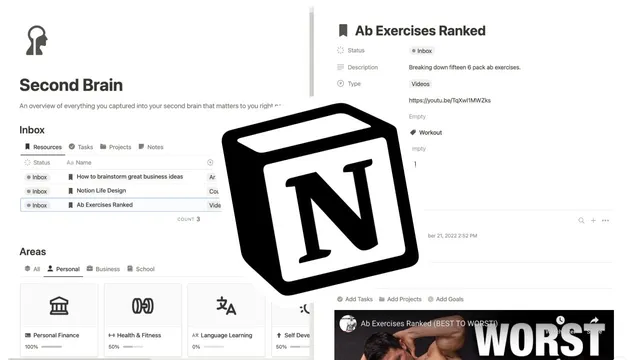
External knowledge is captured through a separate “resources” database, using the Notion Web Clipper to save useful items from the internet. Resources can include YouTube videos, TikTok or Twitter threads, blog posts, podcasts, PDFs, and photos. New resources automatically land in an “inbox” status, which is filtered to show only items awaiting organization. Each resource can be tagged with properties and linked to a “topics” database—another organizing layer where a topic page lists all notes and resources tagged to it. This structure makes it easier to retrieve relevant knowledge later, including when connecting resources to specific tasks.
When it’s time to build a training schedule, the system supports linking resources directly from the task page. On a task page, the user can choose “add resources” and search for related items, then create the relationship with a click. A key distinction keeps the workflow clean: “notes” and “resources” live in different databases. Notes are for internal thinking—writing ideas, summaries, and consolidated plans—while resources are for saved external material. Notes also follow a writing lifecycle: inbox for ideas not yet started, drafts for work in progress, and permanent notes once finished.
Finally, the system uses archiving instead of deleting. After completing work—like finishing the half marathon—items such as tasks, projects, goals, and resources can be archived via a checkbox. Archiving removes pages from all other views while keeping them searchable in the archive page, enabling future reference. Two years later, archived training schedules and related notes can be retrieved and shared when someone asks for advice. The overall payoff is reducing information overload: capture what matters, organize it for retrieval, and fast-track future goals rather than relying on memory for once-useful knowledge.
Cornell Notes
The Notion “second brain” setup organizes life into Areas of Life, then breaks work down into Goals, Projects, and Tasks. External material is saved in a separate Resources database using the Notion Web Clipper, where new items start in an Inbox status and are organized with properties and Topics. Internal thinking happens in a Notes database, also using an Inbox → Drafts → Permanent workflow, and notes link to relevant resources when building plans. A calendar view and drag-and-drop scheduling help keep tasks aligned with time filters like year and quarter. Completed items are archived (not deleted) so they disappear from active views but remain searchable for future reference.
How do “Areas of Life” change the way goals and projects are organized in Notion?
What is the practical relationship between goals, projects, and tasks in this system?
How does the system capture and organize useful external information from the internet?
Why keep “notes” and “resources” in separate databases?
What do the Notes statuses (inbox, drafts, permanent) accomplish?
What is the purpose of archiving pages instead of deleting them?
Review Questions
- If you wanted to plan work for a specific time window (like a quarter), where would you apply year/quarter filters in this system?
- When building a training schedule task, how does the system connect that task to relevant external material?
- What practical difference does the system enforce between Resources and Notes, and how does that affect retrieval later?
Key Points
- 1
Create Areas of Life to categorize goals and projects, optionally splitting them into personal vs. business for clarity.
- 2
Use a page template (set as default) to generate consistent layouts across new area pages and databases.
- 3
Build planning hierarchies with Goals containing Projects, and Projects containing Tasks.
- 4
Use calendar views and drag-and-drop to visualize and reschedule tasks without losing the overall structure.
- 5
Capture external knowledge in a separate Resources database via Notion Web Clipper, starting new items in an Inbox status.
- 6
Organize knowledge with Topics and link Resources directly to Tasks when building plans.
- 7
Archive completed or outdated pages to keep them searchable later while removing them from active views.