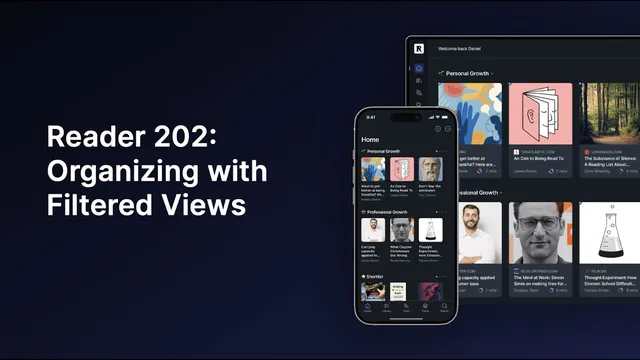
How to Organize Your Reader Account with Filtered Views
Based on Readwise's video on YouTube. If you like this content, support the original creators by watching, liking and subscribing to their content.
Filtered views let documents be selected by combinations of attributes such as tags, authors, sources, titles, dates, and file types.
Briefing
Filtered views turn Readwise Reader into a customizable, query-driven library—so the same document can show up in multiple places, and each view stays automatically current as your highlights and feeds change. Instead of treating your account like a static filing system, filtered views behave like a live database view: pick documents based on combinations of attributes such as title, date, tags, and file type, then save those selections for quick access.
The key advantage over folders is flexibility. Folders imply mutual exclusivity: once a document is placed in one folder, it can’t naturally belong to another workflow without moving it or duplicating it—both options create clutter and maintenance work. Filtered views avoid that by letting one document appear in multiple views simultaneously. They’re also dynamic. A weekly review workflow—such as “articles highlighted at least twice in the past week”—would be hard to maintain with folders because it requires ongoing manual discipline, while filtered views update automatically based on the underlying criteria.
Getting started is designed to be low-friction. Users can click a parameter from the right-hand sidebar—like author, source (RSS feed), or a document tag—to create a temporary filter. Saving the view pins it to the left sidebar, where it can be rearranged by drag-and-drop. For faster navigation, each pinned filtered view can be jumped to via a keyboard shortcut number, and pressing “V” brings up a quick switcher to move between views. Views can also be toggled on or off and repositioned through configuration, and unpinned views can remain accessible via the top bar.
Readwise Reader also supports organizing views into splits. For example, a triage workflow can split documents into “inbox later” versus “archive tabs,” and a feed-style workflow can split by reading status. A counter badge can be added to show how many documents fall into the first split at a glance.
Beyond clicking parameters, filtered views scale up through saved queries. Users can create custom query-based views using the filtering guide accessible from the “plus” icon, which strings together multiple parameters. An example workflow focuses on Discord community content: start with documents tagged “Community,” narrow by requiring “Discord” or “on board” in the title, and further refine to onboarding-related articles. For ongoing management, users can create views from feeds via “manage feeds,” add tags via “manage tags,” and later edit, rename, or delete views from “manage filtered views.” The result is a Reader setup that feels tailored to specific goals—without the rigidity and upkeep of folders.
Cornell Notes
Filtered views in Readwise Reader let users organize documents using saved, query-based criteria like tags, authors, sources (RSS feeds), titles, dates, and file types. Unlike folders, filtered views are flexible (one document can appear in multiple views) and dynamic (views update automatically as new content matches the criteria). Users can start by clicking a filter parameter from the sidebar to create a temporary view, then save and pin it for quick access, including keyboard navigation and quick switching. More advanced workflows use custom queries built from multiple parameters, such as narrowing “Community” content to items whose titles include “Discord” or “on board.” This approach supports ongoing review and triage workflows without manual moving or duplication.
Why do filtered views outperform folders for organizing documents in Readwise Reader?
What are the easiest ways to create a filtered view, and how do users make it permanent?
How do keyboard shortcuts and quick switching work for filtered views?
How can filtered views be split and summarized for workflows like triage or feed-style reading?
What does building a custom query-based filtered view look like in practice?
How do manage feeds, manage tags, and manage filtered views fit into the workflow?
Review Questions
- How does a filtered view’s ability to show one document in multiple places change how you should design your workflows compared with folders?
- Describe a scenario where a dynamic filtered view would save more time than a static folder-based approach.
- What combination of parameters could you use to narrow a broad tag-based view into a more actionable reading queue?
Key Points
- 1
Filtered views let documents be selected by combinations of attributes such as tags, authors, sources, titles, dates, and file types.
- 2
Unlike folders, filtered views are flexible: the same document can appear in multiple views simultaneously without moving or duplicating it.
- 3
Filtered views are dynamic and update automatically as new documents match the criteria, reducing manual maintenance for recurring workflows.
- 4
Users can create initial filtered views by clicking filter parameters in the right-hand sidebar, then save and pin them for persistent access.
- 5
Pinned filtered views support keyboard navigation via shortcut numbers, and pressing “V” opens a quick switcher for fast switching.
- 6
Filtered views can be split into categories (e.g., triage inbox vs archive) and can display counter badges for quick workload scanning.
- 7
Advanced organization comes from custom query-based filtered views built by combining multiple parameters, such as tag plus title keywords.