How to run onboarding in Notion
Based on Notion's video on YouTube. If you like this content, support the original creators by watching, liking and subscribing to their content.
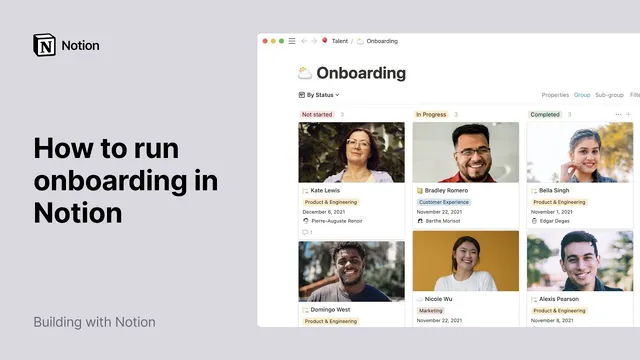
Create an onboarding database inside a central Talent/People page and display it as a Kanban board with status columns to track progress.
Briefing
Employee onboarding becomes far easier to manage when it’s built as a structured Notion database—complete with standardized properties, reusable templates, and team-specific schedules. The core setup starts with an “employee onboarding” page inside a company-wide Talent (People/HR) area. From there, a new database entry is created as a Kanban board with three status columns—Not started, In progress, and Completed—so each onboarding task set lives as its own page while still rolling up into a clear progress view.
The workflow hinges on database properties that act like a consistent onboarding form across every new hire. Out of the box, the database includes a person property (to assign onboarding ownership) and a status property (to track progress). The transcript then adds practical custom fields: team (as a select list), start date (as a date property), photo (as a file/media property), hiring manager (renamed from the default person field), and both personal and work email addresses. These properties aren’t just for display—because they’re dynamic, they can later power filtering and views, and they ensure every onboarding page is filled out the same way.
Access control is treated as a privacy requirement, not an afterthought. The onboarding database page is initially limited to workspace members, with the ability to remove broader access and grant only specific editors. At the same time, others can still get a “10,000-foot view” of who’s joining and when, while sensitive details remain restricted. This balance lets teams coordinate without exposing personal information unnecessarily.
To avoid repetitive copy-paste work, the transcript recommends building a reusable onboarding template. Content blocks prepared elsewhere can be pasted into a database template, which includes a table of contents and sections like “Before you start” (laptop selection, work email entry, photo upload for the directory, and postal address), plus a “First day” section with tasks marked via checkable items. The template can also embed resources such as Google Maps for office location and link out to tools like a Google Form for company affinity groups.
Once a general onboarding template works, the process scales by duplicating it per department. A schedule database can be swapped in—for example, a product and engineering onboarding schedule—then duplicated again for marketing, customer experience, sales, finance, and legal. Each new hire gets the correct team template, their properties are filled in, and the onboarding page is renamed to match them (e.g., “Kate’s Product and Engineering Onboarding”). The new hire can then track progress in the Kanban board by dragging cards across status columns.
Finally, sharing is handled through Notion invitations: the onboarding page is shared with full access to the new hire’s personal email, letting them comment and edit. With standardized templates and properties, the transcript frames onboarding as something that can be set up in minutes per hire—while staying consistent as the company grows and new teams join the system.
Cornell Notes
Notion onboarding is built as a database-driven system: each new hire gets a dedicated page entry inside a Kanban board that tracks status from “Not started” to “Completed.” The database uses standardized properties—like team, start date, photo, hiring manager, and email fields—so every onboarding page is filled out consistently and can later support views and filtering. A general onboarding template can be created once (including a table of contents and task checklists) and then duplicated for each department by swapping in team-specific schedule databases. Privacy is managed by restricting page access to only those who need it, while still allowing others a high-level view of who’s joining and when. Sharing with the new hire is done via Notion invite so they can edit and track their progress.
How does the Kanban board structure onboarding progress for each new hire?
Which database properties make onboarding scalable and consistent across hires?
How are team-specific onboarding schedules added without rebuilding everything from scratch?
What privacy controls keep new hire information from being broadly visible?
How does the system help a new hire complete tasks on day one and beyond?
What’s the process for inviting a new hire to their onboarding page?
Review Questions
- If a new hire’s onboarding page is missing key fields like team or start date, where should those properties be added so they apply to all entries?
- How would you design a department-specific onboarding schedule so it can be swapped into the same template structure?
- What combination of Notion access settings would you use to let most employees see onboarding timing while restricting sensitive personal details?
Key Points
- 1
Create an onboarding database inside a central Talent/People page and display it as a Kanban board with status columns to track progress.
- 2
Use database properties (team, start date, photo, hiring manager, personal email, work email) to standardize onboarding forms across every new hire.
- 3
Build a general onboarding template once, then duplicate it per department by replacing the schedule database rather than recreating content.
- 4
Manage privacy by restricting page access to editors while still allowing a high-level view of who’s joining and when.
- 5
Populate each new hire’s entry by selecting the correct team template, filling properties, and renaming the onboarding page to the hire’s name.
- 6
Invite the new hire via their personal email with full access so they can comment and edit their onboarding page and move cards across statuses.
- 7
Control how photos appear in board previews using the card preview property display settings (e.g., showing the file property).