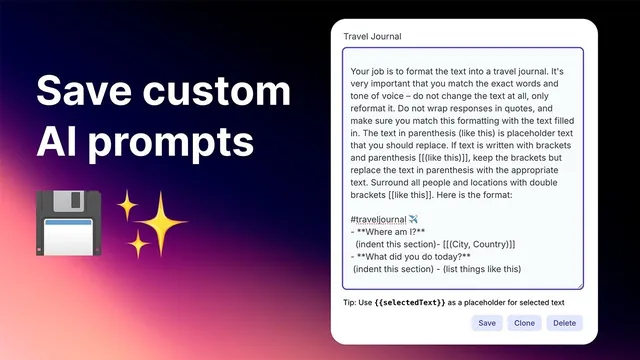
How to save custom AI prompts (easy method)
Based on Reflect Notes's video on YouTube. If you like this content, support the original creators by watching, liking and subscribing to their content.
Clone existing prompts to create safe variations without overwriting the originals.
Briefing
Custom AI prompts can be saved and reused instantly inside Apple Notes-style workflows, eliminating the constant copy/paste and app-switching that slows down repeat tasks. The core payoff is speed: once a prompt is stored, it can be run directly on highlighted text (including voice notes), producing outputs like formatted documents, task lists, or research-backed drafts without rewriting the same instructions every time.
The workflow centers on cloning an existing prompt and giving it a new name, rather than overwriting the original. After selecting a prompt template (for example, a “formatting” prompt), the user copies the prompt text into a new prompt entry. From there, the prompt is saved under a chosen label—such as “format exercises”—so it can be triggered later on new notes. This approach matters because many useful prompts are long and detailed (like a project proposal formatter), making manual repetition impractical and error-prone.
Several real-world prompt examples illustrate what gets saved. One custom prompt was used to generate project proposals for an outbound email agency, with instructions that enforce specific formatting. Another prompt is designed for research: when drafting a blog post or social media content, it finds supporting evidence and returns citations to include. There’s also a prompt for turning video and podcast notes into usable text outputs. The transcript emphasizes that these prompts become most valuable when they’re tied to the notes the user already collects—voice notes, highlighted snippets, or rough drafts—so the AI can act on the user’s existing material.
To run a saved prompt, the user highlights the text inside the notes and invokes the assistant (the transcript mentions using Command J). The prompt then processes the selected content. If the notes are empty or lack context, the user may insert temporary filler text so the prompt has something to operate on; once the prompt is tested, the filler is replaced with the real content. The method is framed as “like saving and running custom AI prompts directly within Apple Notes,” turning notes into a control panel for repeatable AI tasks.
Finally, the transcript notes that a spreadsheet of saved prompts is available for sharing, and it points viewers to Reflect (the app referenced) plus additional note-taking prompts and templates. The overall message is straightforward: clone, name, save, and run—so custom AI instructions become a reusable tool rather than a chore.
Cornell Notes
Saving custom AI prompts becomes practical when prompts can be cloned, renamed, and run directly on highlighted text inside notes. Instead of rewriting long instructions or copy/pasting into chat every time, users store prompts once—like formatting project proposals, adding research citations, or converting video/podcast notes. The transcript recommends copying an existing prompt into a new one, cloning it to avoid overwriting, and saving it with a clear name (e.g., “format exercises”). When ready, the user selects the relevant text in notes and triggers the assistant (Command J), letting the saved prompt generate the desired output. The result is faster, repeatable AI workflows embedded in everyday note-taking.
Why does cloning a prompt (instead of overwriting) matter in this workflow?
How does the method avoid repeated copy/paste into ChatGPT or similar tools?
What kinds of outputs do the saved prompts target?
What role does filler text play when testing a prompt?
How does a saved prompt get applied to a specific task like turning notes into checkable items?
Review Questions
- When would you choose to clone a prompt rather than create a new one from scratch?
- How does the workflow handle missing context when running a prompt on notes?
- What steps are required to run a saved prompt on highlighted text, and what shortcut is mentioned?
Key Points
- 1
Clone existing prompts to create safe variations without overwriting the originals.
- 2
Copy a prompt into a new prompt entry, then save it under a descriptive name for quick reuse.
- 3
Run saved prompts directly on highlighted notes to avoid app switching and repeated copy/paste.
- 4
Use voice notes and other note content as the input context for prompts.
- 5
Insert temporary filler text when testing prompts that require context.
- 6
Trigger the assistant from within notes (Command J) to execute the selected saved prompt.
- 7
Maintain a shared library of prompts (e.g., via a spreadsheet) to reuse and expand workflows.