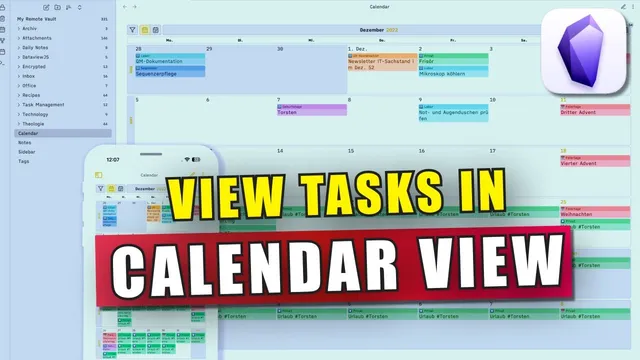
How to See All Your Tasks in Calendar View in Obsidian
Based on Prakash Joshi Pax's video on YouTube. If you like this content, support the original creators by watching, liking and subscribing to their content.
Use the Obsidian Tasks plugin to manage tasks with structured properties that can be rendered elsewhere.
Briefing
Obsidian Tasks can be turned into a Google-Calendar-style monthly and weekly task view, letting users scan past and future deadlines at a glance—complete with task status counts like “done,” “due,” and “overdue.” Instead of hunting through individual notes, the calendar layout surfaces what matters on each date, including week numbers and a month backdrop in the monthly view.
The setup relies on two ingredients working together: the Obsidian Tasks plugin (which stores tasks and their properties) and a DataView query that pulls those tasks into a calendar grid. The monthly view supports scrolling through dates to reveal tasks scheduled for each day, while the weekly view provides a separate layout that can be switched to when a narrower time window is needed. The calendar also reflects task progress at the top level—showing totals such as “3 tasks done out of 11,” along with counts for due and overdue items—so users can quickly judge whether a workload is on track.
To make the calendar look and behave correctly, the method uses a DataView query plus two custom files: view.css and view.javascript. These files are part of a “task calendar” folder that can be obtained either by downloading from a GitHub repository or by using a provided template vault. The template vault includes the workflow for tasks and meetings, and it also contains the task calendar folder that can be copied into an existing Obsidian vault.
Once the task calendar folder is in place, the DataView query embedded in the monthly calendar view can be copied directly (the transcript notes it will be provided in the video description). After that, users can open the monthly calendar view to see the calendar-style task visualization, and they can also access a separate weekly calendar view created in different nodes—avoiding the need to constantly switch between monthly and weekly layouts.
In short, the approach turns Obsidian’s task data into a navigable calendar interface by combining Obsidian Tasks’ structured task properties with DataView-driven rendering and custom CSS/JavaScript. For anyone using Obsidian as a task manager, it offers a practical way to review deadlines and status without leaving the note-taking workflow.
Cornell Notes
Obsidian Tasks can be displayed in a calendar format that resembles Google Calendar, with both monthly and weekly views. The key mechanism is a DataView query that pulls tasks (created and tracked via the Obsidian Tasks plugin) into a date-based grid. The calendar’s appearance and behavior depend on two supporting files—view.css and view.javascript—packaged in a task calendar folder. Users can install it by copying the folder from a GitHub repository or by using a template vault and copying the same folder into their own vault. The result is a scrollable monthly view and a separate weekly view that show tasks by day and summarize task status such as done, due, and overdue counts.
What combination of tools makes a calendar-style task view possible in Obsidian?
How do the monthly and weekly calendar views differ in the workflow described?
What kinds of task information appear in the calendar interface?
Where do users get the DataView query and the supporting files?
What installation path is offered for someone who already has an Obsidian vault?
Review Questions
- How does the DataView query interact with the Obsidian Tasks plugin to produce a calendar grid of tasks?
- Why are view.css and view.javascript necessary for the calendar interface, and what happens if they’re missing?
- What practical advantage comes from having monthly and weekly calendars created in separate nodes rather than switching one view back and forth?
Key Points
- 1
Use the Obsidian Tasks plugin to manage tasks with structured properties that can be rendered elsewhere.
- 2
Create a calendar-style task view by pairing a DataView query with the task data from Obsidian Tasks.
- 3
Install the required task calendar folder that includes view.css and view.javascript to ensure the calendar renders properly.
- 4
Copy the DataView query for the monthly calendar view (provided for copying) so the monthly grid populates with tasks.
- 5
Use the monthly view to scroll through dates and review both past and future tasks in one place.
- 6
Use the weekly view for a narrower time window, with separate nodes to avoid constant switching.
- 7
Rely on the calendar’s status summaries (done/due/overdue counts) to quickly gauge task progress.