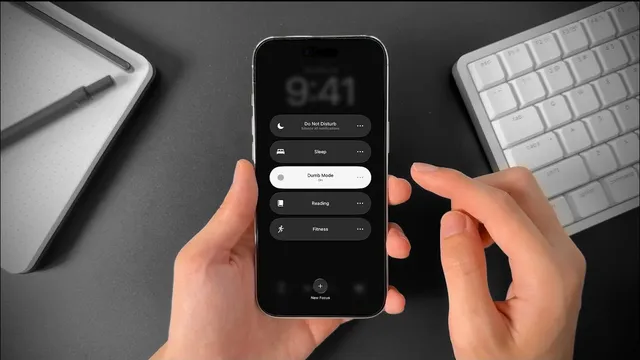
How to set up "Dumb Mode" on your iPhone
Based on Easlo's video on YouTube. If you like this content, support the original creators by watching, liking and subscribing to their content.
Create a custom iPhone Focus for “Dumb Mode” and name it something memorable so it’s easy to toggle.
Briefing
A “Dumb Mode” setup on iPhone can strip away distractions by combining Focus settings with grayscale and dark visual treatments—then making it easy to switch back when concentration ends. The core idea is to create a dedicated Focus profile that turns the screen into a plain, low-stimulation environment: a black background, grayscale display, and tightly controlled notifications from only the people or apps that matter during a focus session.
The setup starts in Settings by creating a new Focus. Using the plus icon, the user selects Custom, names the mode (e.g., “dumb phone” or “dumb mode”), and chooses a color and icon. From there, the Focus can be customized to allow notifications only from selected people and apps, reducing the chance that social media or other attention-grabbing apps interrupt work.
Next comes the key part: adding Focus filters. In the Focus filter section, the user taps Add Filter to select filters tied to system actions or third-party tools. One filter approach highlighted uses Opal, adding an app list block so the chosen apps are blocked while the Focus is active. The transcript also recommends tailoring the display behavior for attention—specifically, turning off Always On Display (for phones that support it) so the screen doesn’t constantly pull focus. A third filter enables Dark Mode, which further reduces visual stimulation.
With the Focus profile defined, the iPhone gets a matching lock screen designed for “Dumb Mode.” The user edits the lock screen, swipes to add a new wallpaper, and chooses a solid black background. The time display is adjusted to a solid style (instead of a glass look), and the time font is made slightly thinner for a cleaner, less attention-grabbing interface. After saving the lock screen, the Focus button is used to link this lock screen to the newly created Focus, so turning the mode on immediately swaps the display to the simplified black layout.
The home screen is then tuned to stay quiet as well. By entering edit mode and customizing, the user enables clear icons, forces the interface to always be dark, and hides app labels—reducing the visual cues that often trigger browsing.
Finally, the setup can be extended with Apple Shortcuts to handle grayscale when it isn’t available as a Focus filter. An automation is created to run immediately when “Dumb Mode” turns on, using the action Set Color Filters to turn color filters on. A matching reverse automation turns color filters off when the Focus ends. The result: when the mode is enabled and a browser is opened, content appears in grayscale; when the session ends, turning the Focus off restores normal phone behavior.
In practice, this turns “focus” into a full-screen, full-system environment—notifications, app access, and visual presentation all aligned to minimize distraction for the duration of a session.
Cornell Notes
“Dumb Mode” on iPhone is built by creating a custom Focus profile that changes both what the phone allows and how it looks. The Focus can restrict notifications to selected people/apps, block distracting apps using Focus filters (including an Opal filter), and reduce visual stimulation with Dark Mode and grayscale/color filters. A dedicated lock screen with a solid black wallpaper and simplified time display is linked to the Focus so it activates instantly. The home screen is also customized with clear icons, always-dark appearance, and hidden app labels. If grayscale isn’t available as a Focus filter, Apple Shortcuts automations turn color filters on when the Focus starts and off when it ends.
How does the Focus profile reduce distractions beyond just silencing notifications?
What role do Focus filters play, and what filters are used in this setup?
How is the lock screen tailored so “Dumb Mode” feels like a dedicated environment?
Why customize the home screen too, and what changes are made?
How does Apple Shortcuts add grayscale when it isn’t available as a Focus filter?
Review Questions
- When creating the custom Focus, what are the two main categories of configuration mentioned before adding filters?
- What is the purpose of linking a customized lock screen to the Focus profile?
- How do the two Shortcuts automations differ between turning “Dumb Mode” on versus turning it off?
Key Points
- 1
Create a custom iPhone Focus for “Dumb Mode” and name it something memorable so it’s easy to toggle.
- 2
Limit notifications by selecting only the people and apps allowed to interrupt during the Focus session.
- 3
Use Focus filters to block distracting apps (including an Opal app list block) while the Focus is active.
- 4
Reduce visual distraction by enabling Dark Mode and turning off Always On Display (if supported).
- 5
Build a dedicated lock screen with a solid black wallpaper and simplified time styling, then link it to the Focus.
- 6
Customize the home screen with clear icons, always-dark appearance, and hidden app labels to minimize browsing cues.
- 7
If grayscale/color filters aren’t available as a Focus filter, use Apple Shortcuts automations to turn color filters on when the Focus starts and off when it ends.