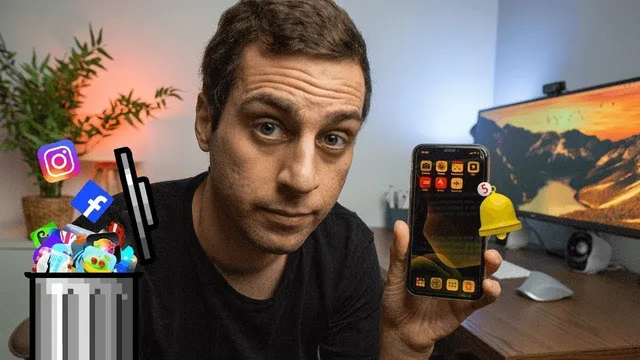
How to Set Up Your Phone for Productivity
Based on Dan Silvestre's video on YouTube. If you like this content, support the original creators by watching, liking and subscribing to their content.
Delete apps that haven’t been used in months to cut clutter and reduce distraction entry points.
Briefing
A phone can stop acting like a distraction and start functioning as a productivity tool once its biggest “pull factors” are removed: unused apps, infinite-scrolling temptations, and the notification system that interrupts work on demand. The core idea is simple—reduce what can lure attention, then rebuild the phone’s interface so the user chooses when to engage rather than letting the device constantly demand attention.
The first step is cleanup. Start by deleting apps that no longer add value—especially anything unused for months. Beyond storage and clutter, the goal is to shrink the number of entry points that invite random checking. Next, consolidate overlapping functions so there’s ideally one app per job. If multiple apps handle messaging, note-taking, or news, keep only one. The same logic extends beyond app-to-app duplication: if email is typically checked from a computer during working hours, there’s little need to keep the email app on the phone. Download it only when traveling or when away from the computer for long stretches. Another tactic is to avoid opening social apps directly by using their browser versions instead, which prevents mindless tapping on home-screen icons that lead to endless scrolling.
The second step targets the apps that actively feed attention. Social media, news aggregators, and other infinite-scroll tools are described as the main culprits because each refresh delivers “something new,” even though the user’s attention is finite. The practical takeaway is to keep these categories to a minimum and avoid frequent checking—there’s no need to review news every half hour when the feed is infinite but the mind isn’t.
The third step removes the triggers that interrupt focus. Notifications are framed as an external agenda—like an annoying coworker tapping you mid-task. The recommended setup keeps only phone calls and text messages, since urgent matters will still reach the user. Everything else—alerts, buzzes, and visual prompts—is turned off. Sounds and vibration are disabled as well, including turning off “vibrate on silent,” and setting notification sounds and vibration patterns to none except the ringtone. Badges are also disabled to prevent constant visual cues about pending emails or messages, which can create stress just by being visible.
The fourth step reshapes the home screen. A minimal layout is preferred: keep only about eight to twelve frequently used apps on the main screen, move the rest into a single folder on the dock, and rely on search to find apps and even content inside apps. The guiding principle is to avoid placing apps that would tempt scrolling. With fewer icons, fewer alerts, and fewer visual cues, the phone becomes something used in short, intentional bursts rather than a constant background drain.
The payoff is framed as both behavioral and psychological: less time spent “playing” with the device, longer periods of focus, and a broader reevaluation of tech habits across phone and computer. A small setup change is presented as a way to reclaim attention and redirect it toward work, hobbies, and relationships.
Cornell Notes
The transcript argues that a phone becomes productive when its distractions are removed and its interface is redesigned for intentional use. It recommends deleting unused apps, consolidating overlapping ones, and limiting infinite-scrolling categories like social media and news. Notifications are treated as the biggest interruption mechanism, so only calls and texts should remain, with all sounds, vibration, and badges turned off. The home screen should be minimal—keep roughly 8–12 frequently used apps visible, store the rest in a folder, and use search to open apps when needed. The result is less reactive checking, reduced stress from constant cues, and longer focus time.
Why does the transcript emphasize removing unused and overlapping apps before changing notification settings?
What’s the specific problem with infinite-scrolling apps like social media and news aggregators?
How should notifications be configured to support focus?
What home-screen setup is recommended to reduce temptation?
What behavioral change does the transcript claim happens after these adjustments?
Review Questions
- Which app categories are singled out as most likely to harm productivity, and what mechanism makes them distracting?
- What specific notification elements are recommended to disable besides the notification pop-ups (e.g., sounds, vibration, badges)?
- How does the recommended home-screen layout (visible apps vs. folder vs. search) reduce unwanted phone use?
Key Points
- 1
Delete apps that haven’t been used in months to cut clutter and reduce distraction entry points.
- 2
Consolidate overlapping app functions so there’s ideally one app per task category (messaging, notes, news).
- 3
Limit infinite-scrolling apps like social media and news aggregators, since endless refreshes exploit attention.
- 4
Keep only phone calls and text messages as notifications; turn off all other alerts, including sounds and vibration.
- 5
Disable vibration on silent and set notification sound/vibration patterns to none except the ringtone.
- 6
Turn off app badges to avoid constant visual cues that can trigger stress and reactive checking.
- 7
Use a minimal home screen—keep about 8–12 frequently used apps visible, move the rest to a dock folder, and rely on search.