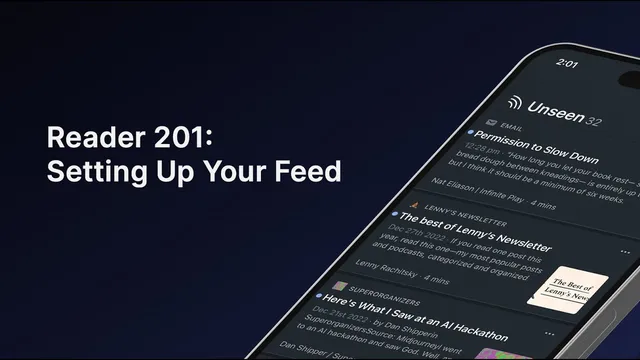
How to Set Up Your Reader Feed
Based on Readwise's video on YouTube. If you like this content, support the original creators by watching, liking and subscribing to their content.
Feed is for automatically delivered subscriptions (RSS and email newsletters), while Library is for manually saved, high-signal content.
Briefing
Reader’s feed feature turns a messy stream of newsletters and RSS posts into a manageable, “Goldilocks” reading workflow—by separating subscriptions from saved content, helping users subscribe efficiently, and then pruning the noise over time. The core idea is simple: use the Feed section for lower-signal, automatically delivered items (email newsletters, RSS feeds, and similar sources), while keeping the Library as a high-signal permanent store of items chosen for later reading.
A key distinction drives the setup. Library is where users manually save content they want to keep. Feed is where subscriptions land automatically, making it the right place for ongoing discovery and triage. That separation matters because it lets users review new items frequently without polluting the long-term archive.
On the subscription side, Reader supports multiple paths. Users can migrate existing RSS collections by exporting an OPML file from a feed service like Feedly, then uploading it into Reader in one step. They can also subscribe directly from within Reader: as Reader scans documents saved to the Library, it detects RSS feeds on the domain and surfaces a subscribe button in the right sidebar (which becomes an unsubscribe button if already subscribed). For newcomers, Reader’s Manage Feeds area includes a Suggested Feeds feature to jump-start a high-quality starting set.
Reader also classifies feeds after aggregation. It uses lightweight AI plus heuristics to label feeds as higher signal or lower signal, then recommends starting with all high-signal feeds at once and using unsubscribe later to prune sources that don’t deliver “delightful content.” The tutorial emphasizes an asymmetry in behavior: people tend to subscribe more easily than they unsubscribe, so dialing in the feed requires active pruning—especially when a feed floods hundreds of low-quality posts per day or when a politically charged source stops matching the reader’s interests.
Email newsletters are handled with the same goal—getting content into the Feed workflow. First, Reader checks whether a newsletter has a companion RSS feed; the tutorial claims this is true about 80% of the time for platforms like Substack, Ghost, and WordPress, and argues RSS is usually better because it parses more cleanly and provides higher-quality metadata. If no RSS exists, users can forward emails using a custom Reader email address (created in the web app and copied into the mobile app). From there, newsletters can be subscribed directly to, or set up for auto-forwarding from a primary email client.
Once the feed is populated, Reader’s workflow tools help users process items quickly. On desktop, keyboard shortcuts mark items as seen (J/K to move, Space to mark seen), save interesting items to the Library’s Later tab (L), and archive items (E). On mobile, a TikTok-style swipe UI advances through items, saves for later, and marks as seen as users swipe.
Finally, the tutorial recommends a habit-building feature: Reader Daily Digest. It sends a daily roundup with up to 25 documents—first 20 new items from the Feed (skimming down to the best using AI/heuristics) and then 5 previously saved items from the Library Later backlog. The intent is to read what matters now, save what matters later, and archive what no longer fits, keeping the Library backlog from becoming overloaded. The digest is mobile-first and can be enabled from the mobile app settings or the desktop home screen.
Cornell Notes
Reader’s Feed setup is built around a clear separation: the Library is a high-signal permanent store of manually saved items, while the Feed is a lower-signal stream where RSS subscriptions and email newsletters arrive automatically. Subscribing can happen via OPML migration, direct detection while saving documents, or suggested high-signal feeds for beginners. Reader aggregates RSS feeds and uses lightweight AI plus heuristics to classify them, then encourages users to unsubscribe aggressively to keep the feed “Goldilocks” sized. For newsletters, Reader prefers companion RSS feeds (claimed ~80% for Substack, Ghost, and WordPress); otherwise it uses a custom forwarding address. Daily Digest then turns triage into a routine by delivering up to 25 items per day, mixing new feed items with saved backlog items.
What’s the practical difference between Feed and Library in Reader, and why does it matter for setup?
How can users subscribe to RSS feeds in Reader if they already have feeds elsewhere?
How does Reader help users subscribe to RSS feeds without hunting for URLs?
What’s the strategy for keeping an RSS feed from becoming noisy over time?
When should newsletter content be pulled via RSS versus forwarded email, and how does Reader decide?
How does Reader Daily Digest reduce overload while still covering both new and saved items?
Review Questions
- What operational role does Feed play compared with Library, and how does that affect how you should manage subscriptions?
- Describe three different ways to subscribe to RSS feeds in Reader and when each method is most useful.
- How does Daily Digest decide which Feed items make the daily list, and how does it incorporate items from the Later backlog?
Key Points
- 1
Feed is for automatically delivered subscriptions (RSS and email newsletters), while Library is for manually saved, high-signal content.
- 2
Reader supports RSS subscription via OPML migration, in-app domain detection while saving to Library, and a Suggested Feeds starting point for new users.
- 3
Reader aggregates RSS feeds and uses lightweight AI plus heuristics to classify feeds as high signal or low signal, then relies on user-driven pruning through unsubscribe.
- 4
Newsletter ingestion works best via companion RSS feeds (claimed ~80% for Substack, Ghost, and WordPress); otherwise, users forward emails using a custom Reader email address.
- 5
Reader’s keyboard and mobile swipe workflows help mark items as seen, save to Later, and archive quickly to keep the feed manageable.
- 6
Daily Digest delivers up to 25 items per day by combining the best new Feed items with a small set of previously saved Later items, reducing backlog overload.
- 7
Because subscribing is easier than unsubscribing, maintaining a healthy feed requires periodic, deliberate unsubscribe decisions.