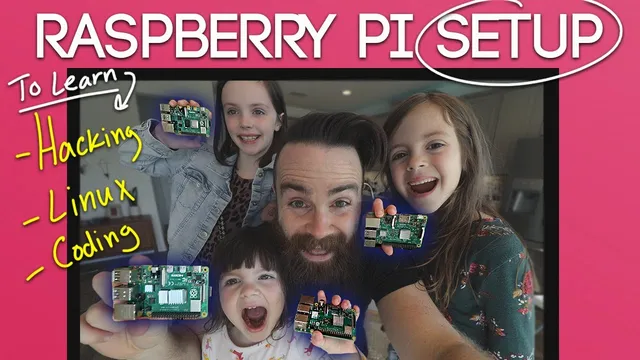
How to Setup a Raspberry Pi LEARNING Desktop (Linux, Hacking, Coding)
Based on NetworkChuck's video on YouTube. If you like this content, support the original creators by watching, liking and subscribing to their content.
Use SD Memory Card Formatter to wipe and prepare the microSD card before installing Barry Boot.
Briefing
A Raspberry Pi can be turned into a multi-boot, multi-user “learning desktop” that kids can access remotely—complete with preinstalled networking and security tools—without swapping SD cards or needing a full PC. The setup centers on Barry Boot, which boots different Linux distributions from a single SD card, then layers on user accounts, remote access (SSH and VNC), and a static IP so the device stays reachable from iPads.
The process starts with preparing storage: format a microSD card using the SD Association’s “SD Memory Card Formatter,” then install Barry Boot by downloading the correct build for the Raspberry Pi model (the transcript uses Raspberry Pi 4) and copying the extracted Barry Boot files onto the freshly formatted card. Hardware assembly follows—adding optional heat sinks and a fan, inserting the SD card, connecting power, HDMI to a monitor, and input devices. On first boot, the Barry Boot menu asks for basic configuration (overscan, keyboard, and network selection). With Wi‑Fi enabled, the user chooses where the root filesystem lives (local SD storage using ext4 is selected) and installs the first operating system over the network.
Raspbian (Debian-based for Raspberry Pi) is installed as the main learning environment. Barry Boot then supports adding additional operating systems through an “edit menu” workflow. The transcript demonstrates installing Sugar (a kid-focused OS), plus mentions options like Ubuntu Server and Puppy Linux. After rebooting into Raspbian, the system is adjusted to remove auto-login so each child can log in with their own account.
That multi-user setup is handled by editing LightDM’s configuration using nano with sudo privileges. The auto-login user (PI) is commented out, then new accounts are created with sudo adduser, including setting passwords and basic profile details. Verification is done by checking /etc/passwd with cat. The result: the default PI account remains, but the kids can sign in as their own users and personalize their desktop.
Remote access is then enabled so learning and practice can happen from other rooms. The transcript uses raspi-config to enable SSH and VNC, then switches the Pi from DHCP to a static IP by editing /etc/dhcpcd.conf (using wlan0 for wireless). After rebooting, the Pi’s IP address remains stable, and iPads can connect via a VNC client using that fixed address. Security hygiene is addressed by changing the default PI password with passwd.
Finally, the “hacking” portion is made practical without installing Kali Linux. Instead, the transcript installs Kali-style tools directly onto Raspbian using apt. After updating package lists (sudo apt update), it installs Yersinia (including a GUI mode) for network testing and installs Ettercap for man-in-the-middle work, again using apt and then launching the tools in graphical mode. The Pi 4 (4GB RAM) is validated for everyday learning tasks—web browsing, document editing, coding via Tinker, YouTube playback, and even Minecraft—while still being framed as a limited desktop replacement for power users.
Overall, the core takeaway is a turnkey recipe: Barry Boot for multi-OS learning, LightDM and user accounts for kid-safe profiles, SSH/VNC plus static networking for remote access, and apt-installed security tools to bring “Kali-like” capabilities to a Raspberry Pi learning environment.
Cornell Notes
Barry Boot turns a single Raspberry Pi SD card into a multi-boot Linux setup, letting users switch between different distributions without swapping cards. After installing Raspbian as the main OS, the system is configured to disable LightDM auto-login and create separate kid accounts using sudo adduser, verified via /etc/passwd. Remote access is enabled by turning on SSH and VNC in raspi-config, then making the Pi reachable reliably by switching from DHCP to a static IP in /etc/dhcpcd.conf (wlan0 for Wi‑Fi). For “hacking” practice, Kali Linux isn’t required—tools like Yersinia and Ettercap are installed directly on Raspbian with apt. This matters because it creates a controlled, accessible learning workstation that supports both daily computing and security experimentation.
How does Barry Boot avoid SD-card swapping while still supporting multiple Linux distributions?
What specific change prevents kids from being forced into the default PI account at every boot?
Why switch from DHCP to a static IP, and how is it done?
How does the setup enable remote login and desktop viewing from iPads?
How are “Kali-like” hacking tools installed without installing Kali Linux itself?
What performance expectations are set for using a Raspberry Pi as a daily learning desktop?
Review Questions
- What role does Barry Boot play in the multi-OS setup, and what menu choices are used to add additional distributions?
- Which files are edited to (1) disable auto-login and (2) set a static IP, and what is the purpose of each change?
- Why does the transcript install Yersinia and Ettercap with apt instead of booting into Kali Linux?
Key Points
- 1
Use SD Memory Card Formatter to wipe and prepare the microSD card before installing Barry Boot.
- 2
Install Barry Boot for the correct Raspberry Pi model, then copy the extracted Barry Boot files onto the formatted SD card.
- 3
Configure Barry Boot to boot Raspbian from the SD card (ext4) and use its “edit menu” to add additional OS options like Sugar.
- 4
Disable LightDM auto-login by commenting out the auto log-in user = PI line in lightdm.conf, then create separate accounts with sudo adduser.
- 5
Enable remote access by turning on SSH and VNC in raspi-config, then make the Pi reachable by setting a static IP in /etc/dhcpcd.conf (wlan0 for Wi‑Fi).
- 6
Change the default PI password with passwd after enabling remote access to reduce security risk.
- 7
Install security tools directly on Raspbian with apt (e.g., Yersinia and Ettercap) to get Kali-style capabilities without multi-booting into Kali.