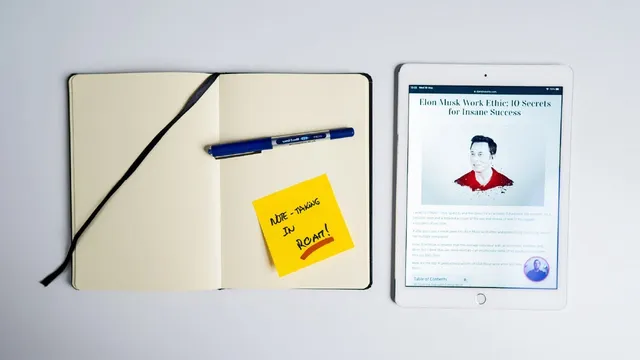
How to Take Notes from Articles (Roam)
Based on Dan Silvestre's video on YouTube. If you like this content, support the original creators by watching, liking and subscribing to their content.
Save only the most resonant passages from each article to keep Roam notes focused and reusable.
Briefing
Smart notes from online articles become useful only when they’re captured, searchable, and ready to be exported into a long-term knowledge system. The core workflow here links three tools—Instapaper for saving and highlighting web text, Readwise for syncing those highlights on a schedule, and Roam (Zettelkasten-style notes) for organizing and turning them into new ideas. The payoff is a steady “creativity inbox” of distilled takeaways that can later be refined and reused for articles, courses, or videos.
The process starts with reading an article and deciding what deserves to be saved. Manually, that means creating a new page in Roam using the article title, then either pasting the entire article or—preferably—copying only the highlights that resonate. The transcript emphasizes that copying only the most relevant passages is less tedious in the long run because it forces selection: the notes you keep are the ones most likely to matter later. For example, when reading about batching, the notes focus on the definition and key benefits rather than the full text.
Because manual copying is slow, the workflow shifts to automation with Instapaper. Instapaper lets readers save web articles and capture “web highlights” (a free plan limits highlights to five, while paid tiers remove that constraint). Articles land in an Instapaper inbox (“Home”), while processed items move to an “Archive” so they don’t clutter the inbox but also don’t disappear. The transcript details how highlights sync: a Chrome extension adds a “saved to Instapaper” option while browsing, then selected text is highlighted with Instapaper’s tools.
To move those highlights into Roam, Readwise is used as the bridge. Instapaper highlights are connected to Readwise, and Readwise exports them into Roam on a predefined schedule. When the system is run manually for demonstration, the steps are “Connect and sync,” then “Export” to Roam. After export, the Roam page for the article appears with the highlighted sentences, ready for further organization and refinement.
A key operational idea is using Instapaper as an inbox instead of relying on browser bookmarks. Bookmarks are treated as quick links for active projects, while Instapaper holds the broader backlog of “read later” material. Instapaper’s search—especially advanced search using remembered terms like topic phrases—helps reduce anxiety from an overwhelming backlog by making saved items retrievable by relevance, recency, or age.
The workflow also works on mobile. From a phone, the share sheet sends an article into Instapaper, highlights are added directly, and those highlights sync into Readwise and then into Roam. Readwise supports adding personal notes to the synced highlights, so users can attach context like “what to focus on” before exporting again.
Finally, the notes aren’t the endpoint. The transcript frames the last step as using the accumulated highlights inside Roam to outline and create new original content, turning saved ideas into publishable work.
Cornell Notes
Online article notes become valuable when highlights are captured selectively, synced reliably, and stored in a system that supports later reuse. The workflow uses Instapaper to save articles and collect web highlights, then Readwise to sync those highlights into Roam on a schedule. Manual copying into Roam is possible but treated as tedious; highlighting only the most resonant passages is preferred. Instapaper also functions as a backlog inbox, with search (including advanced search) to find items later without bookmark clutter. On mobile, articles can be shared into Instapaper, highlighted, and enriched with personal notes that then export into Roam.
Why does the workflow prefer saving only highlights instead of copying full articles into Roam?
How do Instapaper and Readwise work together to get web highlights into Roam?
What’s the advantage of using Instapaper as an inbox rather than browser bookmarks?
How does the process work on mobile, and what extra step is possible there?
What does the “Archive” in Instapaper accomplish in the workflow?
Review Questions
- What criteria should determine which parts of an article get highlighted and exported into Roam?
- Describe the sync chain from Instapaper highlights to Roam, including where Readwise fits.
- How would you use Instapaper search to find an article you saved weeks ago but can’t recall the author or website?
Key Points
- 1
Save only the most resonant passages from each article to keep Roam notes focused and reusable.
- 2
Use Instapaper to capture web highlights automatically instead of manually copying full text into Roam.
- 3
Connect Instapaper to Readwise so highlights sync into Roam on a schedule (or via manual Connect and sync + Export).
- 4
Treat Instapaper as a backlog inbox and use advanced search to retrieve items later by relevance, recency, or remembered terms.
- 5
Archive processed articles in Instapaper to keep the inbox clean while preserving access to past highlights.
- 6
On mobile, share articles into Instapaper, highlight key lines, and add personal notes to enrich what gets exported into Roam.
- 7
Use the exported Roam notes as raw material for outlining and creating new original content.