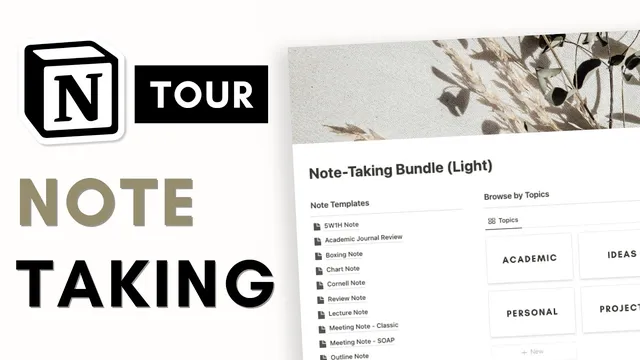
How to Take Notes in Notion | Best Tips + Template Tour
Based on The Organized Notebook's video on YouTube. If you like this content, support the original creators by watching, liking and subscribing to their content.
Use two linked databases—topics and notes—and connect them with a relation property so each note automatically belongs to a category.
Briefing
Notion note-taking becomes far easier to manage when notes are structured around linked topic categories, automatically tracked timestamps, and reusable templates—then optionally enhanced with Notion AI-generated study aids. The core setup centers on two linked databases: one for “topics” and one for “notes.” Each note is assigned to a topic via a relation, letting users browse and filter their knowledge base without manually reorganizing pages.
The bundle also adds built-in time tracking fields such as “date created” and “last edited.” Instead of relying on users to remember when a note was written or updated, every entry carries metadata that supports quick review of what’s new and what has changed recently. For workflows that require follow-up, a “review” mechanism is included: notes can be marked for later study, then removed from the active review list once reviewed. Sorting by “last edited” and “date created” helps users prioritize what to revisit.
A major productivity lever comes from templates. Rather than designing layouts repeatedly, the bundle provides a library of note templates accessible through a “plus new” workflow. Users can pick a template style—such as a Cornell note layout—and have the structure load instantly. The same template system can be extended by creating new templates from scratch, including recurring templates for repeating events like weekly meetings. By using the repeat option (set through a menu on the template), users can generate consistent note pages on a schedule.
For study-focused notes, the bundle optionally integrates Notion AI through a Notion AI upgrade. It adds AI-backed properties to the notes database, including a “short summary,” an “action plan,” and “five review questions.” When opened, these fields auto-generate study materials based on the note’s content, making it easier to scan what a note is about, identify next steps, and practice with targeted questions. There’s also an example of adding a custom AI property (like “AI key info”): users define what kind of information they want, then click an update/generate action to fill the field using the text already entered.
Overall, the approach is practical: organize notes with relations to topics, rely on automatic timestamps and review tracking, standardize formats with templates (including recurring ones), and—if desired—use Notion AI to convert raw notes into summaries, action items, and review prompts. The result is a digital notebook designed for both capture and follow-through, with less manual upkeep and more ready-to-study outputs.
Cornell Notes
The system organizes Notion notes around two linked databases—topics and notes—so every note can be categorized via a relation. It adds automatic “date created” and “last edited” fields to track freshness without manual bookkeeping, plus a review workflow that lets notes disappear from the review list after they’re handled. A template library supports multiple note formats (including Cornell notes) so users don’t rebuild layouts each time, and templates can be set to repeat for recurring events like weekly meetings. With Notion AI enabled, the notes database can generate a short summary, an action plan, and five review questions, turning raw notes into study-ready material.
How do linked “topics” and “notes” improve organization in Notion?
Why are “date created” and “last edited” fields valuable for note management?
What does a “review” workflow accomplish for class or study notes?
How do templates reduce friction when taking different types of notes?
What kinds of study outputs can Notion AI generate for notes?
Review Questions
- What is the practical difference between organizing notes by folders versus using a relation between topics and notes in Notion?
- How would you design a recurring note workflow for weekly meetings using templates?
- If a note is missing content, what would happen when generating Notion AI fields like summaries or review questions?
Key Points
- 1
Use two linked databases—topics and notes—and connect them with a relation property so each note automatically belongs to a category.
- 2
Add automatic “date created” and “last edited” fields to track note freshness and changes without manual entry.
- 3
Implement a review workflow so notes can be marked for later study and removed from the review list after completion.
- 4
Rely on a template library to load consistent note layouts (including Cornell notes) instead of recreating structures every time.
- 5
Create custom templates when you need a new format, and use repeat settings for recurring items like weekly meetings.
- 6
If available, enable Notion AI properties to generate study aids such as short summaries, action plans, and five review questions from the note content.