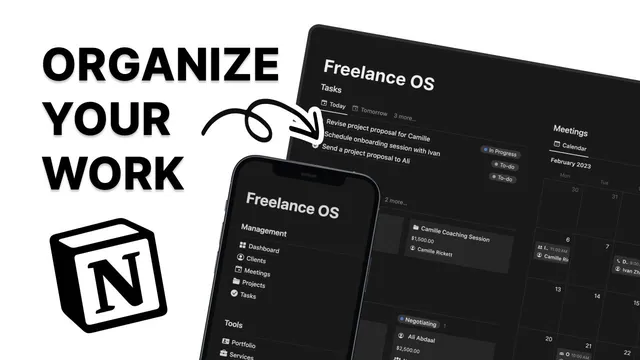
How to use Notion for Freelancers
Based on Easlo's video on YouTube. If you like this content, support the original creators by watching, liking and subscribing to their content.
Build a left-side page navigation with purpose-built sections (dashboard, clients, projects, tasks, meetings, invoices, finances) and use a home page as a control panel.
Briefing
A freelancer workflow built in Notion can be organized around a central set of linked databases—clients, projects, tasks, meetings, invoices, and finances—so every page stays connected and automatically updates as new records are added. The core idea is to use a left-side navigation of purpose-built pages, then populate each page with database views (often filtered or grouped) that reflect the same underlying data. That structure turns Notion into a single operating system for managing work from first contact through delivery and payment.
The setup starts with a main “home” page that acts like a control panel. A navigation bar jumps to different sections of the system, while the right column stacks multiple database views that can be reordered by drag-and-drop. To avoid duplicating data, the workflow uses linked views: copy a database link and paste it into another page to create a view with the same records, then customize layout and which properties appear. This lets the same database show up in multiple places in different formats.
A “dashboard” page provides an at-a-glance overview by pulling in key views and filtering to highlight what matters most—such as priority tasks, active projects, or specific clients. The “clients” page centers on a pipeline view for adding and updating client details, plus related views for projects, tasks, and meetings filtered to each client. When a new client is created, those related database views auto-populate based on a customized page template, which can be edited and set as the default so the structure repeats consistently.
Project management is handled through multiple complementary views. The “projects” page includes a Kanban board for status tracking with drag-and-drop updates, a timeline view to spot scheduling conflicts, and another Kanban board grouped by priority to prompt better time allocation. Entering a project page reveals detailed properties and—crucially—related items from other databases such as invoices, meetings, and resources via relation properties. That cross-linking enables searching across connected records while keeping everything anchored to the project.
Tasks and meetings round out execution. A “tasks” page offers daily, weekly, and monthly layouts, while a “meetings” page combines an upcoming list with a calendar view. The system also supports client communication through a customizable “client portal” template for documents, deliverables, and messaging.
Beyond delivery, the workflow extends into revenue and planning. A “portfolio” page can function as a shareable website with a lead capture form; the transcript notes using Tally forms to auto-export new submissions into the client database. Invoicing is organized by assigning each invoice to a specific client and project, using an invoice template for record-keeping, and pairing Notion with payment links created in Stripe or PayPal.
For finances, the “accounts” page tracks balances and includes an account transfer database to move money between accounts. Monthly reporting is generated by creating a new month page and filtering views to that period. Separate “incomes” and “expenses” pages provide recent, monthly, and full-history views, while a “subscriptions” table tracks active recurring costs and their monthly/yearly impact. The result is a connected, customizable system where updates in one place propagate through linked views, reducing manual bookkeeping and keeping freelancers organized end to end.
Cornell Notes
The system organizes freelance work in Notion by building a network of linked databases and then presenting them through customized pages. A home page provides navigation and quick-access database views, while a dashboard aggregates filtered views for an at-a-glance overview. Client pages use templates so related projects, tasks, and meetings auto-populate when a new client is created. Project pages combine multiple perspectives—Kanban by status, timeline for scheduling, and Kanban by priority—and use relation properties to pull in invoices, meetings, and resources. The workflow extends into revenue and planning with portfolio/lead capture, invoice tracking tied to clients and projects, and finance pages for accounts, monthly reporting, incomes, expenses, and subscriptions.
How does the workflow avoid duplicating data while still showing the same records in different places?
What makes the “clients” section scalable when adding new clients?
Why are there multiple project views (status Kanban, timeline, priority Kanban) instead of one?
How do project pages connect to invoices, meetings, and resources?
What is the role of the portfolio page and how does lead capture feed the system?
How does the finance setup handle monthly reporting and recurring costs?
Review Questions
- If you wanted the same client database to appear on both a dashboard and a dedicated client page with different fields, what Notion feature would you use and why?
- Describe how a new client creation triggers related projects, tasks, and meetings to appear—what mechanism in the setup makes that happen?
- What three project perspectives are used to manage work, and what distinct decision each one supports (execution, scheduling, or prioritization)?
Key Points
- 1
Build a left-side page navigation with purpose-built sections (dashboard, clients, projects, tasks, meetings, invoices, finances) and use a home page as a control panel.
- 2
Use linked views (copy database link → paste into another page) to show the same database records in multiple places without duplicating data.
- 3
Create client page templates and set them as defaults so related projects, tasks, and meetings auto-populate for each new client.
- 4
Manage projects with multiple views—Kanban by status, timeline for scheduling conflicts, and Kanban by priority—to support different planning needs.
- 5
Use relation properties inside project pages to connect invoices, meetings, and resources so searching and navigation stay centralized.
- 6
Integrate lead capture by routing form submissions (e.g., Tally) into the client database for automatic intake.
- 7
Separate finance tracking into accounts, incomes, expenses, and subscriptions, using monthly filtered reports generated from the accounts section.