How to use Notion for Journaling
Based on Easlo's video on YouTube. If you like this content, support the original creators by watching, liking and subscribing to their content.
Create an “entries” database with a date property and a “daily highlight” text property, then remove default fields for a clean layout.
Briefing
A Notion journaling setup can be built as a connected system of databases that tracks daily reflections, highlights, modes, energy levels, and productivity—then turns those fields into fast, guided entry templates. The core idea is to structure journaling around reusable properties (date, highlight text, mode, energy level, and a 1–10 productivity score) so each new day becomes a consistent record rather than a blank page.
The build starts with creating a new Notion page for the journal, giving it a name and icon, and switching it to full width. A table view named “entries” is added with a minimal look: the database title and vertical lines are hidden, and the default text property is removed. Instead, the database gains a date property for the entry’s day and a text property for a “daily highlight,” described as the thoughts of the day. This highlight field is customized with its own icon, and new entries can be added immediately.
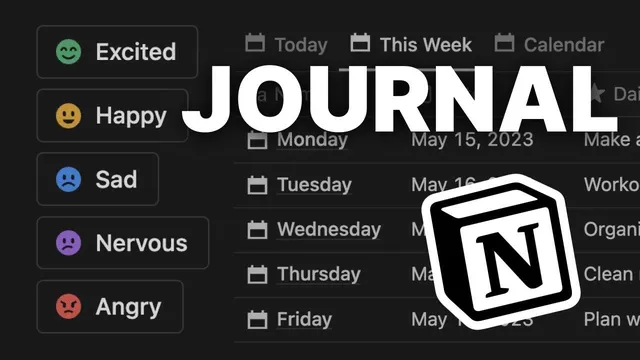
To capture mood and context, a separate “mode” database is created using a gallery view. The database title is hidden, card preview is turned off, and card size is kept small. Multiple pages are added to represent different modes, each customized with colors and icons. Above the database fields, heading blocks label the sections clearly. A key connection is then created through a relation property—“regulation” is used to link each entry to one of the pre-made modes.
Energy tracking is handled similarly by duplicating the modes database into an “energy levels” database. Access pages are removed so only three options remain: high energy, medium energy, and low energy. A new relation on the entries database is renamed “energy level” and linked to those energy pages. Productivity is added as a number property on a 1–10 scale, displayed as a ring and configured to divide by 10, making the score visually scannable.
Finally, the entries database gets multiple views for different planning needs: a “today” view filters to the current day, a “this week” view is created by duplicating and adjusting the filter, and a calendar layout view provides an overview of all entries. For faster journaling, templates are created for the entries database so each new entry can automatically include pre-written questions and prompts. When opening an entry page, the template option appears, letting the user generate guided reflections in seconds.
Cornell Notes
The journaling system uses Notion databases linked together so each daily entry consistently records date, a daily highlight, a selected mode, an energy level, and a 1–10 productivity score. “Entries” is the main database, with a date property and a text property for the highlight. Separate databases for “modes” and “energy levels” are created in gallery views, then connected to entries through relation properties so each entry can pick from predefined options. Multiple views (Today, This Week, and a calendar overview) make it easy to review past entries. Templates add pre-written prompts so new entries start with guided questions instead of a blank page.
How does the setup turn a blank journal page into a structured daily record?
What role do the “mode” and “energy levels” databases play?
How are modes and energy levels connected to individual entries?
How does the productivity score work, and how is it displayed?
What view options make reviewing entries easier over time?
How do templates speed up journaling and keep prompts consistent?
Review Questions
- What properties exist in the “entries” database, and which ones capture the highlight, mode, energy level, and productivity?
- How do relation properties connect entries to the separate “mode” and “energy levels” databases?
- Which three views are created for the entries database, and what does each view filter or display?
Key Points
- 1
Create an “entries” database with a date property and a “daily highlight” text property, then remove default fields for a clean layout.
- 2
Build a separate “mode” database in gallery view and add multiple mode pages with custom colors and icons.
- 3
Connect each entry to a mode using a relation property (named “regulation” in the setup).
- 4
Duplicate the modes database to create “energy levels,” then keep only three pages: high, medium, and low; link entries via a relation named “energy level.”
- 5
Add a productivity number property on a 1–10 scale and display it as a ring with “divide by 10” for quick visual scoring.
- 6
Create multiple entries views—Today, This Week, and a calendar overview—and use templates to auto-generate journaling prompts.