How to use Notion for school
Based on Easlo's video on YouTube. If you like this content, support the original creators by watching, liking and subscribing to their content.
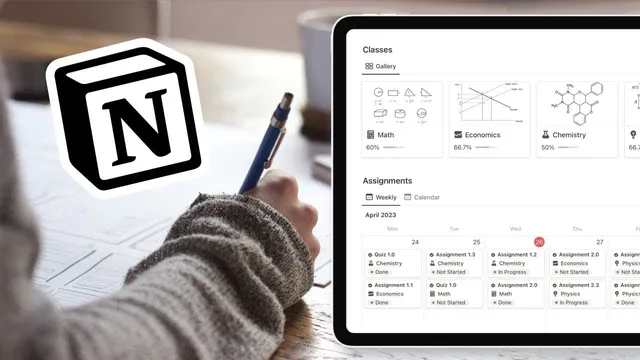
Create a Classes gallery database with course code and professor name fields, and embed the syllabus for quick access.
Briefing
A student dashboard built in Notion can bring classes, assignments, and lecture notes into one connected system—so deadlines, progress, and study materials stop getting lost across folders and documents. The setup starts with a “gallery” database for classes, where each course gets its own record with practical fields like a course code, professor name, and an embedded syllabus. Adding a page cover and enabling card preview makes the class list scannable at a glance.
From there, the dashboard adds an assignments database designed for deadline tracking and status visibility. Each assignment record includes a deadline date, plus a formula that calculates how many days remain until the due date. A status property tracks progress, and—crucially—each assignment links back to its class using a relation field. This relationship powers a class page template that shows only the assignments belonging to that class. A board layout groups assignments by status, while toggling display options surfaces the due date and the “days left” calculation. To keep the workload readable, completed items can be filtered out, and a duplicated view can switch to a list layout that shows only a specific subset (the transcript mentions filtering to computer assignments).
The system then expands into a notes database for lecture material and self-testing. Notes are organized with a select property for topic and fields for study cadence: a “last review” date, a calculated “days since last review,” and a false immediate property used to embed related materials. A URL property supports linking out to external resources. For active recall, notes can be structured with toggle blocks containing questions and answers, and the transcript describes color-coding the background based on whether a question was answered correctly, incorrectly, or somewhere in between.
Finally, notes are linked to classes using a relation property, then surfaced through a link view inside each class page template. Filters ensure each class page shows only its own notes, and sorting (by name in ascending order) keeps them orderly. The workflow ends by applying the class template to existing pages—such as a math page—so both the assignment tracker and notes tracker appear together. A home page can then group notes by class, giving a single dashboard view of what needs attention next.
The takeaway is a connected Notion architecture: databases for classes, assignments, and notes; relations that connect them; formulas that quantify time; and templates that automatically populate class-specific views. That combination turns academic management into a repeatable system for staying on top of deadlines and review cycles.
Cornell Notes
The dashboard setup uses three linked Notion databases—Classes, Assignments, and Notes—to keep school work organized in one place. Classes store course details like course code, professor name, and an embedded syllabus. Assignments include deadlines, a formula that calculates “days left,” and a status field, then link back to the relevant class so each class page shows only its assignments. Notes track topics and review timing with a “last review” date and “days since last review,” plus embedded materials and URL links. Templates and filters make the class pages automatically populate the right assignment and note views, reducing missed deadlines and lost notes.
How does the class database make the rest of the dashboard easier to manage?
What’s the purpose of the formula property in the assignments database?
How do relation fields and templates work together to show only the right assignments on each class page?
How does the notes database support spaced review and active recall?
What steps ensure notes appear under the correct class and stay organized?
Review Questions
- What properties and relations are required so assignments can be filtered to the correct class page?
- How does the dashboard calculate and display time sensitivity for both assignments and notes?
- What template and view settings keep the class pages minimal while still showing the most important information?
Key Points
- 1
Create a Classes gallery database with course code and professor name fields, and embed the syllabus for quick access.
- 2
Build an Assignments database with a deadline date, a formula for “days left,” and a status property to track progress.
- 3
Link each assignment to its class using a relation field, then use a class page template with a filtered link view to show only that class’s assignments.
- 4
Use view filters and duplicated views to hide completed assignments and switch between board and list layouts for different workflows.
- 5
Create a Notes database with topic tracking, “last review” date, and a formula for “days since last review” to support spaced repetition.
- 6
Structure notes with toggle blocks for question-and-answer practice, and use color-coding to record correctness for faster review decisions.
- 7
Link notes to classes with relations and display them through filtered, sorted link views inside each class template.