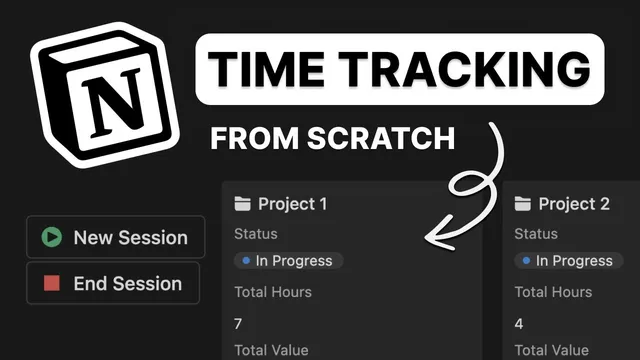
How to use Notion for Time Tracking
Based on Easlo's video on YouTube. If you like this content, support the original creators by watching, liking and subscribing to their content.
Create a “time sheets” database with task/activity name, a status field (started/ended), and two date properties for start time and end time.
Briefing
A practical Notion setup turns time tracking into a click-to-start, click-to-stop workflow—complete with automatic hour totals and optional billing calculations. The system begins with a dedicated database (named “time sheets”) that records each work session using a task/activity name field, a status field to mark whether a session is active or finished, and two timestamps: start time and end time. A formula then calculates total hours by measuring the duration between those timestamps. If billing matters, the database can also include an hourly rate number field and a formula that multiplies total hours by that rate to produce total earnings.
The next step makes tracking fast by adding buttons directly to a page template. A “start session” button is created as a button block, configured to update the session’s status to “started” and set the start time to the current date and time. A second button, “end session,” is added by duplicating the first button, changing its icon, updating the status to “ended,” and setting the end time to the current date and time. By setting this page as the default template, every new activity automatically includes these buttons and the correct fields—so recording time doesn’t require manual entry.
For freelancers managing multi-session work, the workflow scales to projects. A separate “project” database is created with a status property for tracking progress toward completion. A relation property links each project to its associated entries in the “time sheets” database. Inside each project page, a linked view of time sheets is added and filtered so only sessions assigned to that specific project appear.
Buttons are then added to the project template to create and close time sessions without leaving the project page. The “start” button uses Notion’s “add page” action to create a new time sheet entry in the time sheets database, sets its status to “started,” stamps the start time with the current date and time, and assigns the new entry to the current project page. The “end” button targets the relevant time sheet entry by filtering for sessions with the “started” status, then sets the end time to the current date and time and updates the status to “ended.” Setting the project template as the default ensures every new project automatically gets the linked time sheet view and the start/end controls.
The result is a structured time-tracking system that supports both single tasks and multi-session projects, while automating duration and (optionally) billing totals through formulas and template-driven buttons.
Cornell Notes
Notion time tracking can be automated with two linked databases: “time sheets” for individual work sessions and “project” for multi-session work. Each time sheet entry stores an activity name, a status (started/ended), and start/end timestamps. Formulas compute total hours from the timestamps, and optionally calculate earnings by multiplying hours by an hourly rate. Button templates make session logging fast: “start session” sets status and start time; “end session” sets status and end time. For projects, a relation links time sheets to projects, and project-page buttons create new time sheet pages and close the currently started session using filters and default templates.
How does the “time sheets” database calculate total hours, and what fields are required for it to work?
What role do the status property and the start/end buttons play in making time tracking low-friction?
How can earnings be calculated automatically in the same system?
How does the “project” database connect to “time sheets,” and why does that matter?
How do project-page start/end buttons work differently from task-level buttons?
Review Questions
- What exact combination of fields (name, status, start time, end time) is needed in “time sheets” to support the total-hours formula?
- Describe how the project start button ensures the new time sheet entry is both created in the right database and linked to the current project page.
- When ending a session from a project page, how does the system identify which time sheet entry to update?
Key Points
- 1
Create a “time sheets” database with task/activity name, a status field (started/ended), and two date properties for start time and end time.
- 2
Use a formula property to compute total hours from start time to end time, and optionally add an hourly rate plus an earnings formula.
- 3
Add “start session” and “end session” buttons in the time sheet page template to automatically set status and timestamps.
- 4
Set the time sheet page template as the default so every new activity includes the same buttons and field behavior.
- 5
Create a “project” database and add a relation property linking projects to time sheets.
- 6
On each project page, add a filtered linked view of time sheets assigned to that project, then use project template buttons to create and close sessions automatically.