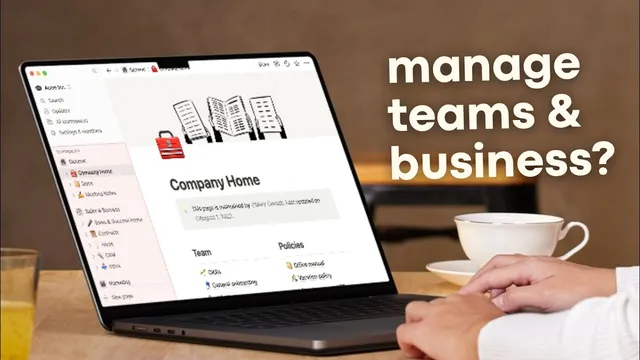
How to use Notion for your business and your team? (Full Guide 2024)
Based on The Organized Notebook's video on YouTube. If you like this content, support the original creators by watching, liking and subscribing to their content.
Build a company wiki in Notion to centralize mission, values, and operational policies, and use verification schedules to keep content current.
Briefing
Notion can function as a full operating system for a business—linking company knowledge, team permissions, projects, meetings, and even automated assignments—so management doesn’t collapse as headcount grows. The most practical starting point is building a company wiki that stays current, then organizing work into department-based team spaces with clear access controls.
A company wiki in Notion is designed to hold mission, values, and operational policies such as vacation and benefits. What makes wiki pages different from standard database pages is built-in structure plus “verification” settings that can require updates on a schedule (for example, verification windows like 90 days, 30 days, or indefinitely). That structure matters: wiki content can appear as a navigable page hierarchy alongside database-style views, and new wiki pages (like “Vacation Policies”) can automatically show up in the wiki’s list. Notion also supports search across the wiki, and it’s possible to convert an existing database into a wiki using a simple “turn into wiki” option. For teams that want both readability and database power, wiki pages can include headings, dividers, and linked views that show all wiki pages, pages owned by the user, or other filtered perspectives.
Once knowledge is centralized, team spaces help separate departments so marketing doesn’t have to wade through development details. Team spaces can be configured with permission levels—open to join, view-only, or restricted to members depending on the plan. Settings also allow admins to manage membership and security. A common workflow is to create one team space per department (e.g., Marketing, Development), then add a team-space home page plus functional pages such as task dashboards. This keeps each group’s resources in one place while maintaining consistent page structure.
Collaboration features then reduce friction during day-to-day work. Notion supports suggested edits (text can be proposed, then accepted or replied to), highlighted comments tied to specific text, and real-time simultaneous editing. Sharing controls add another layer: pages can be set to full access (edit/comment/view), can comment, can view only, or no access.
For time savings, Notion’s automation tools—available starting on the Plus plan—can assign people based on task status changes. A typical setup: when a task moves into a status like “In review,” an automation triggers an assignment to a specific person and can send notifications. Automations can also target notifications to particular people and, for teams using it, send Slack notifications.
Project and task management is handled through connected databases, including sprint planning and metrics via Notion charts and calendars. Meetings can be tracked with customizable templates (client meetings vs internal meetings), storing tags, files, follow-up dates, locations or Zoom links, and attendee lists. Notion AI adds another layer by summarizing meeting notes directly in database views and translating summaries into other languages.
Finally, integrations and home dashboards tie everything together. Notion connections can preview and sync with tools like Google Drive, GitHub, Figma, and Slack, while Notion Home aggregates upcoming events (often linked to Google Calendar) and personal task lists across databases. Pricing guidance emphasizes starting with the free plan for small teams, using guests for under-10-member setups, and moving to Business or Enterprise for features like private team spaces, advanced security, unlimited charts, and custom automations.
Cornell Notes
Notion can be used as a business operating system by combining a company wiki, department team spaces, collaborative editing, automations, and connected databases for projects and meetings. Wiki pages support verification schedules so policies stay current, and they can be navigated as structured hierarchies alongside database views. Team spaces separate departments with permission levels ranging from joinable to view-only to members-only, and they can include team home pages and task dashboards. Collaboration tools include suggested edits, highlight-based comments, and real-time simultaneous typing. On the Plus plan and above, automations can assign tasks based on status changes and trigger notifications (including Slack), while Notion AI can summarize and translate meeting notes.
How does a Notion company wiki stay reliable as policies change?
What’s the practical difference between a wiki page and a normal database page in Notion?
Why use team spaces instead of one shared workspace for every department?
How can Notion reduce manual task assignment work?
What makes Notion useful for meeting tracking compared with a simple notes doc?
How do Notion AI and integrations fit into a team workflow?
Review Questions
- What verification options are available for wiki pages, and why do they matter for policy documents?
- Describe how team space permissions can be configured and how that affects what different departments can access.
- Give one example of a Notion automation trigger and the action it performs when a task changes status.
Key Points
- 1
Build a company wiki in Notion to centralize mission, values, and operational policies, and use verification schedules to keep content current.
- 2
Convert databases into wiki pages when you want both structured navigation and database-style views.
- 3
Use team spaces to separate departments and apply permission levels (joinable, view-only, members-only) to control access.
- 4
Adopt Notion collaboration tools like suggested edits, highlight-based comments, and real-time simultaneous editing to reduce review bottlenecks.
- 5
Enable Plus-plan automations to assign tasks automatically based on status changes and send notifications, including Slack alerts.
- 6
Track projects and sprints with connected databases, relational links, and dashboards using charts and calendars.
- 7
Use Notion AI for meeting summaries and translations, then connect external tools through Notion integrations and dashboards in Notion Home.