How to Use Obsidian DataView: A Complete Beginner's Guide
Based on Prakash Joshi Pax's video on YouTube. If you like this content, support the original creators by watching, liking and subscribing to their content.
Define note metadata using front matter (three dashes) so DataView has fields to query.
Briefing
Obsidian DataView turns a personal note vault into a queryable database—letting users generate live lists, tables, calendars, and task views based on note metadata and file properties. The core requirement isn’t just installing the plugin; it’s understanding front matter (metadata) and then writing DataView queries that match that metadata precisely. Once that foundation is in place, DataView can replace manual searching with structured, filterable views for reading lists, processing pipelines, and any other knowledge workflow.
The guide starts by showing practical examples: a dashboard where “nodes to process” and “recent nodes” are populated via DataView queries, plus reading lists that track books by status (e.g., currently reading, completed, future). To make those queries work, each note needs metadata. In Obsidian, metadata is stored as front matter—written between three dashes at the top of a note. The transcript walks through an example front matter block such as status: completed and author: me, emphasizing that DataView is strict about correct field names and casing. If the metadata format is wrong or a query references the wrong key (for example, author vs Author), DataView returns errors or empty results.
Installation and setup follow: users enable the DataView plugin from Settings → Community Plugins, and the guide recommends turning on inline JavaScript queries and JavaScript queries for future flexibility. With DataView installed, the user creates query blocks using triple backticks and the syntax data view … (then chooses a query type). The basics include four main output formats: list, table, tasks, and calendar. Lists are simple and headerless; tables support multiple columns and show missing metadata as dashes. Tasks pull items labeled as tasks from notes, while calendar views can be generated from file creation time or file modified time, displaying one dot per note on each date.
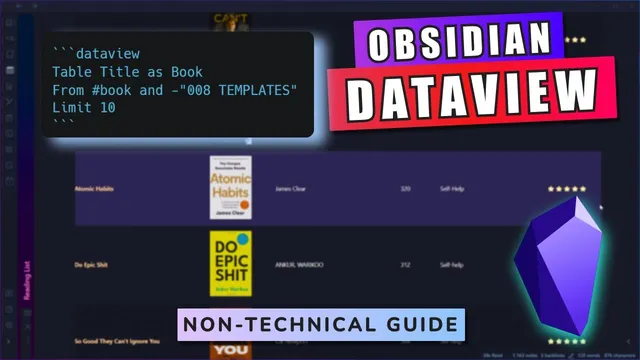
The “advanced” section focuses on query power: the from clause narrows the search scope, while the where clause filters results. Examples include pulling notes only from a specific hashtag (from #book), restricting to a folder (from "003 resources"), querying within subfolders using a slash path, and filtering by link relationships using from outgoing or from "[[Some Note]]"-style targeting. Filtering uses where conditions such as where status is completed, where status does not contain completed (via negation), and where contains rating to select books by star ratings. Sorting is handled either in-query (e.g., sorting by file modification time in ascending or descending order) or through the separate Sortable plugin, which adds clickable column headers to reorder results without rewriting code.
Finally, the guide covers limiting results (limit 5, limit 7, etc.) to keep dashboards fast and readable. The takeaway is straightforward: define consistent metadata with front matter, then use DataView’s from/where/sort/limit mechanics to build a personal knowledge database that stays automatically updated as notes change.
Cornell Notes
Obsidian DataView can turn a notes vault into a live database by generating views from metadata and file properties. The key prerequisite is front matter: metadata written at the top of notes using three dashes, with field names and casing that match DataView queries exactly. DataView supports multiple output formats—list, table, tasks, and calendar—so users can build dashboards, reading trackers, and date-based note maps. Advanced queries use from to restrict scope (hashtags, folders, links) and where to filter (status, ratings, negation). Sorting can be done in-query or with the Sortable plugin, and limit controls how many results appear.
Why does DataView often return empty results even when notes “look” correct?
What’s the practical difference between DataView list and table outputs?
How do from and where work together in advanced DataView queries?
How can a calendar view be generated, and what do the dots represent?
What are two ways to sort DataView results?
When should users use limit in DataView queries?
Review Questions
- What metadata fields and casing rules must be followed so DataView table columns populate correctly?
- How would you write a DataView query to show only notes in a specific folder that have status set to completed, and then sort them by file modification time descending?
- What’s the difference between using where status does not contain completed and where status is completed, and how would each affect the results?
Key Points
- 1
Define note metadata using front matter (three dashes) so DataView has fields to query.
- 2
Match DataView field names exactly, including uppercase/lowercase, to avoid empty or broken results.
- 3
Use list for simple headerless outputs and table when you need multiple metadata columns.
- 4
Use from to scope results (hashtags, folders, subfolders, link relationships) and where to filter by metadata values.
- 5
Generate calendar views from file creation time or file modified time to visualize note activity by date.
- 6
Sort results either in-query (ASC/DESC) or via the Sortable plugin’s clickable headers.
- 7
Use limit to cap result counts for cleaner dashboards and faster scanning.