How to Use ✱ Tags in Forever ✱ Notes: A Step-by-Step Setup for Apple Notes
Based on Forever Notes's video on YouTube. If you like this content, support the original creators by watching, liking and subscribing to their content.
Keep all notes in the default Notes folder and rely on tags for organization to avoid folder-hierarchy limitations.
Briefing
Tags in Apple Notes are positioned as the core fix for digital clutter: instead of forcing notes into one rigid folder, tags let a single note live in multiple “contexts” at once—making retrieval faster, search-based, and less mentally exhausting. The Forever Notes framework treats tags as connection points between pieces of information, so notes don’t disappear inside deep folder trees. With tags, a note about a work project can also carry a personal-growth tag, letting it surface whether the user is searching for work or for self-improvement.
A key structural choice in this system is that all notes stay in the default Notes folder. That may feel counterintuitive to people used to hierarchical organization, but the tradeoff is deliberate: folders restrict each note to one location, while tags allow multiple associations. The result is less “decision fatigue” about where something belongs and fewer moments of trying to remember exactly which folder holds a specific note. Searching becomes the primary navigation method—typing tags directly into Apple Notes to filter results—so the system scales without requiring complex folder hierarchies.
Forever Notes uses five tag types to keep labeling consistent and useful. Object tags describe what the note is (examples include “document,” “recipe,” or “book note”), helping users quickly identify the note’s purpose. Area tags map notes to major life domains—such as health, finance, family, or work—reflecting ongoing responsibilities that rarely change. Detailed tags add specificity for more precise retrieval; a recipe note might include tags like “cold” or “hot,” plus cuisine tags such as “Italian” or “Asian,” enabling searches like “hot Italian dish.” Status tags track where a note sits in the workflow—“in progress,” “done,” or “to do.” System tags handle framework-level items; for example, Forever Notes system notes like “home hubs” or “journal notes” carry a dedicated “#forever notes” tag so core components remain easy to find.
The framework’s guiding rule is simple: every note should have at least one tag to keep information interconnected and prevent loss. There’s also an optional “Inbox Smart folder” that automatically collects notes without tags, acting as a catch-all for items that still need labeling.
To set tags up in practice, the transcript walks through a worked example: creating a note after starting a new book. The user would tag it as a book note (object), connect it to a life area like personal growth (area), add a detail tag such as productivity (detailed), and mark its workflow state as “in progress” (status). It also emphasizes restraint: using too many tags can clutter the system, so a balanced set—often just the most meaningful tags—tends to search better.
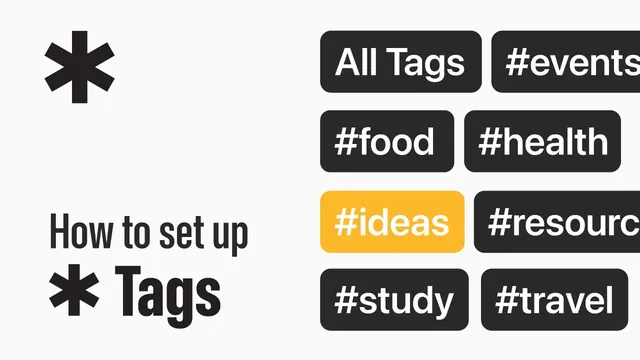
Finally, the transcript explains the mechanics: type a “#” symbol followed by a tag name in Apple Notes; new tags appear in yellow after creation, while existing tags show suggestions. Once tags are added, Apple Notes search can filter by one or multiple tags (e.g., “#work” plus “#in progress”), and tags also appear in the Tags section under folders. The payoff is straightforward: less time hunting, more time using information—whether planning a vegetarian dinner via recipe-related tags or tracking work and personal memories through consistent labeling.
Cornell Notes
Tags are the organizing engine in the Forever Notes approach for Apple Notes. Instead of filing notes into folders (which force one location per note), all notes remain in the default Notes folder and tags provide multiple “paths” to the same content. The system uses five tag types—object, area, detailed, status, and system—to make search precise and retrieval fast. Every note should have at least one tag to keep information connected, with an optional Smart folder for untaged items. This matters because it reduces decision fatigue and makes finding notes depend on what the user needs at the moment, not on where the note was originally stored.
Why keep all notes in the default Notes folder instead of using folder hierarchies?
How do the five Forever Notes tag types work together?
What does “every note should have at least one tag” accomplish?
How would someone tag a note about a new book using the framework’s questions?
What’s the practical way to add and use tags in Apple Notes?
Why does the transcript warn against using too many tags?
Review Questions
- What specific limitation of folders does the Forever Notes tag system try to eliminate, and how do tags address it?
- Match each tag type (object, area, detailed, status, system) to an example tag and explain what each helps you find.
- If a note has no tags, what mechanism does the framework offer to keep it from being ignored?
Key Points
- 1
Keep all notes in the default Notes folder and rely on tags for organization to avoid folder-hierarchy limitations.
- 2
Use tags as multiple associations so one note can appear in different contexts during search.
- 3
Apply five tag types—object, area, detailed, status, and system—to keep labeling consistent and retrieval targeted.
- 4
Ensure every note has at least one tag to maintain connections and reduce “lost note” risk.
- 5
Use Smart folders (like an Inbox Smart folder) to surface notes that still need tagging.
- 6
Add tags in Apple Notes by typing “#” plus a tag name; new tags are created automatically and existing tags appear as suggestions.
- 7
Limit tag quantity to what’s useful for future searching; fewer, clearer tags typically outperform cluttered tagging.