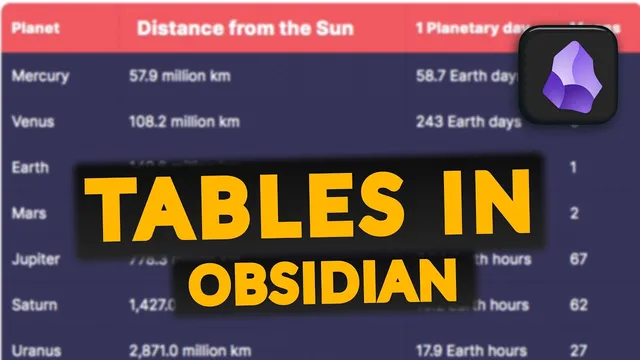
How to Work with Tables in Obsidian for Efficient Note-taking
Based on Prakash Joshi Pax's video on YouTube. If you like this content, support the original creators by watching, liking and subscribing to their content.
Use pipe separators (|) and a three-dash header separator (---) to create Markdown tables correctly in Obsidian.
Briefing
Working with Markdown tables in Obsidian can be slow because the syntax is fiddly, but several workflow upgrades make table creation and editing far faster. The biggest time-saver is avoiding manual pipe-and-dash construction for formats that get reused—by turning common table layouts into templates and inserting them in new notes with a single action.
The process starts with the basics of Markdown table syntax: columns are separated with the pipe symbol (|), and the table header separator uses three dashes (---) between pipes. Once the header row and separator are in place, data rows can be added by continuing the same pipe-delimited pattern. But rather than repeating this every time, the workflow recommends creating templates for frequently used dimensions. For example, if a 4x3 table shows up often, that exact table markup can be saved inside Obsidian’s Templates area. Then, when creating a new note, inserting the template drops the full table structure directly into the document, cutting down both typing and error-prone formatting.
For cases where table sizes vary, a dedicated plugin can generate the structure instantly. The “table generator” plugin lets users right-click anywhere in a note and choose the number of columns and rows they need; it then produces the Markdown table automatically. This removes the need to handcraft the header separator and pipe layout, and it’s especially useful when experimenting with different table dimensions.
Editing is where another plugin delivers the most noticeable improvement: “Advanced tables.” After installing it from Obsidian’s Community plugins library, users can still type using the pipe symbol, but the plugin automatically formats the table. It also adds practical navigation—pressing Tab moves between cells, Shift+Tab moves backward, and Enter creates a new row. It further supports easier structural changes like adding, removing, or moving columns and rows, making table maintenance much less painful than raw Markdown.
Finally, presentation matters. The transcript recommends adding custom CSS via YAML front matter to style tables. A shared CSS called “pretty tables” is referenced as a way to make tables look cleaner and more readable, with a link provided for downloading it and other compiled CSS options.
Taken together, the approach is straightforward: template the tables that repeat, generate the ones that don’t, use Advanced tables for fast editing and navigation, and apply CSS for better visual output. The result is a smoother, less error-prone table workflow inside Obsidian.
Cornell Notes
Markdown tables in Obsidian are built with pipe separators (|) and a header separator made from three dashes (---), but manual creation is slow. A practical fix is to template commonly used table sizes (like a 4x3) so new notes can insert the full structure instantly. For variable table sizes, the “table generator” plugin creates tables by selecting the number of rows and columns. For editing, “Advanced tables” adds auto-formatting plus cell navigation with Tab/Shift+Tab and row creation with Enter, making table work far faster. Optional styling via YAML front matter and a “pretty tables” CSS improves readability and appearance.
What are the core Markdown mechanics for creating a table in Obsidian?
How can templates reduce repetitive table work in Obsidian?
How does the “table generator” plugin speed up table creation?
What makes “Advanced tables” especially useful for editing?
How can CSS improve the look of tables in Obsidian?
Review Questions
- When building a Markdown table from scratch, what roles do the pipe symbol (|) and the three-dash separator (---) play?
- How would you decide between using a template, the “table generator” plugin, or “Advanced tables” for a given table task?
- What keyboard actions (Tab, Shift+Tab, Enter) does “Advanced tables” use to speed up navigation and row creation?
Key Points
- 1
Use pipe separators (|) and a three-dash header separator (---) to create Markdown tables correctly in Obsidian.
- 2
Template frequently used table sizes (e.g., 4x3) so new notes can insert the full table structure instantly.
- 3
Use the “table generator” plugin to create tables by selecting the number of rows and columns instead of typing syntax manually.
- 4
Install “Advanced tables” for auto-formatting and faster editing, including Tab/Shift+Tab cell navigation and Enter to add rows.
- 5
Rely on “Advanced tables” for easier structural changes like adding, removing, or moving columns and rows.
- 6
Apply custom CSS via YAML front matter (e.g., “pretty tables”) to improve table readability and appearance.