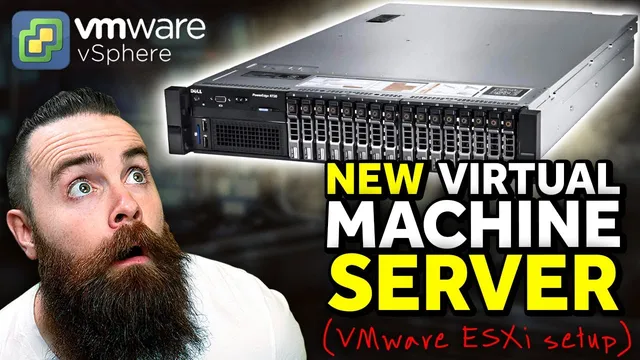
i bought a new SERVER!! (VMware ESXi Setup and Install)
Based on NetworkChuck's video on YouTube. If you like this content, support the original creators by watching, liking and subscribing to their content.
Older enterprise servers can be repurposed for a home lab by installing VMware ESXi and running multiple virtual machines.
Briefing
A used Dell rack server can become a full enterprise-style virtualization platform at home by installing VMware ESXi (free) and then running virtual machines for lab projects—Docker, domain controllers, and more. The practical payoff is hands-on experience with real infrastructure workflows used in companies, not just “hacky” setups on a laptop.
The build starts with sourcing enterprise hardware: older Dell PowerEdge rack servers are cheaper than current systems but still deliver the compute and storage needed for a home lab. The plan is to install the latest VMware vSphere 7, but a key snag appears: vSphere 7 isn’t compatible with the older hardware in this case. The workaround is to register and install VMware ESXi 6.7 instead, which still provides the same core hypervisor experience and supports the lab’s goals.
Hardware preparation is straightforward but specific. A USB flash drive (at least 8GB) is used to install ESXi, along with a VMware account to obtain a license key for ESXi 6.7. Networking matters too: the setup includes a 10 gigabit Ethernet NIC installed in the server, aiming to improve throughput for lab workloads. A monitor and keyboard are also required for the initial console-based installation and configuration.
On the software side, the process is: download the ESXi 6.7 ISO from VMware, then write it to the USB drive using Rufus. The installer media is configured with an MBR partition scheme and BIOS/UEFI settings as required by the server. After the USB is inserted, the Dell server boots into the ESXi installer (often via a boot menu like F11). Before installation, RAID configuration is checked in Dell system services—using the RAID controller setup wizard to confirm the array (the example uses RAID 5) so the hypervisor can see storage correctly.
ESXi installation then proceeds through device compatibility checks, root password setup, and the final install step. After reboot, the hypervisor loads and the management network is configured from the ESXi console: setting a static IPv4 address (rather than relying on DHCP). The admin web interface is accessed via a browser; the connection may initially show as “unsafe,” but that’s expected in a lab environment.
Once logged in, the ESXi license is applied using the VMware-provided key, switching the system from evaluation mode to licensed operation. Storage appears as a datastore (about 4TB in the example), and the next step is creating a first virtual machine. The guide walks through selecting an ISO from the datastore (for example, an Ubuntu or Kali ISO), allocating CPU and memory, setting the VM to boot from the CD/ISO at power on, and creating a virtual disk (e.g., 50GB). After powering on, the VM boots and the Linux installation completes.
The broader message is that enterprise-grade virtualization skills transfer directly to real-world IT work. Even if the hardware isn’t fast enough for gaming, it’s more than adequate for running containers, virtualized services, and multiple lab environments—turning a single server into a home data center.
Cornell Notes
A home lab can run enterprise-style virtualization by installing VMware ESXi on used Dell PowerEdge hardware. Although the goal is vSphere 7, older systems may not support it, so ESXi 6.7 becomes the practical alternative after obtaining a free VMware license key. The setup uses a USB installer created with Rufus, checks RAID configuration (e.g., RAID 5), installs the hypervisor, then configures a static management IPv4 address. After licensing, the workflow shifts to creating virtual machines from ISOs stored on the ESXi datastore, allocating CPU/memory, and booting the VM from the ISO at power on. This matters because it builds real infrastructure skills for lab workloads like Docker and domain controllers.
Why does the plan switch from vSphere 7 to ESXi 6.7 in this setup?
What are the minimum preparation steps before installing ESXi?
How is the ESXi installer USB created and configured?
What RAID step matters before installing the hypervisor?
How does the setup move from installation to a working management interface?
How is the first virtual machine created and booted?
Review Questions
- What hardware compatibility issue forces the installer to use ESXi 6.7 instead of vSphere 7, and how is it resolved?
- Walk through the sequence from RAID configuration to ESXi installation to setting a static management IP.
- When creating a VM in ESXi, which settings ensure it boots from an ISO, and where does that ISO need to be located?
Key Points
- 1
Older enterprise servers can be repurposed for a home lab by installing VMware ESXi and running multiple virtual machines.
- 2
vSphere 7 may fail on older hardware due to compatibility requirements, making ESXi 6.7 a practical substitute.
- 3
Create an ESXi installer USB from the ESXi ISO using Rufus, using an MBR partition scheme and the server’s supported BIOS/UEFI mode.
- 4
Verify RAID configuration (such as RAID 5 on Dell PowerEdge) before installing ESXi so storage appears correctly.
- 5
After ESXi boots, configure the management network—often by setting a static IPv4 address—so the web UI is reachable.
- 6
Apply the VMware ESXi license key to switch from evaluation mode to licensed operation.
- 7
Create the first VM by selecting an ISO stored on the ESXi datastore and enabling “connect at power on” so the VM boots into the installer.