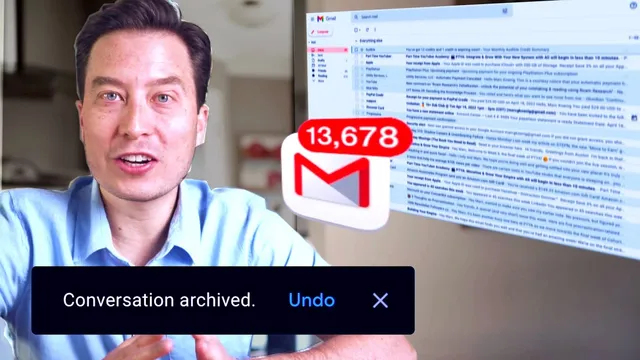
Inbox Zero in 17 Minutes: The One-Touch Email System
Based on Tiago Forte's video on YouTube. If you like this content, support the original creators by watching, liking and subscribing to their content.
Unsubscribe from non-essential newsletters and notifications, or filter them into a dedicated “reading” label so they don’t pollute the important queue.
Briefing
Inbox zero isn’t treated as a one-time cleanup. It’s built as a repeatable, one-touch workflow that forces every incoming email into a clear destination—archive, reply, calendar, task, reference notes, or read-later—so the inbox stops acting like a to-do list.
The system starts with “essentials”: remove the noise. Unsubscribe from newsletters, notification lists, and broadcast emails that aren’t essential. When unsubscribing feels emotionally or practically undesirable—like staying subscribed to a high-quality list—create a separate “reading” label or inbox tab and route those messages there via filters. The goal is to keep casual reading from contaminating the “important” queue.
Next comes a structural reset: email should be used only for what it does best—collecting new inputs. That means turning off features that turn the inbox into a multi-mode workspace, such as chat tabs, priority categories, stars, and other interface elements that encourage lingering. The inbox is streamlined into a small set of categories (for example: important, reading, and other), reducing decision fatigue and making the next step faster.
Overflow is then addressed with downstream systems—places for email to go immediately after triage. Four tools are positioned as the backbone: a calendar app synced across devices; a task manager that captures action items and links back to tasks created from emails; a reference/notes app for storing key information; and a read-later app for articles or videos meant for future consumption. In the live walkthrough, Gmail is paired with Google Calendar, and task capture is accelerated through Things using quick-entry shortcuts (including autofill that pulls the email subject and creates a link back to the original message). Evernote is used as the reference store, leveraging a custom “capture” email address so forwarding preserves formatting. Instapaper is used for waiting-room reading, using its unique save-by-email address.
With destinations in place, the workflow is streamlined to prevent distraction. Instead of checking email before real work, the process is designed as a short, high-speed batch habit—processing dozens of emails in 10–20 minutes. Friction is reduced through settings like “auto advance” (so archiving or deleting moves directly to the next conversation), enabling keyboard shortcuts, and turning on conversation view so replies don’t scatter across older threads.
Finally, triage decisions are reduced to seconds and limited to a small set of actions. Each email gets one of six outcomes: archive, reply, add to calendar, create a task, store as reference, or send to read-later. The walkthrough emphasizes consistency—starting with the oldest messages, using keyboard-driven processing, and immediately routing items into the right system. The payoff is psychological as much as mechanical: when emails can’t linger, people check less often, because returning later to “finish” an email becomes unnecessary. The result is a collector-based email setup that supports a “second brain” rather than a perpetual inbox backlog.
Cornell Notes
The core idea is to treat email as a one-touch input pipeline, not a place to store work. Every incoming message gets routed immediately into one of a small set of destinations: archive, reply, calendar, task, reference notes, or read-later. Inbox clutter is reduced first by unsubscribing or filtering newsletters into a separate “reading” label, then by stripping email’s interface down to a few categories. Downstream tools—calendar, task manager, reference app, and read-later app—provide where emails go right after triage. Workflow speed is increased with keyboard shortcuts, auto-advance, and conversation view, so processing stays fast and distraction stays low.
Why does the system insist on “one touch” per email, and what changes psychologically when emails can’t be left sitting?
How does the workflow handle newsletters or recurring emails that someone doesn’t want to unsubscribe from?
What does “strip email down to its core function” mean in practice?
What are the four downstream systems, and how do they connect to email triage?
How do keyboard shortcuts and “auto advance” reduce friction during batch processing?
How does conversation view affect replying inside group threads?
Review Questions
- If an email is neither urgent nor actionable but contains useful information, which destination should it go to—and why does that choice matter for maintaining inbox zero?
- What specific inbox features (categories, stars, chat, etc.) would you disable to reduce decision fatigue, and how would you restructure the remaining categories?
- During batch processing, how do auto-advance and conversation view work together to prevent distraction and mis-replies?
Key Points
- 1
Unsubscribe from non-essential newsletters and notifications, or filter them into a dedicated “reading” label so they don’t pollute the important queue.
- 2
Configure email to behave like an input collector by disabling interface features that encourage lingering (stars, categories, chat, and similar distractions).
- 3
Set up downstream destinations before trying to “clean” the inbox: calendar, task manager, reference notes, and read-later.
- 4
Use keyboard shortcuts and “auto advance” so archiving/deleting immediately moves to the next conversation without bouncing back to the inbox list.
- 5
Turn on conversation view to keep group-thread context together and ensure replies land in the correct, most-recent thread position.
- 6
Reduce triage to a small set of outcomes—archive, reply, calendar, task, reference, or read-later—and apply them consistently within a short batch window.
- 7
Treat email as a collector, not a knowledge management system; route content to notes or read-later immediately to prevent backlog buildup.