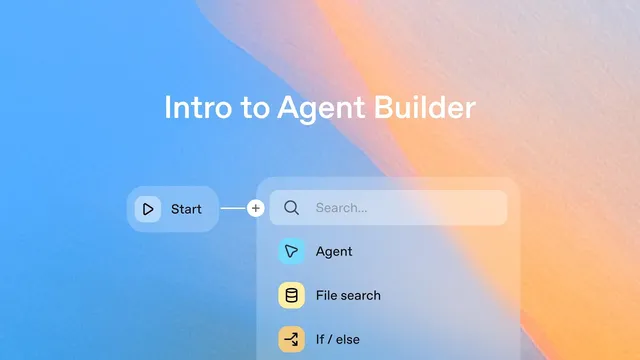
Intro to Agent Builder
Based on OpenAI's video on YouTube. If you like this content, support the original creators by watching, liking and subscribing to their content.
Agent Builder lets users create AI agent workflows visually by connecting nodes, avoiding manual coding during design.
Briefing
Agent Builder is positioned as an all-in-one, visual way to design, test, and deploy AI “agentic workflows” without writing code—then export the result as code or embed it directly into a product. The workflow starts with a Start node for inputs/state, routes user requests through specialized agents, and uses built-in evaluation to validate agent behavior before publishing.
The walkthrough builds a travel assistant that can handle two distinct tasks: itinerary planning and flight lookup. It begins in the OpenAI platform by creating a Start node, then adds a classifier agent that categorizes incoming messages. The classifier is configured to output JSON with a single field, classification, taking one of two values: “flight info” or “itinerary.” An if/else node then branches based on that classification—sending flight-related prompts to a flight agent and everything else to an itinerary agent.
For the itinerary path, the itinerary agent is created with a clear instruction: produce a concise one-day itinerary. In the demo run preview, the user asks, “What should I do in a day in Tokyo?” The workflow routes the request through the classifier, selects the itinerary branch, and returns a concise itinerary for Tokyo.
For the flight path, the flight agent is tuned for a richer, more structured experience. It’s instructed to recommend a specific flight using airport codes, and it’s given web search access so it can pull up-to-date flight information. To improve presentation beyond plain text, the workflow integrates a custom UI widget built in Widget Studio. A pre-designed flight widget template is downloaded and uploaded as a widgets output format, then customized with instructions such as choosing a background color creatively based on the destination and including time zones in AM/PM format.
When tested with a prompt like “SFO to Tokyo on October 7th,” the workflow again routes through the classifier, selects the flight agent, performs web search to find a flight, and renders the results in the interactive widget. The demo highlights that the destination influences the widget’s styling—Tokyo maps to a yellow background—while the output includes time-zone-aware AM/PM details.
Once the agent behaves as desired, it can be published as a deployable “travel agent.” Deployment options include using the Agents SDK (which involves managing more code) or taking the workflow ID and embedding it into a product using jacket. The overall message is that Agent Builder streamlines the full lifecycle—design, routing logic, UI integration, testing, and launch—through a node-based interface rather than manual coding.
Cornell Notes
Agent Builder enables building AI agent workflows visually by connecting nodes, routing requests, and testing performance without writing code. A travel assistant example classifies each user message into either “flight info” or “itinerary” using a classifier agent that outputs JSON, then branches with an if/else node to the right specialized agent. The itinerary agent generates a concise one-day plan, while the flight agent recommends a specific flight using airport codes and uses web search for up-to-date results. For richer output, the flight results are displayed through a Widget Studio–built flight widget, customized with destination-based styling and time-zone-aware AM/PM formatting. After previewing and validating behavior, the workflow is published and can be deployed via the Agents SDK or embedded using a workflow ID.
How does the workflow decide whether a request is about flights or itineraries?
What instructions shape the itinerary agent’s behavior?
What makes the flight agent different from the itinerary agent?
How is the flight output upgraded from text to an interactive experience?
What deployment paths are offered after the agent is published?
Review Questions
- If the classifier outputs JSON with classification set to “itinerary,” which node does the workflow route to next, and what kind of response should the user expect?
- What two capabilities are combined to make the flight agent’s results both specific and current (hint: formatting and data source)?
- How does the widget customization step change the user-facing flight results beyond the underlying flight recommendation?
Key Points
- 1
Agent Builder lets users create AI agent workflows visually by connecting nodes, avoiding manual coding during design.
- 2
A classifier agent can output structured JSON (with a classification field) to drive deterministic routing.
- 3
An if/else node can branch execution so flight requests go to a flight agent and itinerary requests go to an itinerary agent.
- 4
The flight agent can be configured to recommend specific flights using airport codes and to use web search for up-to-date information.
- 5
Widget Studio integration allows flight results to render in a rich interactive UI instead of plain text.
- 6
Workflow outputs can be customized through widget instructions such as destination-based styling and time-zone-aware AM/PM formatting.
- 7
Published workflows can be deployed via the Agents SDK or embedded into products using a workflow ID with jacket.